Creative Apps
Mental Canvas Review: A 3D Drawing and Coloring App That Breaks the Flat Canvas
Mental Canvas lets you draw and color across multiple layered canvases in 3D space, including a first-of-its-kind 3D coloring book experience. Here is what it is like to use and who it suits.
Introduction
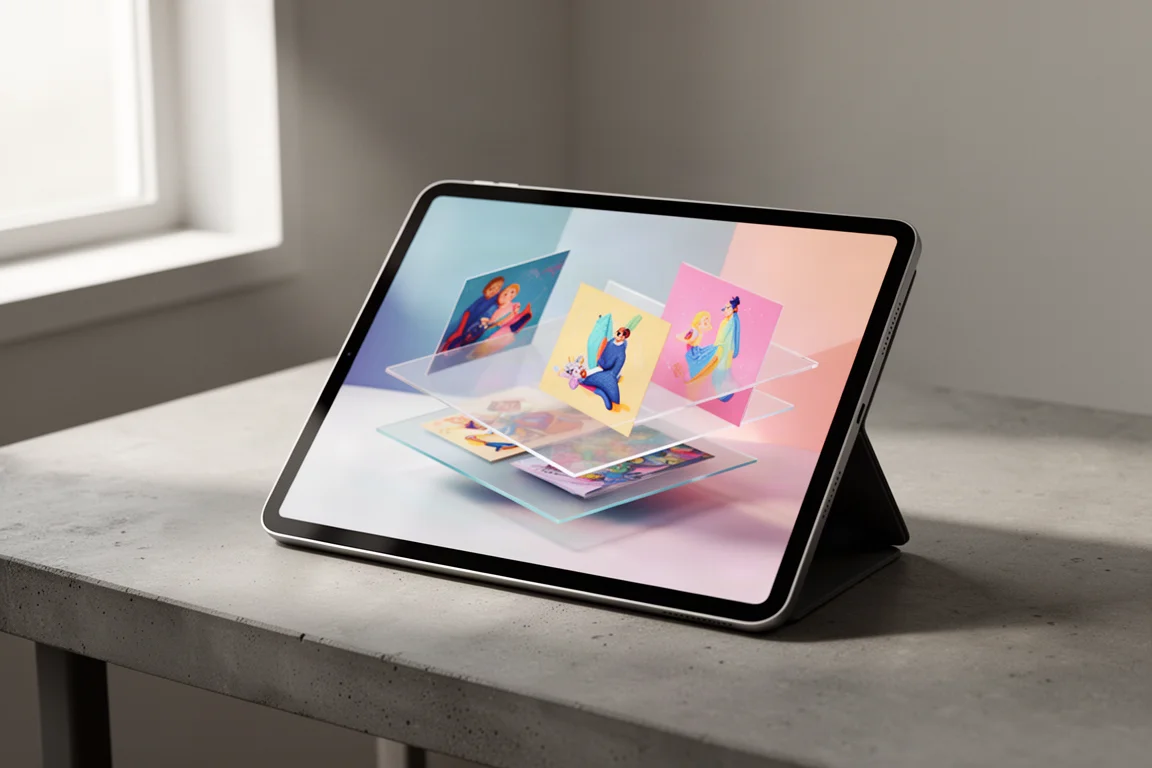
Most digital drawing apps still treat the canvas as a flat surface, no matter how clever the brushes are. Mental Canvas takes a different route entirely. It is a drawing app built around 3D space, letting artists place multiple canvases at different angles and depths, then move freely between them while drawing or viewing. It even ships with a 3D coloring book template that appears to be the first of its kind: flat line art layered across several canvases that you color individually, then experience as one interactive 3D scene.
We spent several hours with the app, working through the built-in tutorial, experimenting with the coloring template, and building custom scenes from imported artwork. Here is how it holds up.
Who This Product Is For
Mental Canvas suits artists and hobbyists who want to explore 3D without committing to the steep learning curve of full 3D modeling software or motion tools like Adobe After Effects. If your goal is to create something interactive, where a viewer can move around your artwork on their own, this is a genuinely good fit. It is also appealing for coloring enthusiasts looking for something beyond the usual flat-page coloring apps, since the 3D coloring book template turns a familiar pastime into something much more dimensional.
What Makes Mental Canvas Different
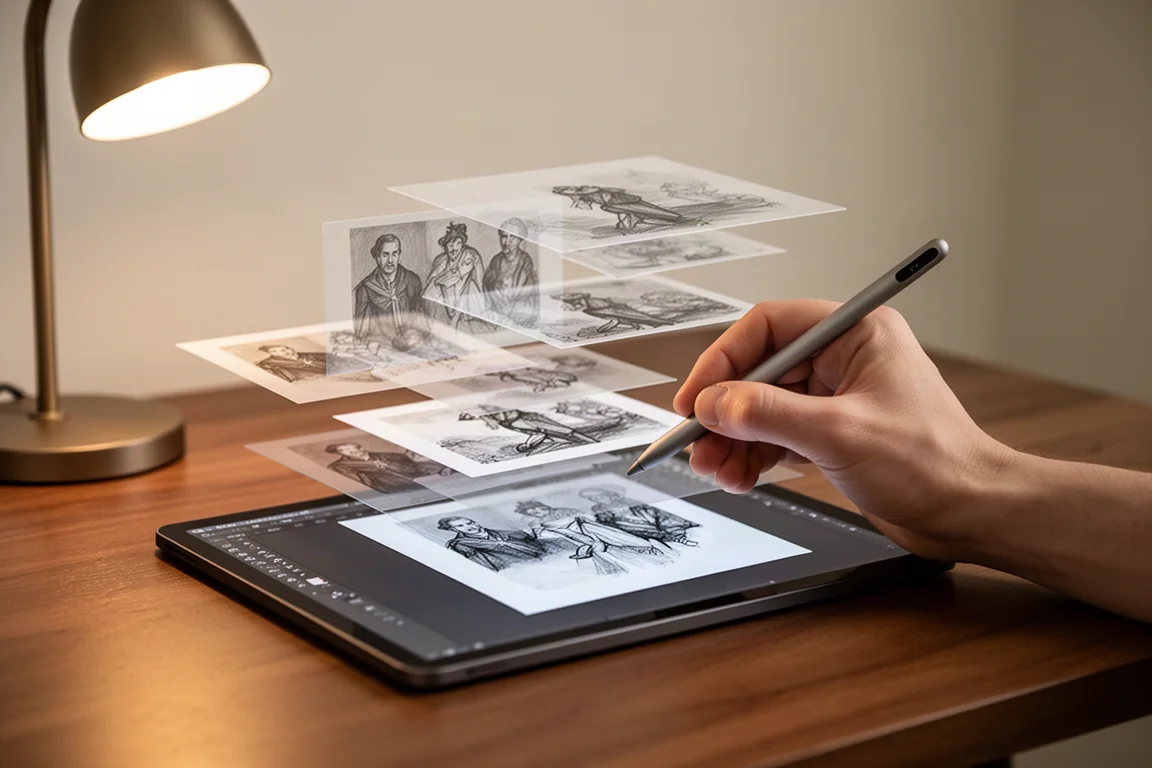
Unlike most digital apps that work off a single flat surface, Mental Canvas combines a traditional canvas with 3D technology. You draw on planes that you can lift, angle, and position anywhere in space, and the projection tool lets you move a drawing into a different place in the 3D scene. A preview window helps you find a useful viewpoint, and navigation uses intuitive pinch-to-zoom and one-finger movement gestures that feel close to map apps, though getting used to the initial finger movements is key to making the app feel effortless.
Bookmarks at the bottom of the screen let you capture your current view so you can return to it quickly or build a sequence. Draw mode is where you create your scenes, while view mode offers more freedom to rotate around your work. One small quirk: you cannot rotate the view as far in draw mode as in view mode, which makes sense for keeping your drawing stable but can be confusing at first.
Coloring in 3D: How the 3D Coloring Book Works
The 3D coloring book template is essentially flat artwork layered on multiple canvases placed in front of each other. You color each layer individually, then view the whole stack in 3D. The artist behind the template has made it approachable by locking the line layers and giving you a dedicated artwork layer on each canvas for your coloring.
The built-in tools and brushes hold up well. You can choose colors, brush size, and opacity, and with some time you can put real detail into a piece. The main limitation is that this is not a coloring-specific app, so staying inside the lines is entirely on you.
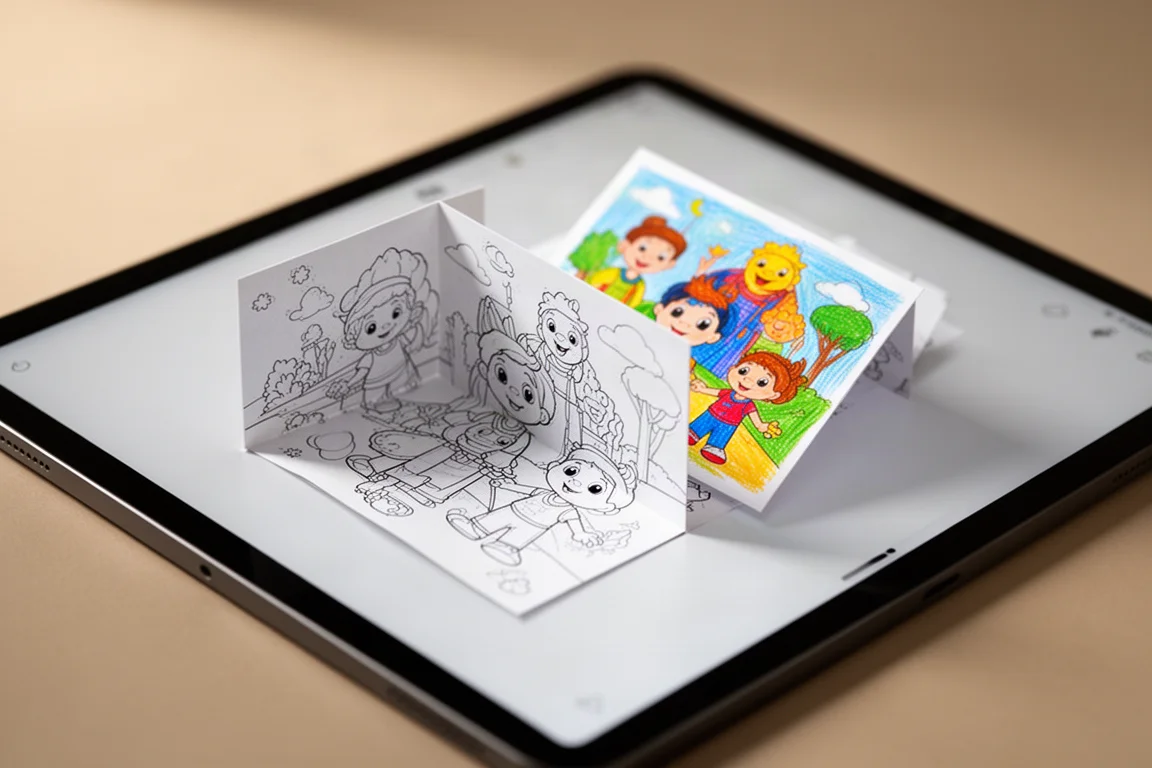
For your own scenes, a three-plane template with a foreground, middle ground, and background is a solid starting point. Imported artwork needs transparent backgrounds, so saving layers as PNG files works well: each element drops into the app cleanly without a white box behind it. From there you arrange each canvas in the right spot in 3D space and place your images where you want them. Once the workflow clicks, scenes come together fairly quickly, and we were able to build three scenes within three to four hours of experimenting.
One workaround worth knowing: because imported images are flat PNG files, the fill bucket tool does not work on them, so coloring imported line art means working with brushes. Importing a vector format that the app could recognize would make this far smoother.
Things to Consider Before Buying
There are a few trade-offs to weigh before diving in. The app has a learning curve, and we found that watching a few tutorials first would have sped things up considerably, even though exploring on your own is part of the fun. The gesture-based navigation also takes some practice, particularly if your muscle memory is tuned to two-finger rotation in other apps.
On the publishing side, the more interesting commercial features sit behind a paid subscription. Paid plans remove the watermark and let you embed your interactive scene on a website using the app’s web player. It is also unclear whether the personal version will stay free forever, so if the free tier is what draws you in, it is worth trying sooner rather than later.
It is also worth setting expectations correctly. If you animate layered art in Adobe After Effects, this will not replace it. After Effects still offers far more control with features like particle effects, motion blur, and depth of field, and it remains the better choice if your end goal is a finished movie. Mental Canvas is about interactive exploration rather than linear animation.
Buying Advice
If you want a 3D interactive activity that viewers can move around on their own, Mental Canvas is an excellent choice. It is a better option than traditional 3D or motion tools for beginners who want to explore 3D space without a huge learning curve. For personal users, it is genuinely fun and pushes you to think outside the box with your creativity, quite literally. You can apparently create unlimited canvases that cross over and interact with each other in any direction, and with time and planning, that opens the door to something truly unique and intricate.

Our favorite technique from testing: separating a butterfly’s wings onto individual canvases at different angles makes the final artwork look frozen in time, halfway through flapping its wings. Painting half-transparent patches of color at different depths in the scene also creates a convincing sense of moving through clouds as you navigate. These small tricks show how much creative range the layered-canvas approach unlocks.
Conclusion
Mental Canvas is one of the more genuinely original creative apps we have tried. It takes a familiar activity like coloring and gives it real depth, both visually and conceptually, without demanding that you learn complex 3D modeling. The workflow takes a little patience at first, imported flat images limit some tools like the fill bucket, and the best publishing features require a subscription. But for artists, colorists, and curious creatives who want to step beyond a flat canvas, it offers a lot of potential and almost unlimited room to experiment. If the free personal version stays available, it is an easy recommendation to explore.
Product link
View more details for Mental Canvas
This product is mentioned in the review. Check the specifications, options, and compatibility before buying.
View more details for Mental CanvasFurther reading