Avionics
Garmin GTN 750Xi Review: The All-in-One GPS Nav Com MFD for Your Panel
A closer look at the Garmin GTN 750Xi, the touchscreen all-in-one navigator covering flight plans, airways, weather, approaches, VNAV, and Smart Glide.
Introduction
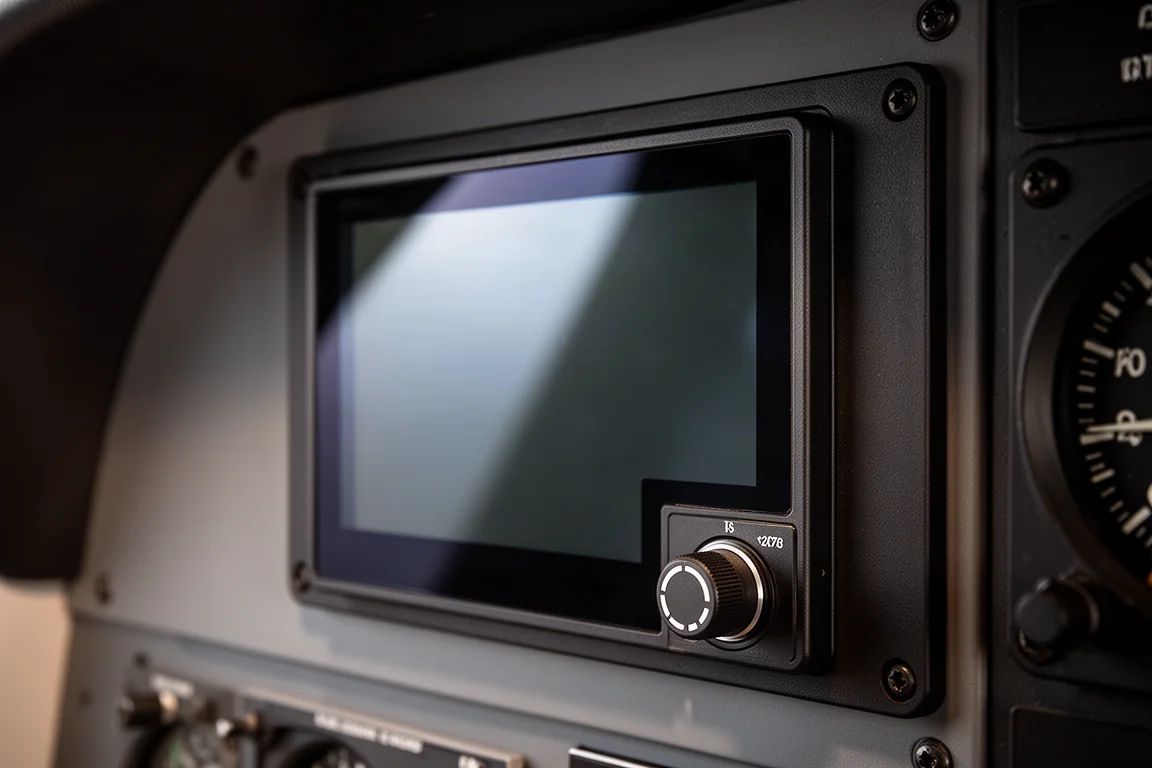
If you have been flying behind an older GNS 530 or 430, the GTN Xi series is what that experience looks like after 25 years of refinement. Since the GNS series launched in 1998, Garmin has been iterating on the all-in-one panel navigator, and the GTN 750Xi and 650Xi are its premier all-in-one GPS, nav, com, and MFD units. They are easy to use and offer functionality that would have been unimaginable a few years ago. This review focuses on the GTN 750Xi; if you can operate one, you can operate the other seamlessly in your panel.
One practical point up front: the GTN 750Xi fits the same bezel height as a GNS 530 plus a GMA 340 audio panel, while the GTN 650Xi matches a GNS 430. That makes panel upgrades far more predictable than you might expect.
Who the GTN 750Xi Is For
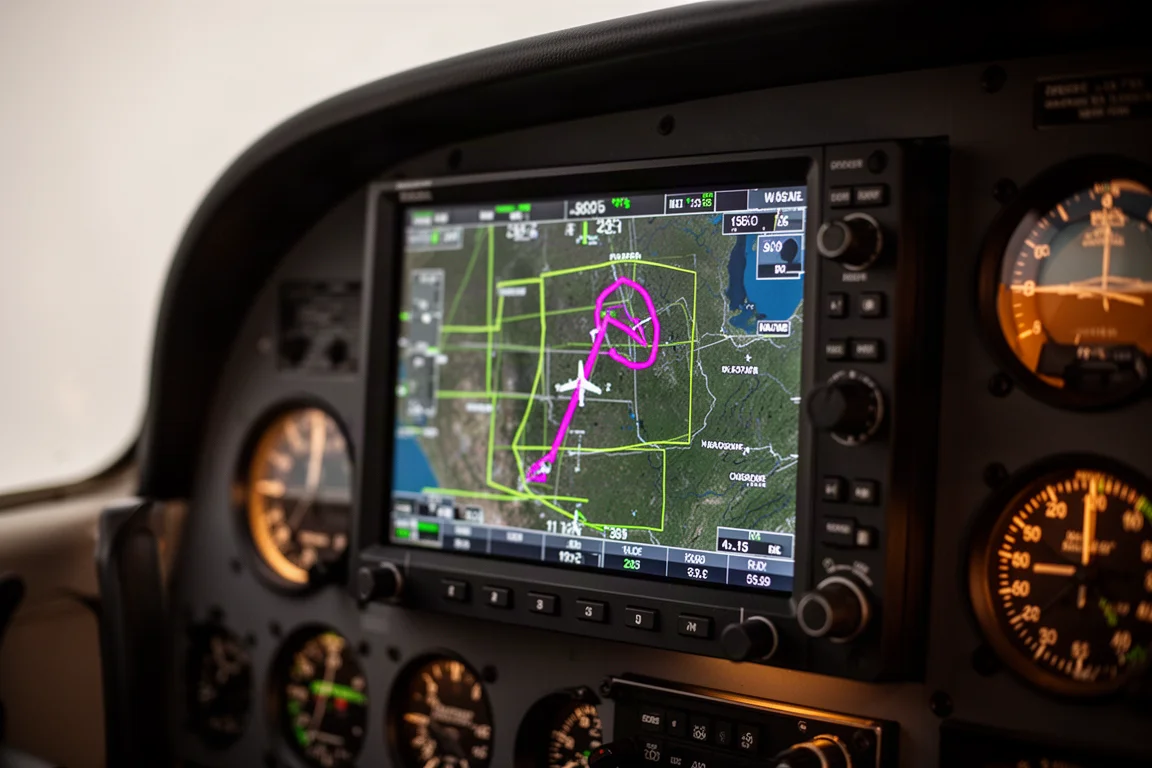
The GTN 750Xi is aimed at General Aviation pilots who want one box handling navigation, communication, and moving-map display duties in a modern touchscreen interface. It is especially compelling for owners of legacy Garmin panels who want Next Generation capabilities without reinventing their instrument layout. Pilots already familiar with Garmin logic, whether from the G1000 or the GNS series, will feel at home almost immediately.
If you fly IFR cross-countries, load airways, shoot approaches, or simply want richer situational awareness on the map, this unit is built for exactly that workflow.
Flight Planning and Airway Entry
Flight planning is where the touchscreen earns its keep. On a real-world style routing, entering a flight plan is a matter of typing each fix, such as Bulldog, Barn, and Odell, then simply touching a waypoint on the flight plan to bring up a menu of options for it. From that menu you can load an airway: the unit presents a list of airways at that fix, lets you sort them alphabetically or keep them in sequential order, pick your exit fix, and press load. Entering a full airway takes seconds instead of the big-knob, little-knob scrolling marathon of older boxes.
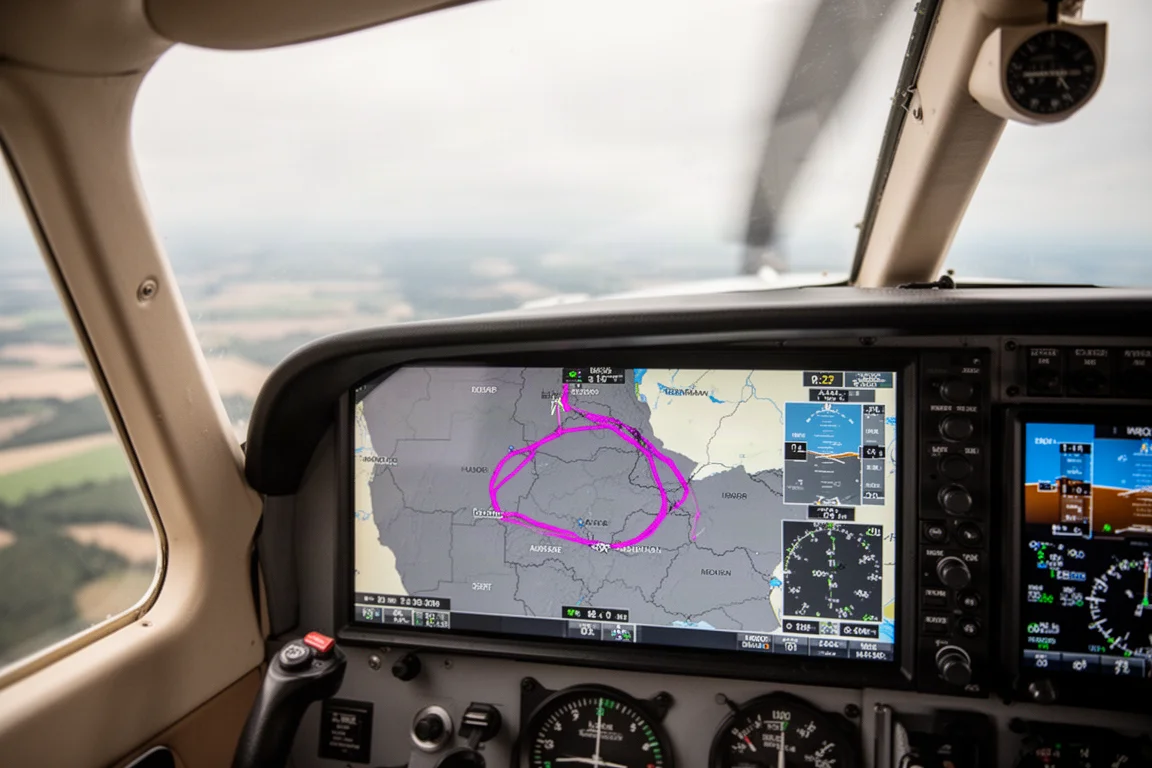
There is also a wireless shortcut. With a Flight Stream 510 installed, Bluetooth transfers the flight plan straight from Garmin Pilot on your phone: touch connect, send to unit, confirm the flashing flight plan notification, and activate. The map then draws the full route around restricted airspace and into the destination.
Touch interaction extends everywhere. Touch any airspace on the map and a button appears identifying it, for example a restricted area with its surface-to-ceiling altitudes. Touch an airport on the map and you jump straight to its information page for elevation, approaches, runway lengths, traffic patterns, and frequencies.
Radios and Frequency Management
Loading frequencies is refreshingly simple. From the airport information page, tap ATIS and put it in the active or standby as you prefer, then queue ground and tower frequencies the same way. The unit decodes the frequency, so it labels it as Fort Pierce ground or tower directly on screen. Hit back and you are instantly returned to the map. It is exactly as fast as grabbing frequencies and throwing them into the com should be.
Weather and Data Link Products
Weather is one of the biggest improvements across the generations. Data link weather overlays directly on the main map, and the main menu offers a range of products from several sources: Sirius XM satellite weather, FIS-B ground uplink, Connect weather for international trips, Stormscope, and onboard radar. Notably, radar display is a feature the smaller GTN 650 cannot offer because of its size.
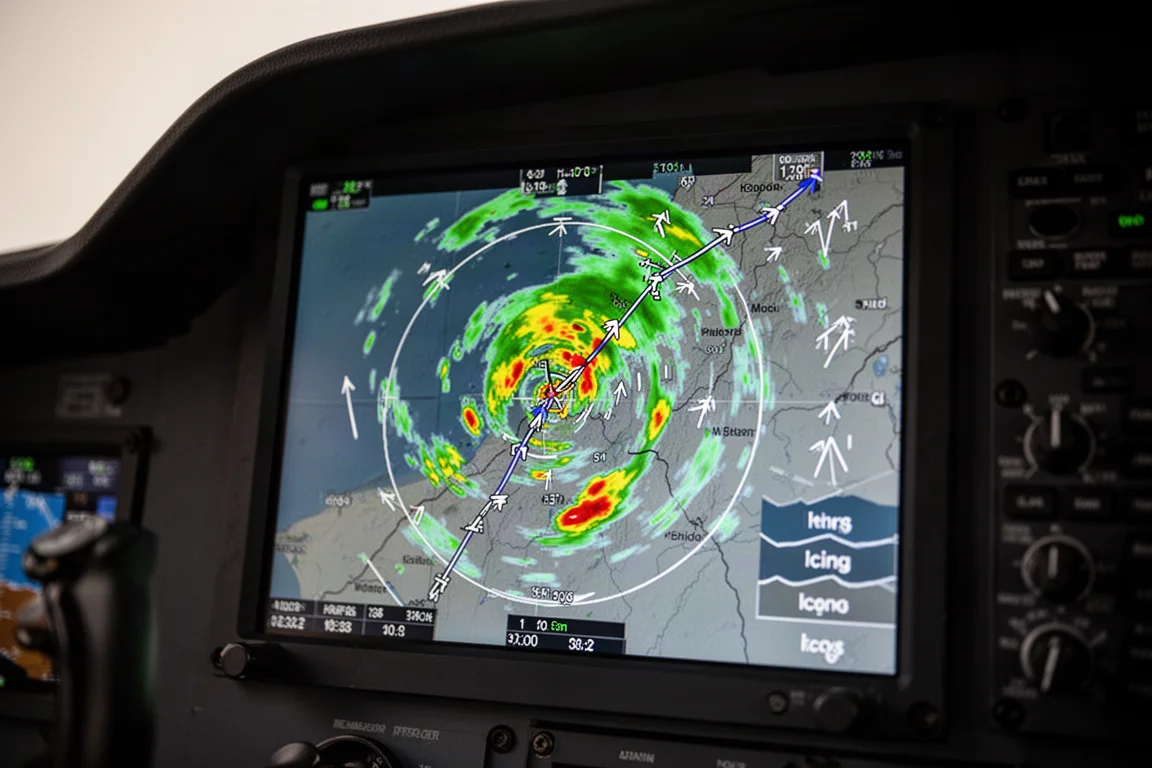
Within Sirius XM you can select echo tops, cloud tops, icing, turbulence, winds aloft, and lightning. Winds aloft is particularly useful, displaying arrows with wind direction, speed, and altitude, so you can compare conditions at different levels and adjust your cruise accordingly. You can also highlight any airport along the route and pull up its METAR to see what is happening underneath the radar returns.
Approaches, Visual Approaches, and VNAV
Flying an ILS is familiar Garmin logic: go to the home screen, choose procedure, select the approach and transition, then decide whether to load the approach for later or load and activate it if you are already on vectors. Once loaded, the flight plan shows the final approach fix and even the full missed approach procedure, which a Garmin autopilot and display can fly fully coupled. The localizer frequency auto-fills to standby, and the loaded approach is queued on the charts page, where you can brief altitudes and set minimums for alerting on a Garmin display.
Visual approaches are a standout feature. The unit draws an extended centerline for any runway plus a 3-degree glidepath, including a marked point roughly three miles out showing the intercept altitude. There is even a pilot-selectable button that pops up near the airport: touch visual approach, pick the runway, and the pink course appears ready to intercept visually or on the autopilot.
VNAV handling is equally practical. Add a vertical speed required data field, touch the altitude field on a waypoint, enter your target above ground level, and the unit calculates the descent rate needed, for example 530 feet per minute, to arrive at the center of the airport. Cross-restrictions work the same way: enter a distance before a fix and an altitude, and the VNAV window shows the rate required. It also supports VNAV on descend-via arrivals, automatically populating crossing restrictions from the loaded arrival and bridging all the crossings with a Garmin autopilot and display.

Smart Glide
Beyond weather, terrain, and traffic, the GTN 750Xi and 650Xi add Smart Glide, available with a compatible Garmin display. In the event of engine failure in a single-engine aircraft, one button activates a glide range ring, automatically sets a route to the nearest airport, and with a Garmin autopilot begins flying toward it while setting best glide speed. As you approach, it shows your predicted arrival altitude so you can plan the runway lineup and descent, places the tower or UNICOM frequency in standby, and lets you squawk 7700. That is a meaningful set of duties taken off your hands while you troubleshoot.
Things to Consider Before Buying
The headline consideration is installation fit: the 750Xi occupies the combined bezel height of a GNS 530 plus a GMA 340 audio panel, so plan your panel accordingly. Several advanced features, including radar display, Smart Glide, fully coupled missed approaches, and descend-via VNAV, depend on a compatible Garmin display and in some cases a Garmin autopilot, so the full experience depends on the rest of your panel. The GTN 650Xi covers the same core experience if space or budget points you toward the smaller format.
Buying Advice
Talk to a dealer near you to work out equipping options for your specific panel. If you are upgrading from a GNS-series box, the like-for-like bezel sizing and familiar Garmin logic make the GTN 750Xi a natural path to modern capabilities: touchscreen airway loading, data link weather, visual approaches, VNAV, and Smart Glide, all in one unit.
Conclusion
The GTN 750Xi distills 25 years of Garmin navigation into a single touchscreen box. Once you put this level of functionality at your fingertips, the honest question is why you did not upgrade sooner.
Product link
View more details for Garmin GTN 750Xi
This product is mentioned in the review. Check the specifications, options, and compatibility before buying.
View more details for Garmin GTN 750XiFurther reading
Related Reviews
Avionics
Dynon SkyView 10-inch Display: A Practical Avionics Choice for Experimental Builders
Why this dual-screen glass panel setup appeals to homebuilders, from plug-and-play wiring kits to battery backup and clever panel ergonomics.
Avionics
Garmin Axiom Review: A Generational Leap in Glass Cockpit Avionics
Garmin's Axiom flight display brings synthetic vision, configurable HSI views, widgets, and integrated EIS into a single panel upgrade for certified piston aircraft.

Avionics
Garmin Bonanza Panel Upgrades: The Avionics Worth Knowing About
Two Beechcraft Bonanzas, two very different Garmin panels. A closer look at the avionics that make a vintage panel feel modern without losing its character.