Music Production
Best MIDI Keyboards for Komplete Kontrol: Full Hands-On Control Without a Native Instruments Keyboard
Native Instruments now lets you use Komplete Kontrol with third-party MIDI keyboards. These are the best controllers for full hands-on control, plus a workaround for unsupported models.
Introduction
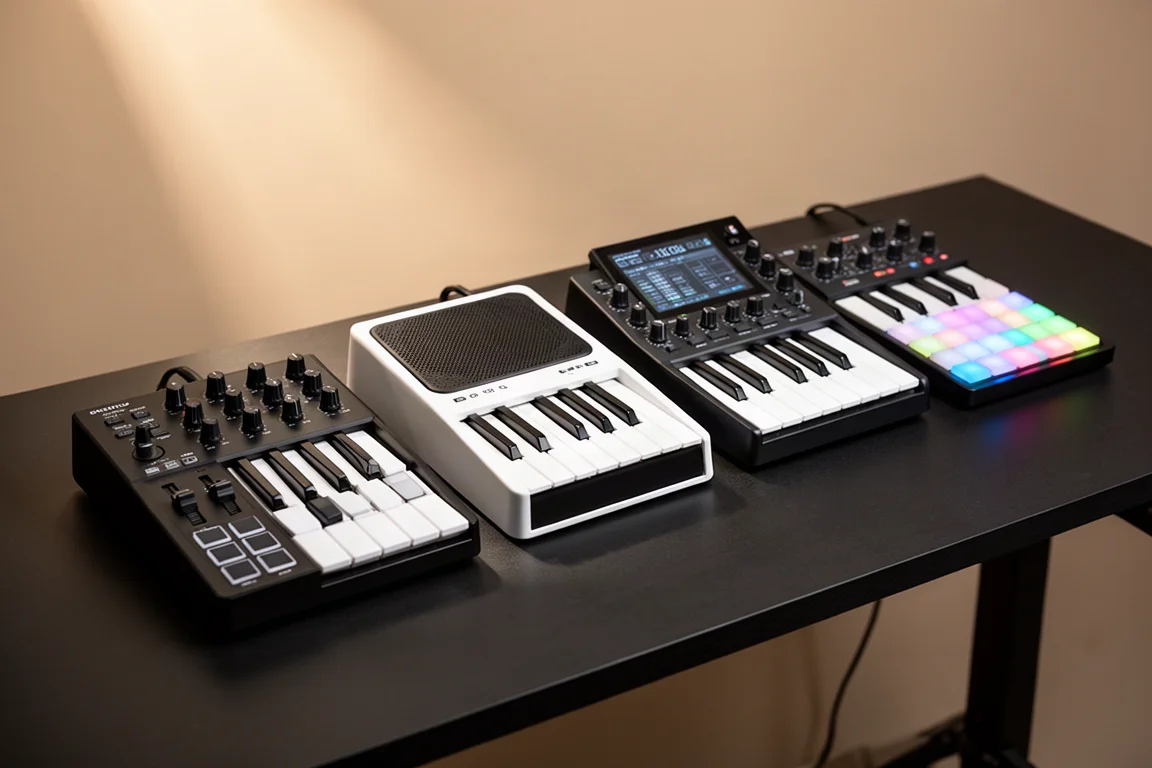
Native Instruments has opened up Komplete Kontrol to third-party MIDI keyboards, and that changes how you can build a studio workflow without buying a Native Instruments controller. Komplete Kontrol is a software interface that makes using virtual instruments and effects easier. It works as a standalone app or as a plugin inside your DAW. The real benefit appears when you connect a MIDI keyboard: Komplete Kontrol automatically maps your knobs and controls to whatever instrument you have loaded. That level of integration used to be exclusive to Native Instruments keyboards. Now you can get most of it with other controllers.
This guide covers the keyboards that work officially with Komplete Kontrol, what level of control each one gives you, and a workaround for models that are not on the official support list.
What Komplete Kontrol Integration Means for Your Workflow
Once you load a preset in Komplete Kontrol, your knobs, encoders, and buttons are ready to tweak the most important settings. You can navigate plugins and presets without menu diving or complicated MIDI assignments. Filter tweaks, effect adjustments, and sound switching all happen more efficiently from the keyboard itself.
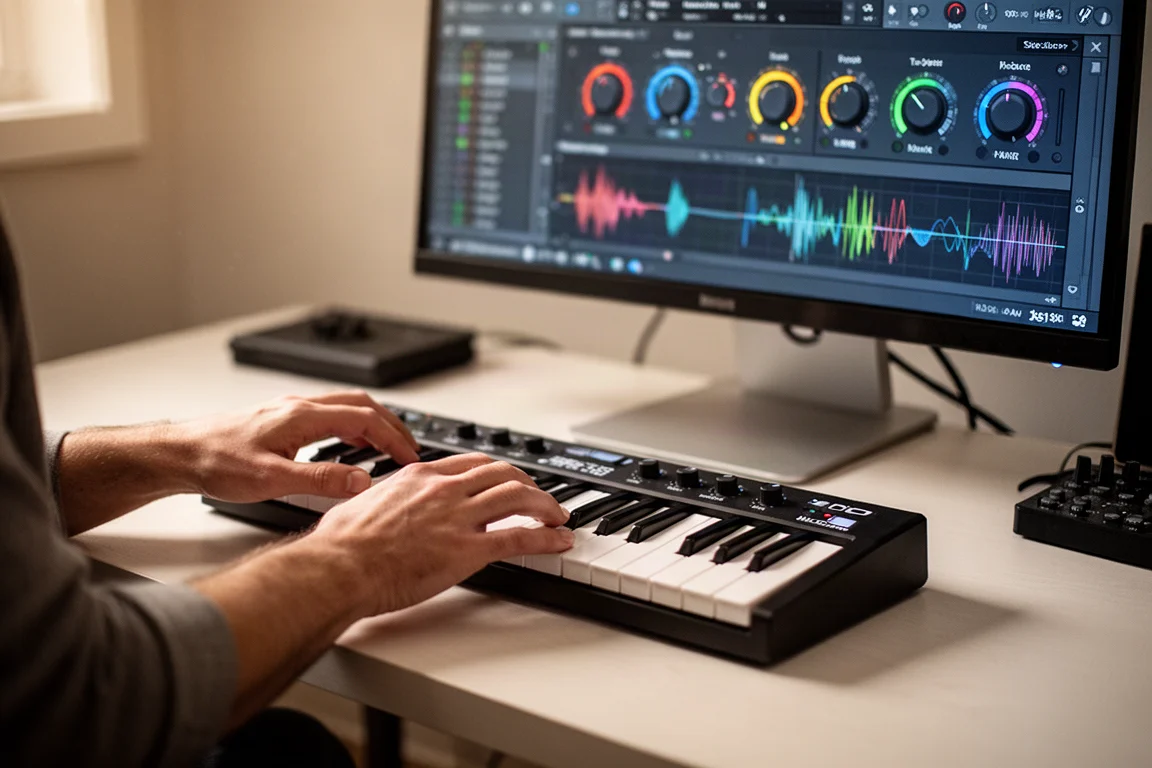
Setting up a supported keyboard is straightforward. Open Komplete Kontrol as a standalone app or as a plugin inside your DAW, go to the main menu, and open the controller submenu. Click on Controller Manager. If you have a Native Instruments control keyboard already connected, you will not be able to access this menu, because those keyboards have deeper integration and the software disables the menu to avoid conflicts. Inside Controller Manager, you will see a list of supported MIDI controllers. Find your keyboard, double-click it to load the configuration, and Komplete Kontrol will show the keyboard’s name in the header when it is ready.
Officially supported third-party controllers come from Akai, M-Audio, Novation, Korg, and Nectar. Not every keyboard gives you the same level of integration. Officially supported keyboards can offer up to four control features: control knobs for adjusting eight plugin parameters automatically, preset selection, plugin slot switching, and parameter page selection for plugins with multiple pages of controls.
Akai MPK Mini Mark III
The Akai MPK Mini Mark III is one of the best choices if you want full hands-on control inside Komplete Kontrol. It gives you all four control features by default: control knobs, preset selection, plugin slot switching, and parameter page selection. That means you can adjust eight plugin parameters, jump between presets, switch between instrument or effect slots, and cycle through multiple pages of controls directly from the keyboard.
Make sure the CC button is active on the MPK Mini Mark III when you set it up with Komplete Kontrol. Once configured, the keyboard becomes a practical tool for navigating plugins without touching your mouse.
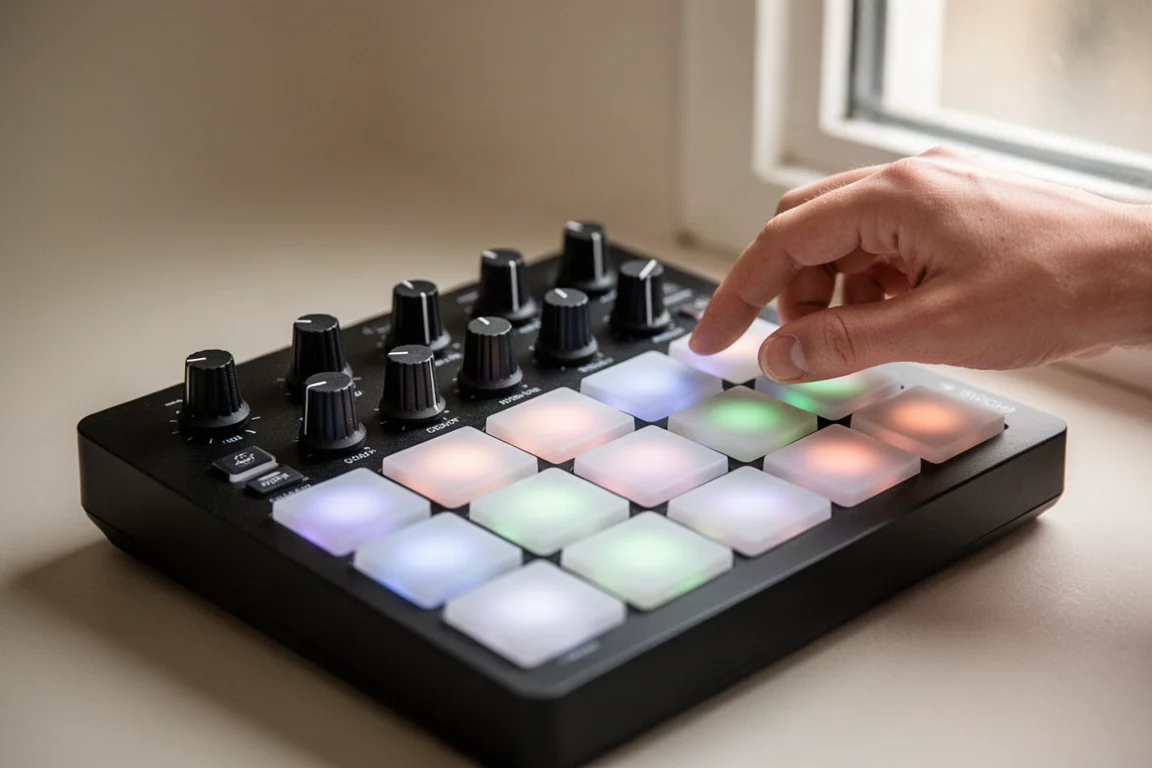
The MPK Mini Mark III also qualifies for a free Komplete 15 Select bundle. Akai and Native Instruments have teamed up to give away exclusive bundles when you register your Akai MPK controller. You can choose from three editions: the Beats Edition includes sounds for pop, hip-hop, and R&B; the Band Edition includes sampled guitars, keys, basses, drums, and synths; and the Electronic Edition includes sounds designed for techno, trance, and house. You get the voucher whether you are buying a new MPK controller or already own one.
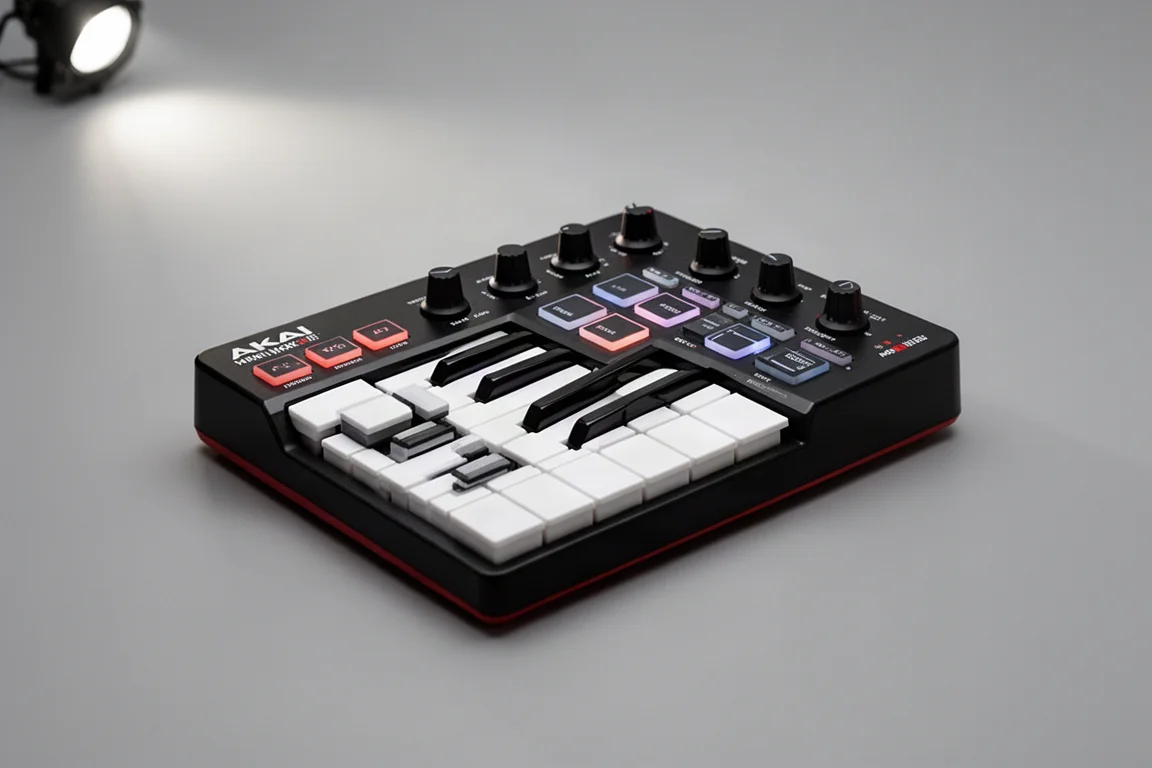
Akai MPK Mini Play
The Akai MPK Mini Play is a more budget-friendly option, but it comes with a trade-off. It has control knobs that work with Komplete Kontrol, but it does not support preset selection, plugin slot switching, or parameter page selection out of the box. You get hands-on control of plugin parameters, but you lose the convenience of switching presets and navigating multiple plugin slots from the keyboard.
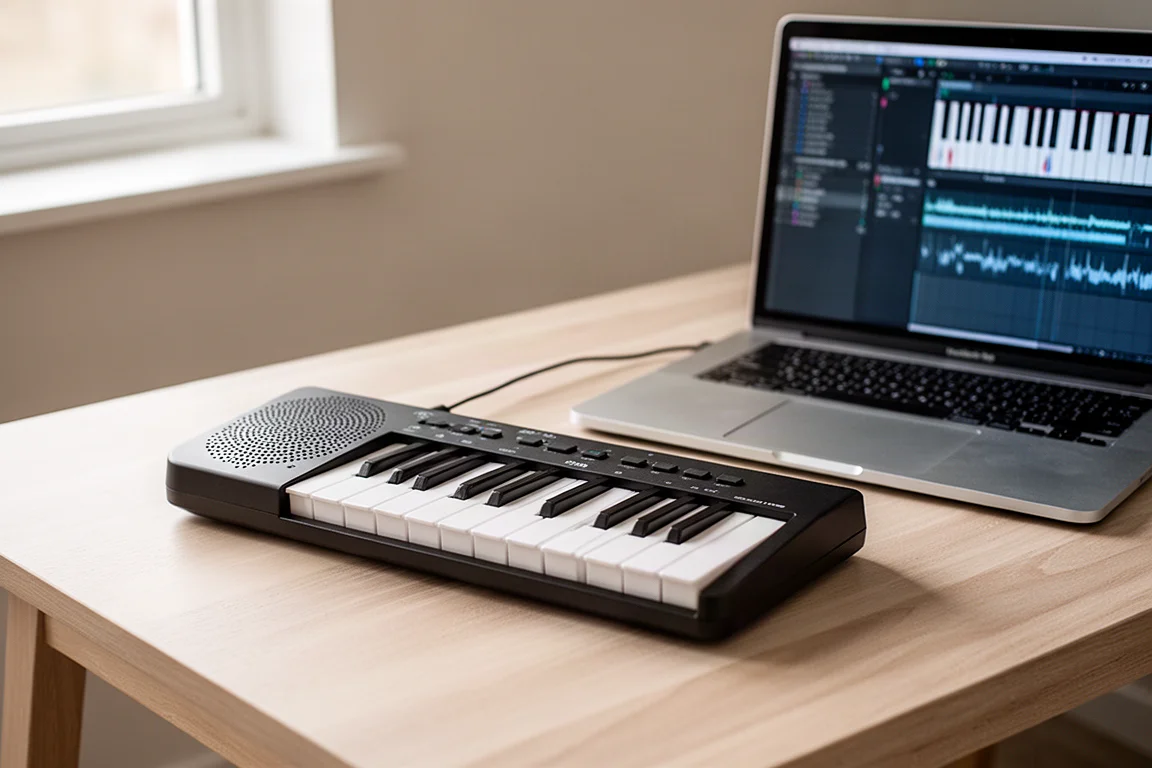
If you are willing to set up manual MIDI mappings, you might get more out of this keyboard. The MPK Mini Play still qualifies for the free Komplete 15 Select bundle when you register your controller, which adds real value if you are building a home studio on a budget.
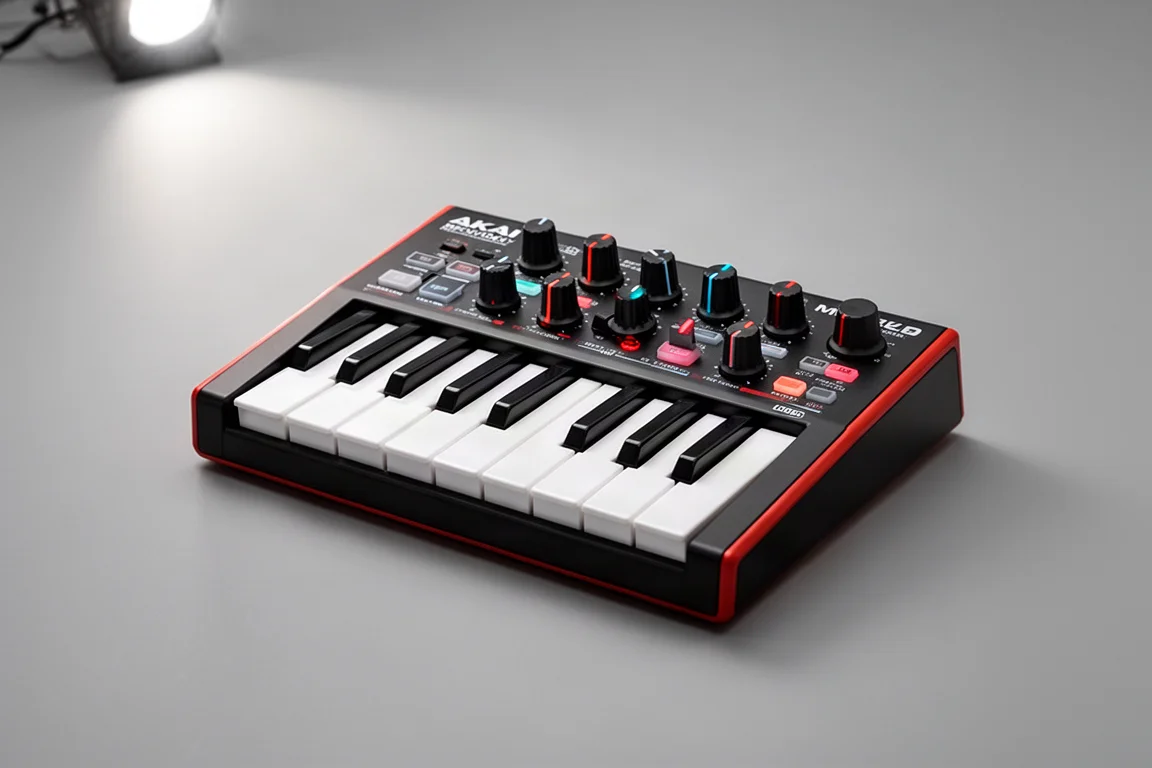
M-Audio Oxygen Pro Mini
The M-Audio Oxygen Pro Mini follows the same pattern as the MPK Mini Play. It has control knobs that work with Komplete Kontrol, but it does not support preset selection, plugin slot switching, or parameter page selection by default. You can adjust plugin parameters with the eight knobs, but you will need to map additional controls manually if you want the full feature set.
The Oxygen Pro Mini is a solid choice if you mainly want hands-on parameter tweaking and do not need preset browsing from the keyboard. It is also a good option if you prefer the M-Audio workflow and are comfortable setting up custom mappings.
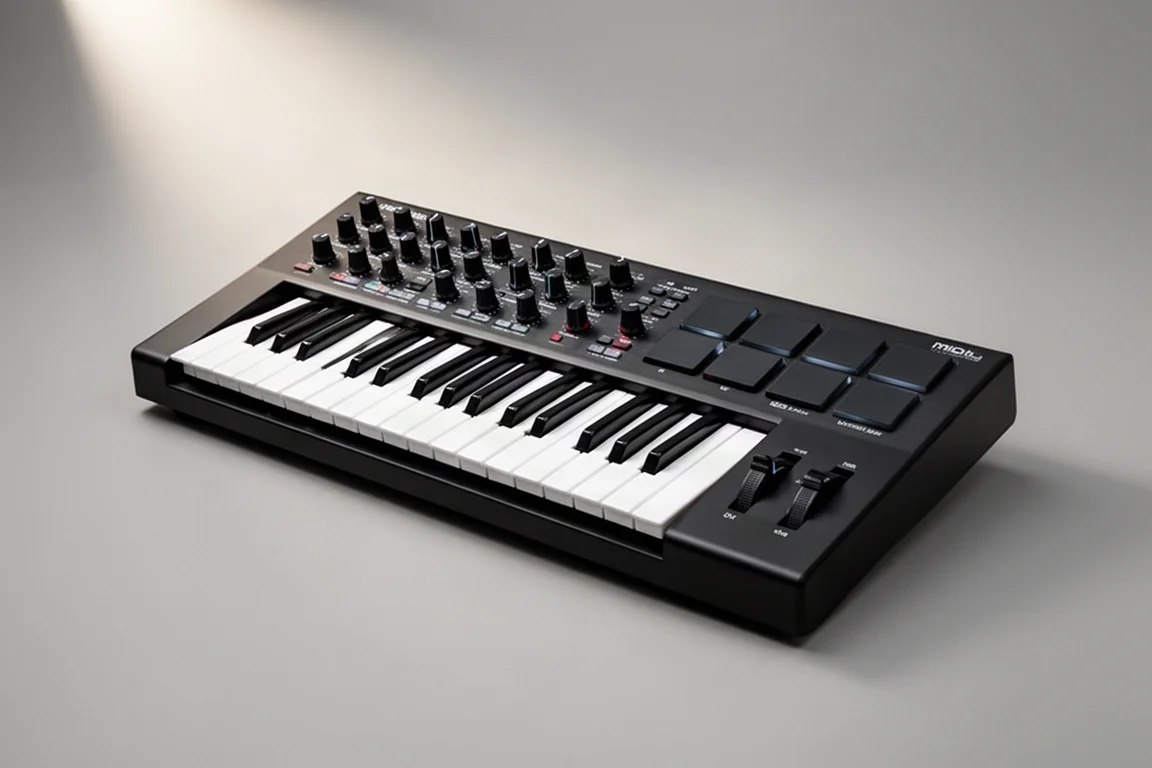
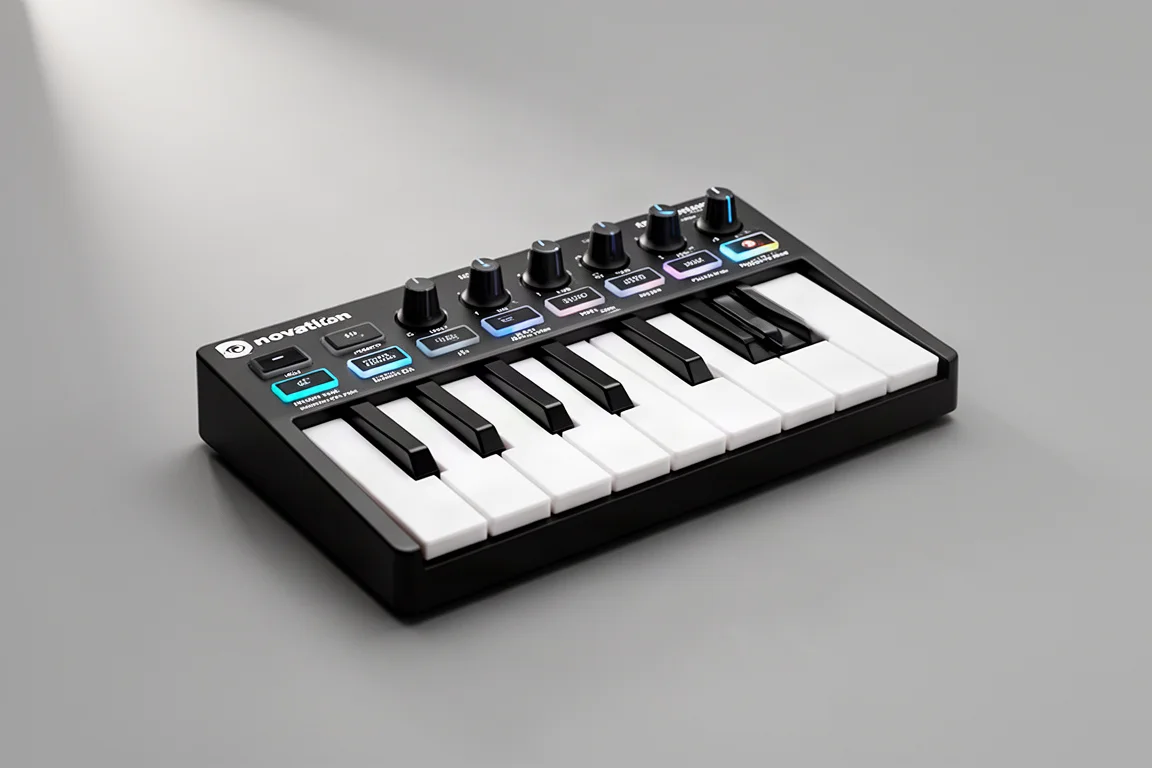
Novation Launchkey Mini
The Novation Launchkey Mini is another keyboard that gives you all four control features by default. Like the MPK Mini Mark III, it supports control knobs, preset selection, plugin slot switching, and parameter page selection. That makes it one of the best choices if you want full hands-on control inside Komplete Kontrol without buying a Native Instruments keyboard.
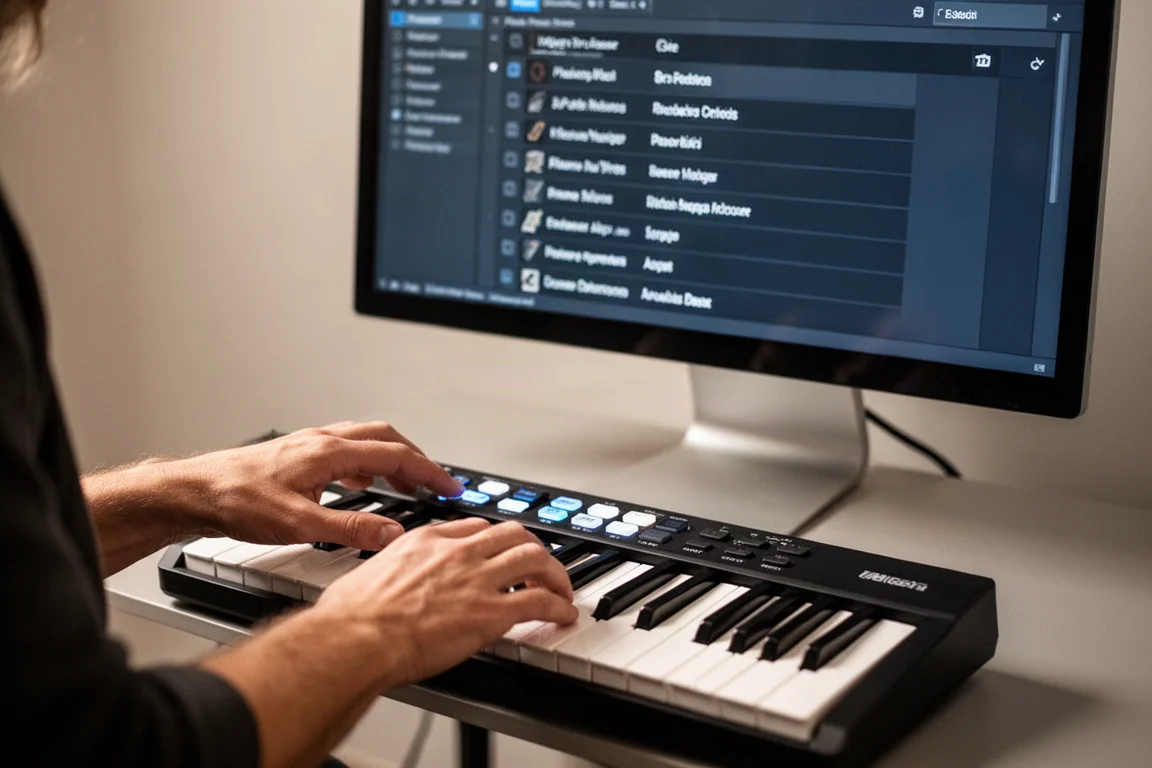
The Launchkey Mini is a strong contender if you want to switch between presets and navigate multiple plugin slots efficiently. Preset selection is one of the most useful features in Komplete Kontrol, and the Launchkey Mini handles it well out of the box.
Arturia MiniLab 3 and the Manual Mapping Workaround
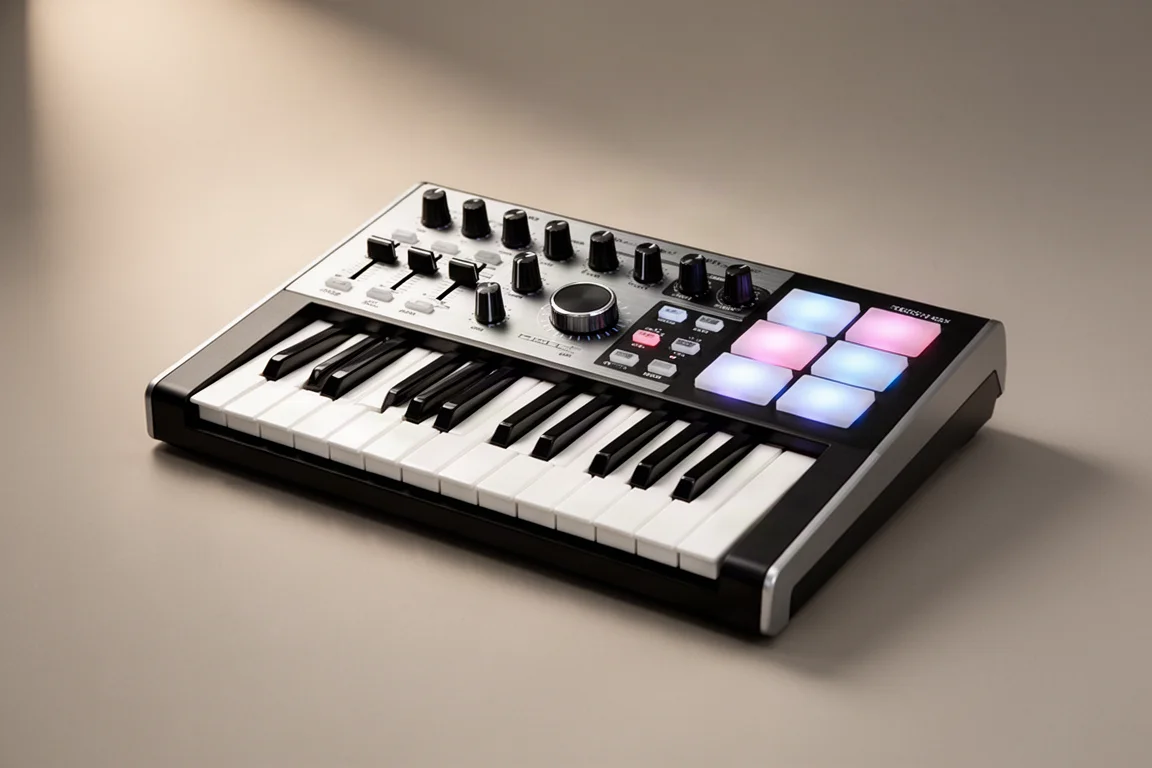
Arturia is noticeably missing from the official support list, which means there is no official integration for those controllers. You will have to set up MIDI mappings manually if you want to use an Arturia MiniLab 3 with Komplete Kontrol. That is not a dealbreaker, though.
You can manually map an unofficial controller to the right CC numbers to make the integration work. For the Arturia MiniLab 3, you can create an NKS template using the Arturia software and map the pads and knobs to the correct CC values. You will find the right CC numbers on the Controller Manager page in Komplete Kontrol. There is also a learn function that lets you map your own keyboard yourself. Once mapped, you can change presets and control plugins just like with an officially supported keyboard.
What You Miss Without a Native Instruments Keyboard
Even with this new integration, third-party keyboards do not get everything. The biggest difference is that you cannot browse and select new instruments from your keyboard. With a Native Instruments control keyboard, you can scroll through your entire library and load any instrument without touching your mouse. With a third-party keyboard, you can only switch between presets of the currently loaded instrument.
There is a workaround for that too. If you want to cycle through multiple instruments in Komplete Kontrol, search for a specific type of sound first, then use the preset cycle buttons. For example, if you search for a lo-fi piano, Komplete Kontrol will show all the presets for that sound and let you cycle through multiple instrument types. You can filter by sound type and then cycle through multiple instruments from the same category.
Third-party keyboards also do not get full Kontakt integration. With a Native Instruments keyboard, you get automatic parameter mapping for Kontakt instruments plus an extra physical control knob that makes navigation easier.
Overall Buying Advice
If you want full hands-on control inside Komplete Kontrol without buying a Native Instruments keyboard, the Akai MPK Mini Mark III and the Novation Launchkey Mini are the strongest options because they support all four control features by default. Preset selection is one of the best features in Komplete Kontrol, so choosing a keyboard with that feature makes a real difference in daily workflow.
If you are on a tighter budget or mainly need parameter tweaking, the Akai MPK Mini Play and the M-Audio Oxygen Pro Mini are reasonable choices, but you will need to map additional controls manually to get more out of them. The Arturia MiniLab 3 is a good keyboard, but it requires manual mapping since Arturia is not on the official support list.
If you want the full feature set including instrument browsing and complete Kontakt integration, a Native Instruments keyboard is still the way to go. For everyone else, these third-party controllers now offer a practical path to a faster, more creative studio workflow.
Conclusion
Native Instruments opening Komplete Kontrol to third-party keyboards is a meaningful change for producers who do not own a Native Instruments controller. The Akai MPK Mini Mark III and Novation Launchkey Mini deliver the most complete experience out of the box, while the MPK Mini Play and Oxygen Pro Mini cover the basics. The Arturia MiniLab 3 requires extra setup but works well once mapped. Whichever you choose, you can also grab a free Komplete 15 Select bundle with an Akai MPK controller, or download Komplete Start for free no matter what keyboard you own.
Further reading
Related Reviews
Music Production
Akai MPC Sample Review: A Portable Beatmaking Powerhouse
The Akai MPC Sample brings the classic MPC workflow into a portable, standalone device with a built-in speaker, mic, and battery. Here is our full review.
Music Production
Faster Master Review: A Mastering Plugin That Listens to Your Mix
Faster Master from Mastering the Mix builds a custom mastering chain for each song, with level-matched processing and reference track matching.
Music Production
Softube Flow Studio vs Console 1 Compact: Which Mixing Controller Fits Your Workflow?
Two hands-on MIDI mixing controllers from Softube with different strengths. One is built for speed and creativity, the other for precision and control.