MIDI Controllers
Arturia KeyLab 88 MK3 Review: A Weighted Hammer Action Controller for Serious Virtual Instrument Work
The Arturia KeyLab 88 MK3 brings a fully weighted hammer action keybed, deep software integration, and hands-on controls to a flagship MIDI controller.
Introduction
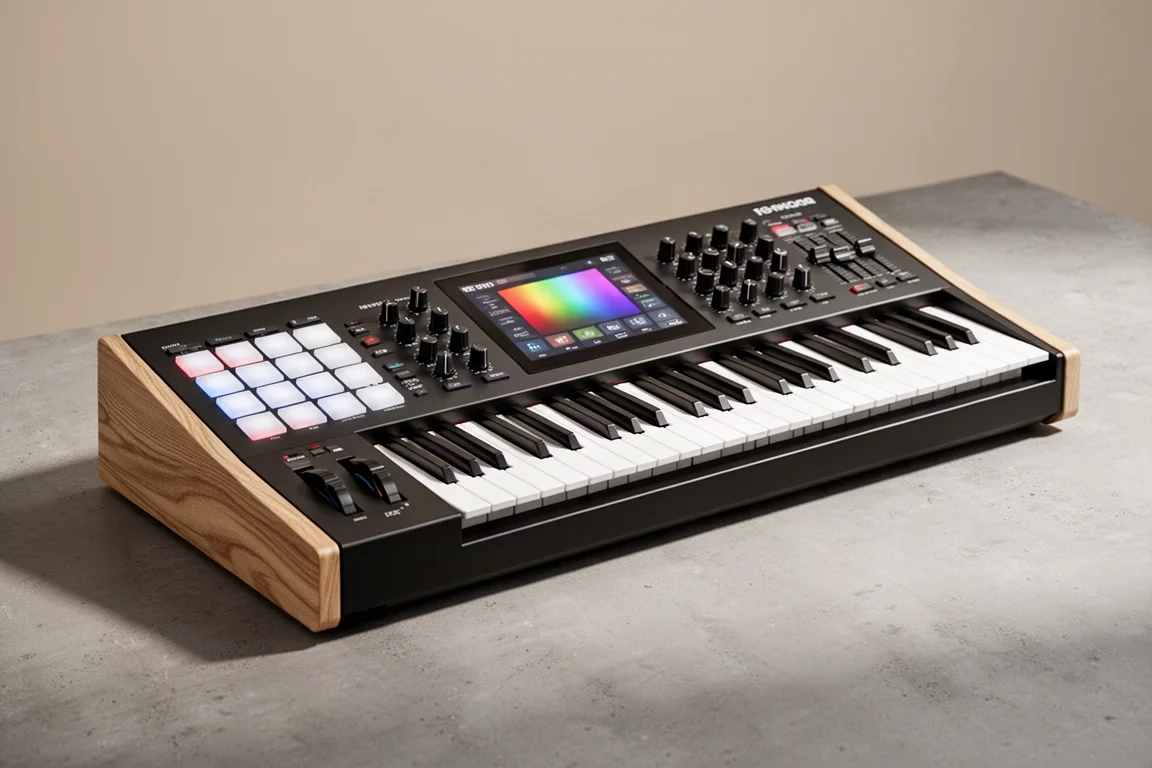
The Arturia KeyLab 88 MK3 is the flagship keyboard controller from Arturia, designed for musicians who want to sculpt sounds with virtual instruments, play drums, sequence beats, and mix songs inside a digital audio workstation. It sits above the KeyLab Essential and MiniLab in Arturia’s MIDI controller lineup, and it is available in black or white.
This 88-key version is the premium option in the KeyLab series, and it comes with a fully weighted hammer action keybed with aftertouch. That is a significant upgrade from the synth action keyboards found on the smaller 49-key and 61-key versions. If you are a pianist, this will feel much closer to an acoustic piano while still giving you the full functionality of a keyboard controller.
The KeyLab 88 MK3 retails for $1,000, which is considerably more than the 61-key version. You are paying for the extra keys and the key feel. It is also $300 cheaper than the Native Instruments S88, and it includes faders, which is a nice bonus. If you are looking to save money, the M-Audio Hammer 88 Pro offers standard DAW control and hammer action keys, but you will miss some of the tight software integration that Arturia provides.
Who This Product Is For
The KeyLab 88 MK3 is built for musicians and producers who work primarily with software-based virtual instruments. Since it does not have built-in sounds, it is designed to be used with a computer to play virtual instruments and control a DAW. If you want a keyboard with built-in sounds, you might want to look at the Arturia AstroLab instead.
This controller is especially suited for pianists who want a weighted hammer action feel without giving up the flexibility of a MIDI controller. The 88-key version is a big keyboard, and it is noticeably heavier than the 49-key and 61-key versions, so keep the weight in mind if you plan to transport it.
Keybed and Playing Feel
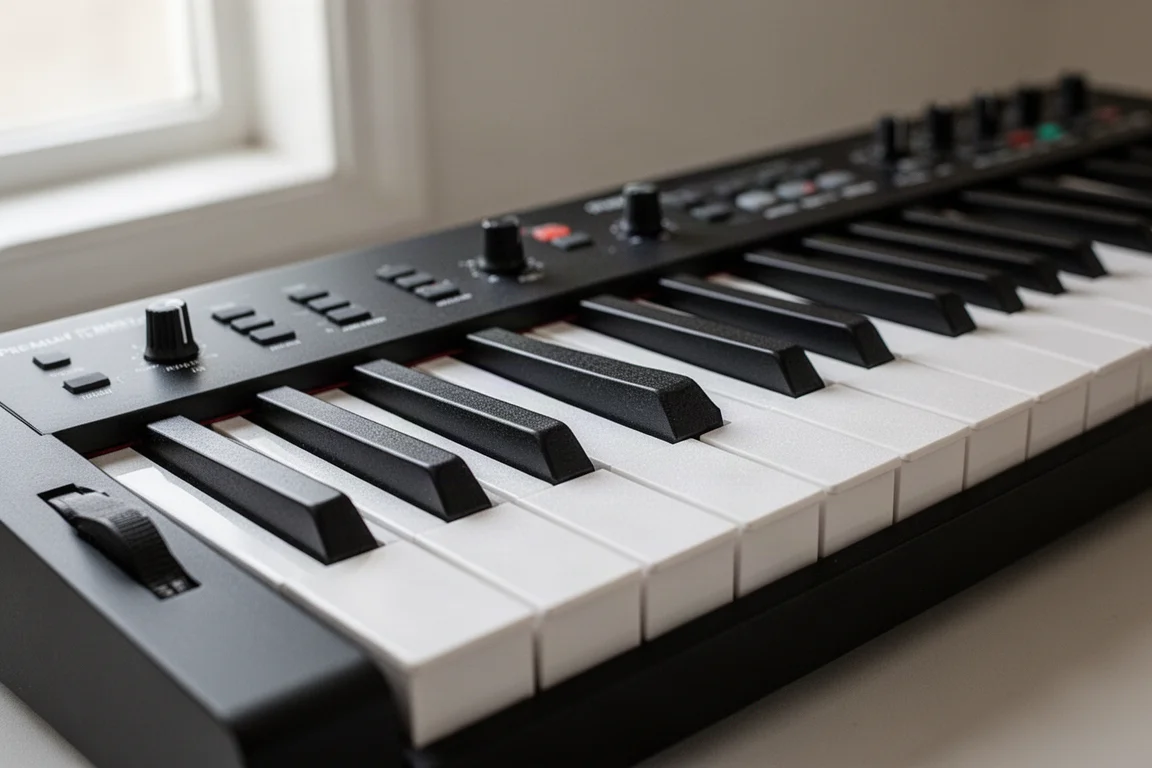
The fully weighted hammer action keybed with aftertouch is one of the standout features of the KeyLab 88 MK3. The feel of the keys is great, with comfortable weight, press, and bounce back. If you have played on other weighted keybeds before, this will feel better, with a less weighty action that feels more natural.
Compared to the Native Instruments S88, this keybed feels pretty close, which is a big change from Arturia’s previous hammer action keybed that was a lot heavier. Compared to the M-Audio Hammer 88 Pro, this feels on par as well.
One thing to note is that the KeyLab 88 MK3 does not have polyphonic aftertouch like the Native Instruments S88. Applying aftertouch on one key will affect all pressed keys. If you are looking for polyphonic aftertouch, you will need to look at other options, but for a weighted keybed with aftertouch, this is a solid choice.
There is a notable sound when you play, kind of like a hollow thud. Once you start playing for a while, you will not notice it, but it is worth knowing about.
Layout and Controls
The KeyLab 88 MK3’s layout is very similar to the previous Mark 2 version, which has its pros and cons. The transport controls are very easy to reach and close to the keyboard, so you are not reaching far for play, stop, and record functions. You also get additional DAW controls and chord, scale, and arpeggiator buttons in the center.
The brand new color screen with eight contextual buttons is a step up from the screen on the previous KeyLab Mark 2. The screen is large, bright, and very easy to read, with large text and full color. When you have an Arturia instrument loaded, you can see a little icon of the instrument on the screen. When you move an encoder or fader, what you are controlling pops up on the big screen, so it is easy to know what you are doing.
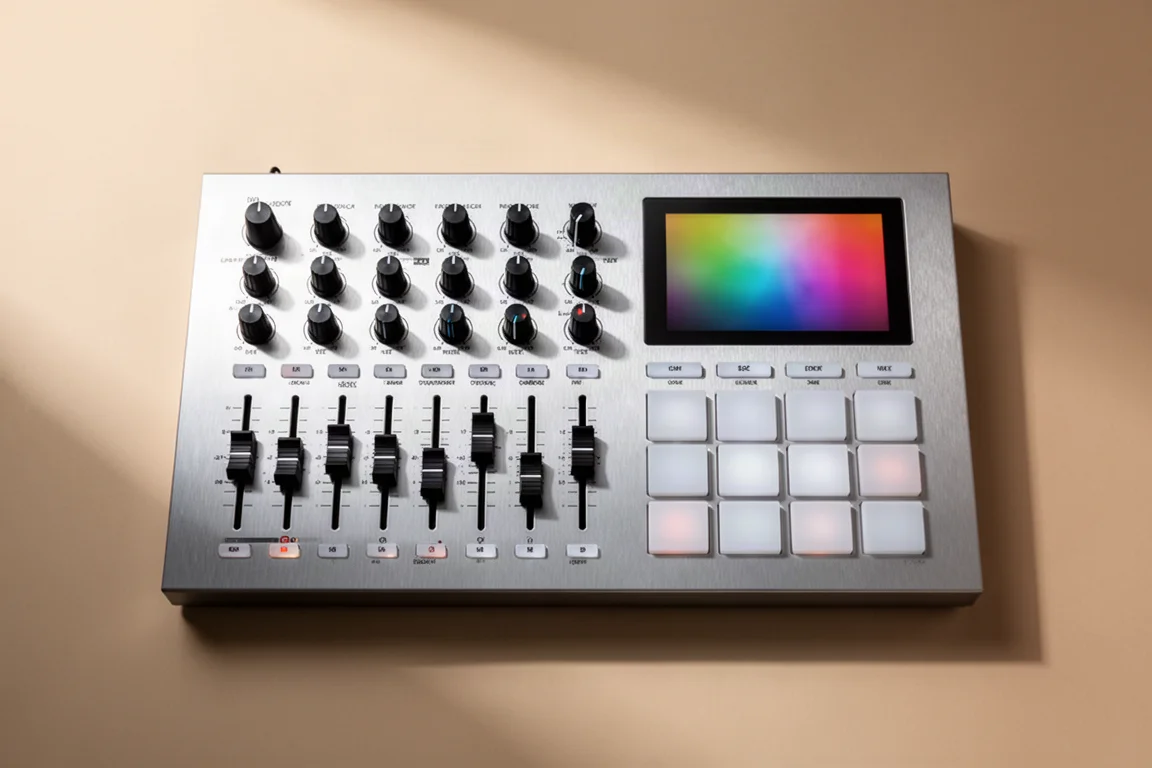
On the right side, you have nine encoders and faders to control virtual instrument parameters or eight tracks in your DAW. The ninth encoder and fader controls the active track in your DAW, which is convenient if you forget which fader and knob correspond to which track. On the left, there are 12 pads along with pad bank buttons, settings, a program button to switch between modes, and MIDI channel controls. You also get octave up and down, transpose buttons, and pitch and mod wheels.
The layout is very clean and intuitive, though the faders are on the right side of the keyboard. Some users may prefer having them on the left side to reach with the left hand while playing with the right.
The screen is one of the nicest and most useful screens on a MIDI controller. Most controllers have tiny digital screens that are much harder to read. However, given that this is a major part of the user interface, Arturia could have pushed further. The screen is missing feedback from the mixer, so you will not see your track volume levels while your track is playing, like Native Instruments shows on their S Series keyboards. On the KeyLab 88 MK3, you will need to glance back to your computer screen to see the controls you have or touch a knob or fader to know exactly what you are changing.
Software Integration with Analog Lab
Arturia keyboards are known for their tight integration with Arturia’s own software instruments and Analog Lab. This is what sets Arturia keyboards apart, and no other company does this except for Native Instruments. If you love synthesizers, an Arturia controller like the KeyLab 88 MK3 is going to take things to a new level.
The KeyLab comes with Analog Lab, which is like a window into Arturia’s virtual instrument world. You have everything from vintage synthesizers to acoustic pianos to strings and much more. You can load up beautiful presets and have fun morphing the sounds and tweaking parameters without looking at your computer screen. The new screen on the KeyLab 88 MK3 makes this process enjoyable.
You can load Analog Lab in any track in your DAW or run it standalone. You can browse sounds, filter by types, instruments, genres, and more. Once you have loaded a sound, you have instant access to modify the most interesting parameters. Arturia has mapped these controls to all these different sounds, and you will see them change depending on what you have loaded. The screen shows the instrument you have loaded, and you can quickly favorite a preset or navigate to the previous or next one. You can even split the keyboard and load another preset right from the screen.
DAW Integration
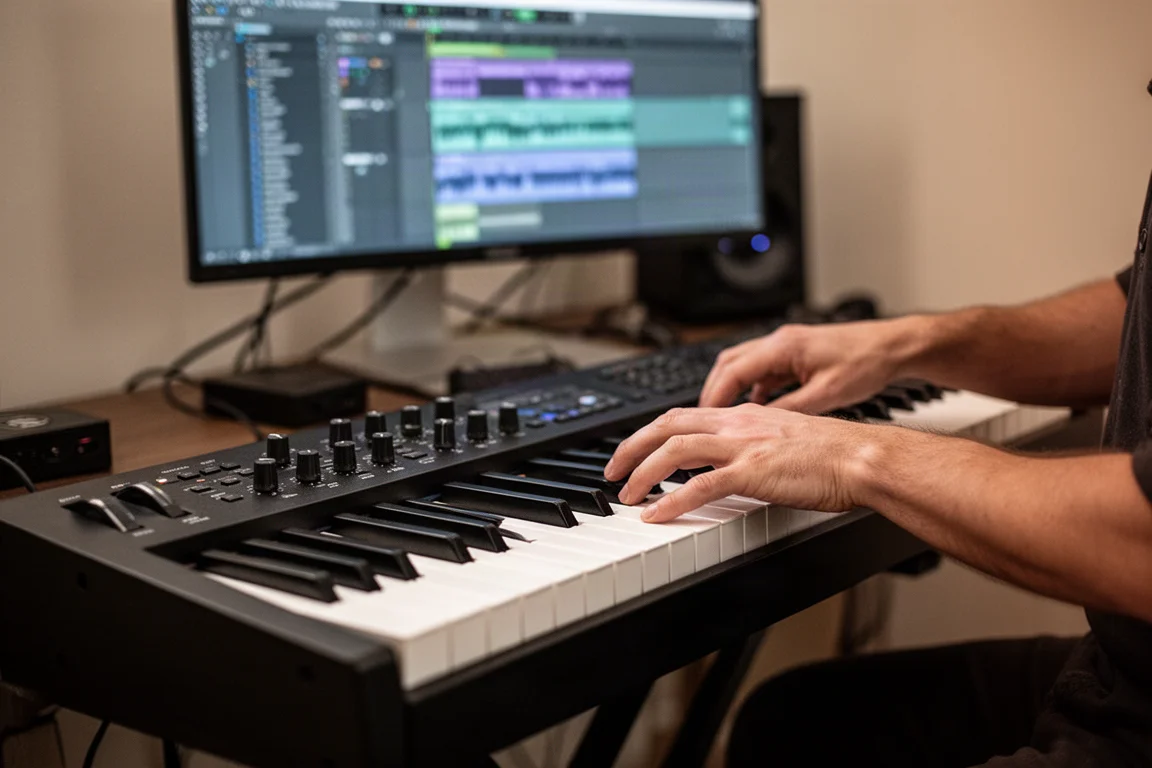
DAW integration is vital for a keyboard controller, and the KeyLab 88 MK3 gives you control of your mixer, plugins, and even some sequencing features for FL Studio.
With Ableton Live, the KeyLab 88 MK3 integrates well, giving you mixer controls and clip and scene triggering. You can navigate around the session with the encoder and trigger scenes by clicking the buttons near the screen. There is lots more you can do with Ableton, including controlling Ableton plugins or devices. In device mode, you can use the encoders and faders to modify your device’s parameters, and the screen shows you the parameter you are adjusting and the value. In mixer mode, you will see the track names as you scroll through, and you can use the faders and encoders to adjust track volumes and pans. You also have a quick button to mute, solo, and arm the active track.
In FL Studio, the KeyLab 88 MK3 does something really useful with channel rack control. The keyboard will control the transport, including stop, play, record, tap tempo, quantize, save, and undo. The main encoder navigates the channels, and clicking in will open a plugin. The first eight faders and encoders can control the plugin you are using or mixer volume and pans. The ninth encoder and fader controls the selected track’s volume and pan. The pads control the steps in the sequencer. In a new FL Studio session, the pads on the first two rows correspond to the first eight steps on the sequencer, and the third row of pads navigates pages so you can access all 32 steps. The previous and next buttons above the screen let you navigate the patterns. Of course, you can also use the pads to trigger drums.
For Logic Pro, you can control the transport, including play, stop, record, quantize, and undo functions. Just like with other DAWs, the eight encoders and faders either control plugin parameters or mixer volumes and pans, and you have mute, solo, and arm for each track. The ninth controls the selected track. You can switch between plugin and mixer modes with the buttons near the screen. Pads do not do anything special in Logic aside from triggering sounds on drums.
For Cubase users, you will get the same features as Logic Pro, plus the pads will let you show or hide different zones and settings, navigate pages, and even add tracks, giving Cubase users a few more shortcuts.
Chord, Scale, and Arpeggiator Features
Nearly every popular keyboard controller these days comes with chord, scale, and arpeggiator features, and Arturia has added those on the KeyLab 88 MK3. With the chord feature, you can choose from preset chords that will transpose on each key you press. The scale feature is useful if you are new to music theory, as you can set a scale and always stay in key. You also get an arpeggiator with lots of different ways to shape your sound.
These chord, arpeggiator, and scale features get the KeyLab 88 MK3 on par with other keyboards available right now. These features are also useful when you connect the KeyLab 88 MK3 to a hardware synth, since they are built right into the keyboard and you do not need to have a computer connected to generate arpeggios.
Arturia also gives you lots of customization options using the user program feature. You can customize the velocity, aftertouch, wheels, pedals, encoders, faders, and much more. This could be useful if you want to create a certain setting for a specific virtual instrument or if something does not map automatically.
Build Quality and Connectivity
The build quality of the KeyLab 88 MK3 is solid. The knobs have a lot of resistance, more than other MIDI controllers, but if you have tried Arturia gear before, it feels about the same. The faders feel good with nice resistance. The buttons are plastic with a little bit of travel and an audible click, but not as loud as other cheaper keyboards. The body is super sturdy with a heavy base, and the real beechwood on the sides is a nice premium touch.
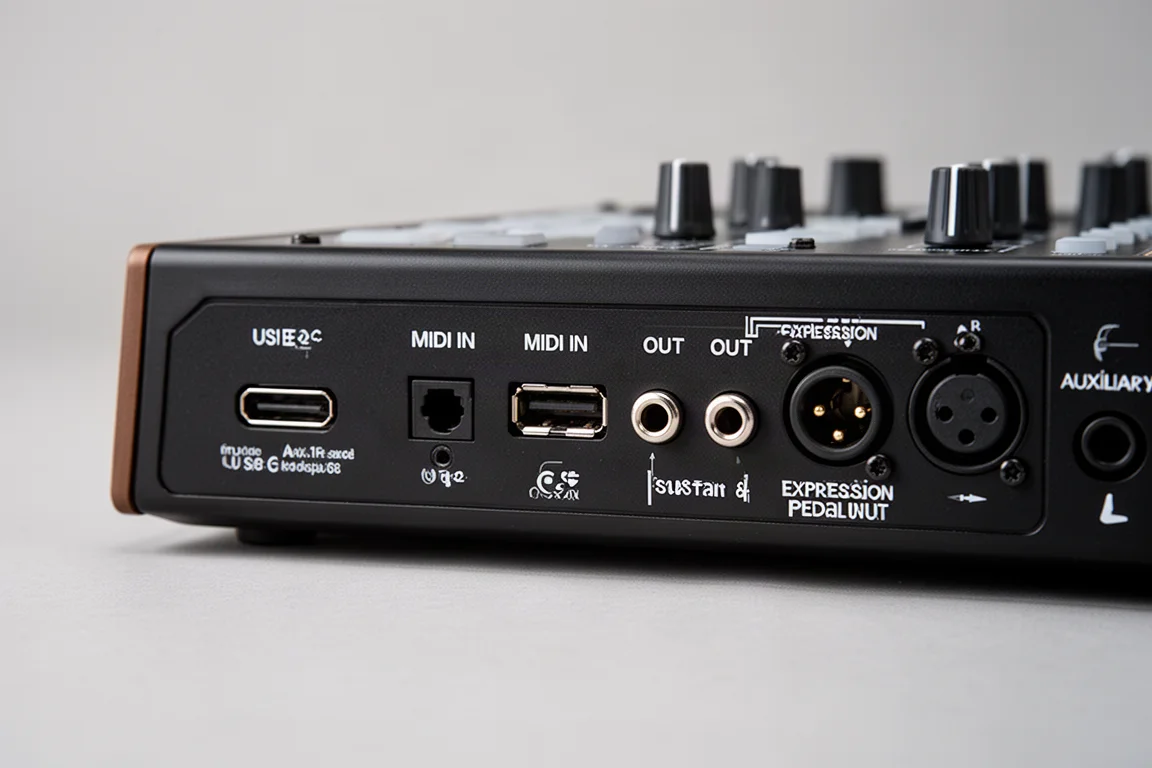
On the back, you have a USB-C connector, and the keyboard is USB powered. There is also an optional power port if you want to use external power, though it does not come with the power adapter. There are MIDI in and out ports, sustain and expression pedal inputs, and an auxiliary input. On the side, there is a power switch. Note that the previous model of the KeyLab actually had more connectivity, including CV connections and more auxiliary inputs.
The KeyLab 88 MK3 comes with a good software package to get you started. It includes Analog Lab Pro, which is a $200 piece of software, plus Mini V, Piano V, Augmented Strings, and Rev Plate 140. You also get an extra piano from Native Instruments called The Gentleman, and Ableton Live Lite to get you started recording at home. There is also a Melodics and Loop Cloud starter subscription included. It is a good software package and enough to have you making music right away, especially taking advantage of the KeyLab’s integration with Arturia software.
Buying Advice
When comparing the KeyLab 88 MK3 to other 88-key hammer action MIDI controllers, Arturia has given us a good keyboard. There are a few things missing, but there is no perfect keyboard out there.
You will get a better screen on the Native Instruments S88, but you will lose the faders and the drum pads that the KeyLab has. Native Instruments never puts drum pads on their keyboards, so if that is important to you, the KeyLab has them. You will save some money getting the M-Audio Hammer 88 Pro, but you lose out on the software instrument integration that Arturia does so well.
If you are in the market for a keyboard with outstanding virtual instrument integration, it is hard to beat the KeyLab. If that virtual instrument interaction is something you really want, you will get more physical hands-on controls on the KeyLab than you do with the Native Instruments keyboards. Arturia also has a good reputation for supporting their gear and even adding and improving features with firmware updates.
Conclusion
The Arturia KeyLab 88 MK3 is a solid investment for musicians who want a weighted hammer action keybed with deep software integration. The key feel is comfortable and natural, the Analog Lab integration is excellent, and the hands-on controls give you plenty of physical access to your virtual instruments. While the screen could have been more innovative and the connectivity is slightly reduced compared to the previous model, the KeyLab 88 MK3 remains a strong choice in the 88-key MIDI controller market.
Product link
View more details for Arturia KeyLab 88 MK3
This product is mentioned in the review. Check the specifications, options, and compatibility before buying.
View more details for Arturia KeyLab 88 MK3Further reading
Related Reviews
MIDI Controllers
Arturia MiniLab 3 vs Novation Launchkey Mini MK4: Which Mini Keyboard Fits Your Workflow?
A feature-by-feature comparison of two popular 25-key MIDI controllers, covering key feel, pads, DAW integration, software bundles, and creative tools.
MIDI Controllers
Arturia MiniLab 37 Review: More Keys, Same Winning Feel
The Arturia MiniLab 37 expands on the MiniLab 3 with a longer keybed, while keeping the controls that made the original stand out. Here is how it compares.
MIDI Controllers
Expressive E Osmose CE Review: A Premium MPE MIDI Controller
The Osmose CE brings Expressive E's expressive MPE keys to a dedicated MIDI controller with DAW controls and bundled software.