Smart Home
Apple TV as HomeKit Hub: Why It's Your Best Choice for Home Automation
The Apple TV combines HomeKit hub functionality with a display, camera viewing, and local automation control. Here's what makes it stand out from iPad and HomePod Mini alternatives.
Introduction
When setting up an Apple HomeKit system, you need a hub to act as the central brain of your home automation. While iPad and HomePod Mini can both serve this role, the Apple TV stands out as the most practical choice. It combines hub functionality with a display, letting you view cameras, control devices, and run automations all from your television. This guide explains why the Apple TV is worth choosing and how to get the most from it.
Why Apple TV Over Other Hub Options
Apple offers three hub options for HomeKit: iPad, HomePod Mini, and Apple TV. Each has trade-offs worth understanding.
An iPad can work as a hub, but it has a critical weakness. If the iPad leaves your house, your HomeKit loses its hub and stops functioning remotely. This makes it unreliable for a permanent home setup, especially in households where family members carry iPads outside regularly.
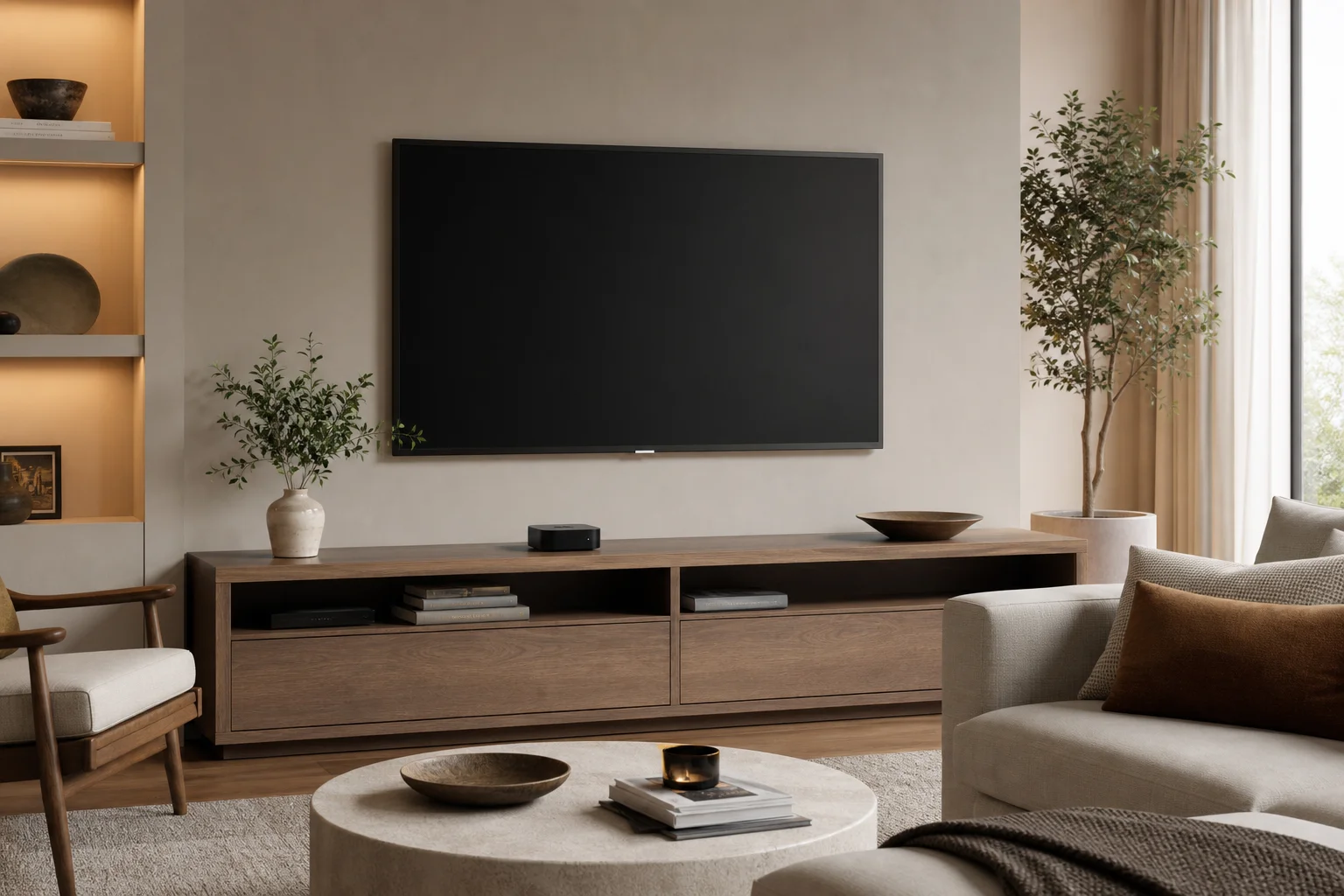
The HomePod Mini is a better option. It’s a dedicated device that stays in place, and it works well as a hub. However, it is fundamentally a speaker. The Apple TV delivers everything the HomePod Mini offers as a hub, plus a display connected to your television. This means you get speaker functionality combined with the ability to view cameras, control devices, and manage automations directly on your TV screen using the included remote.
Setup and Initial Configuration
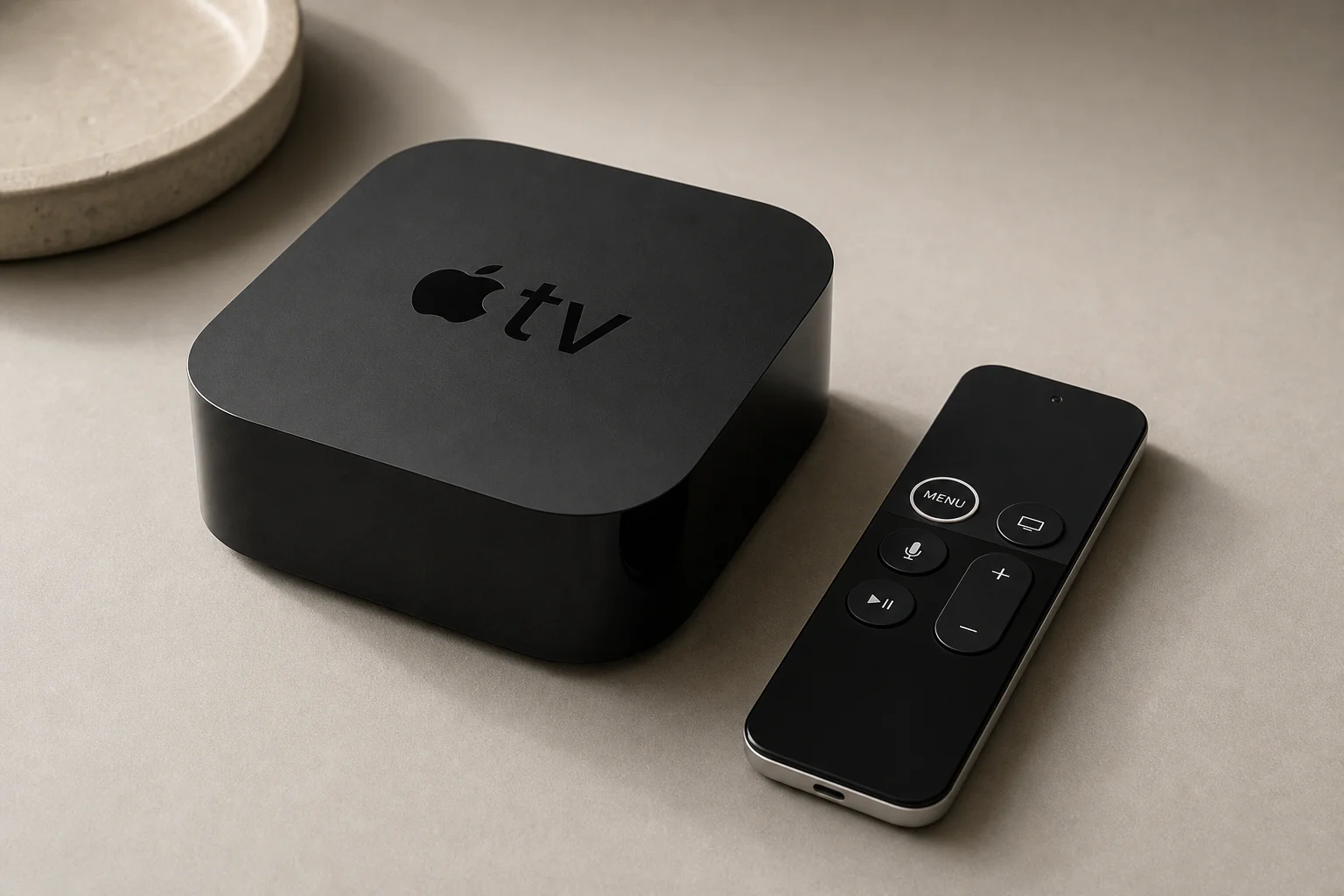
Getting the Apple TV running as a HomeKit hub is straightforward. The box includes the Apple TV unit, a remote control, a power cable, and a Lightning cable for charging the remote.
Setup takes minutes. Plug in the power, connect the HDMI cable to your television, and the device prompts you through initial configuration. Bring your iPhone close to the screen, and the Apple TV pulls your profile and settings directly from your phone. Once that’s done, run a software update to ensure you have the latest version.
To enable HomeKit hub functionality, go to Settings, select AirPlay and HomeKit, scroll to the bottom, and confirm that Home Hub shows as Connected. Once connected, your Apple TV becomes the central hub for all HomeKit automations, camera viewing, and device control.
Controlling HomeKit from Your TV
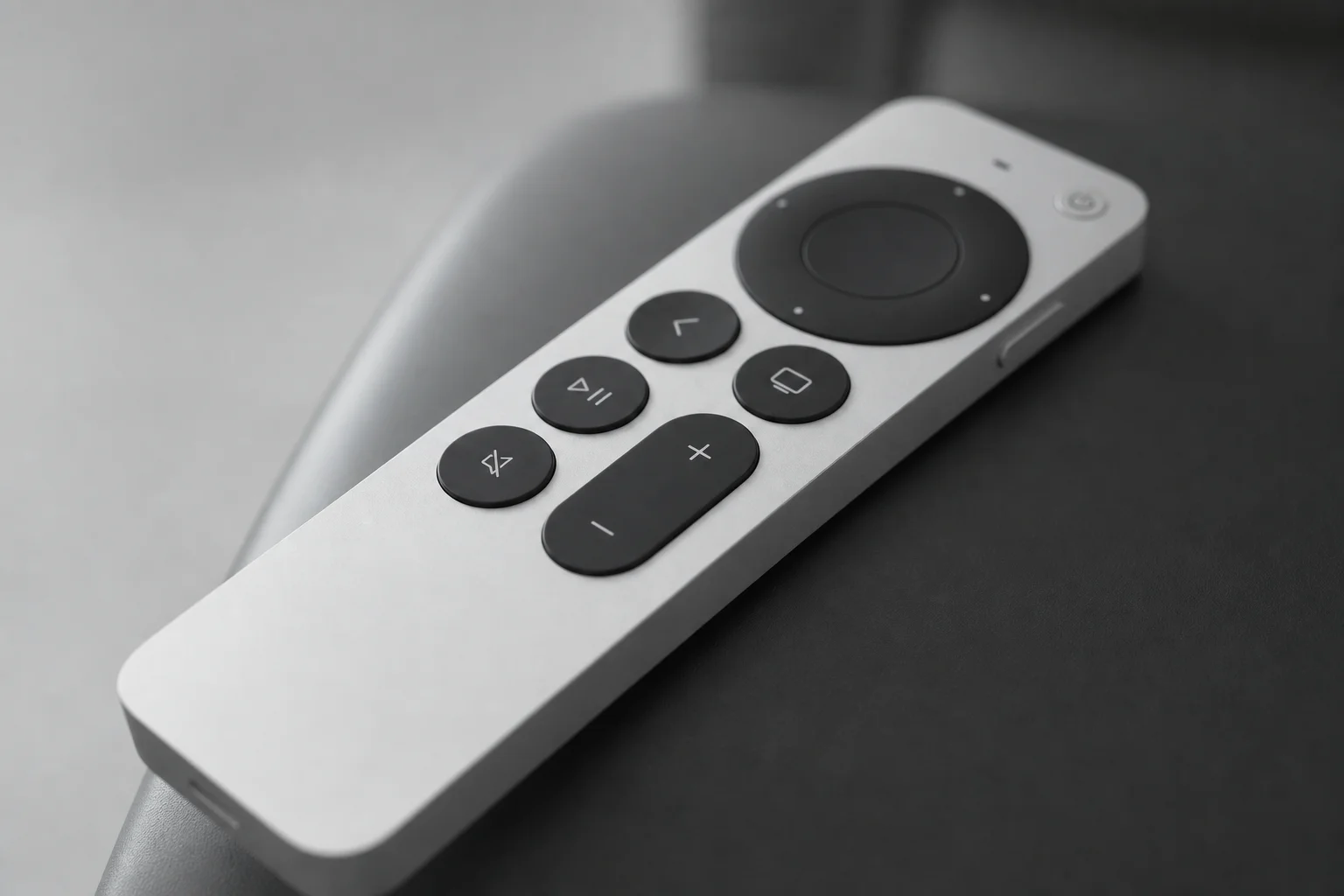
The Apple TV remote makes controlling your home from the television intuitive. Press and hold the TV button on the remote to open the Command Center. From here, you can switch between user accounts, put the device to sleep, or jump directly to HomeKit.
Selecting HomeKit from the Command Center displays any cameras you have set up. You can swipe left and right to browse multiple cameras, and tapping a camera loads its live view on your television. If you have a HomeKit Video Doorbell, the Apple TV displays a picture-in-picture notification when someone rings it, showing a live feed in the top corner of your screen while you watch television. You can expand this to full screen for a better view of your front door.
The remote also has a microphone button that activates Siri. You can ask Siri to show you a specific camera by name, which is faster than navigating menus if you want to check a particular view quickly.
HomeKit Control from Your Phone
The Home app on your iPhone gives you full control of the Apple TV and all connected HomeKit devices. Tap and hold on the Apple TV in the Home app to see controls and options. A small remote button appears next to the play button, letting you use your phone as a remote for the television. The on-screen remote mirrors the physical remote’s functionality.
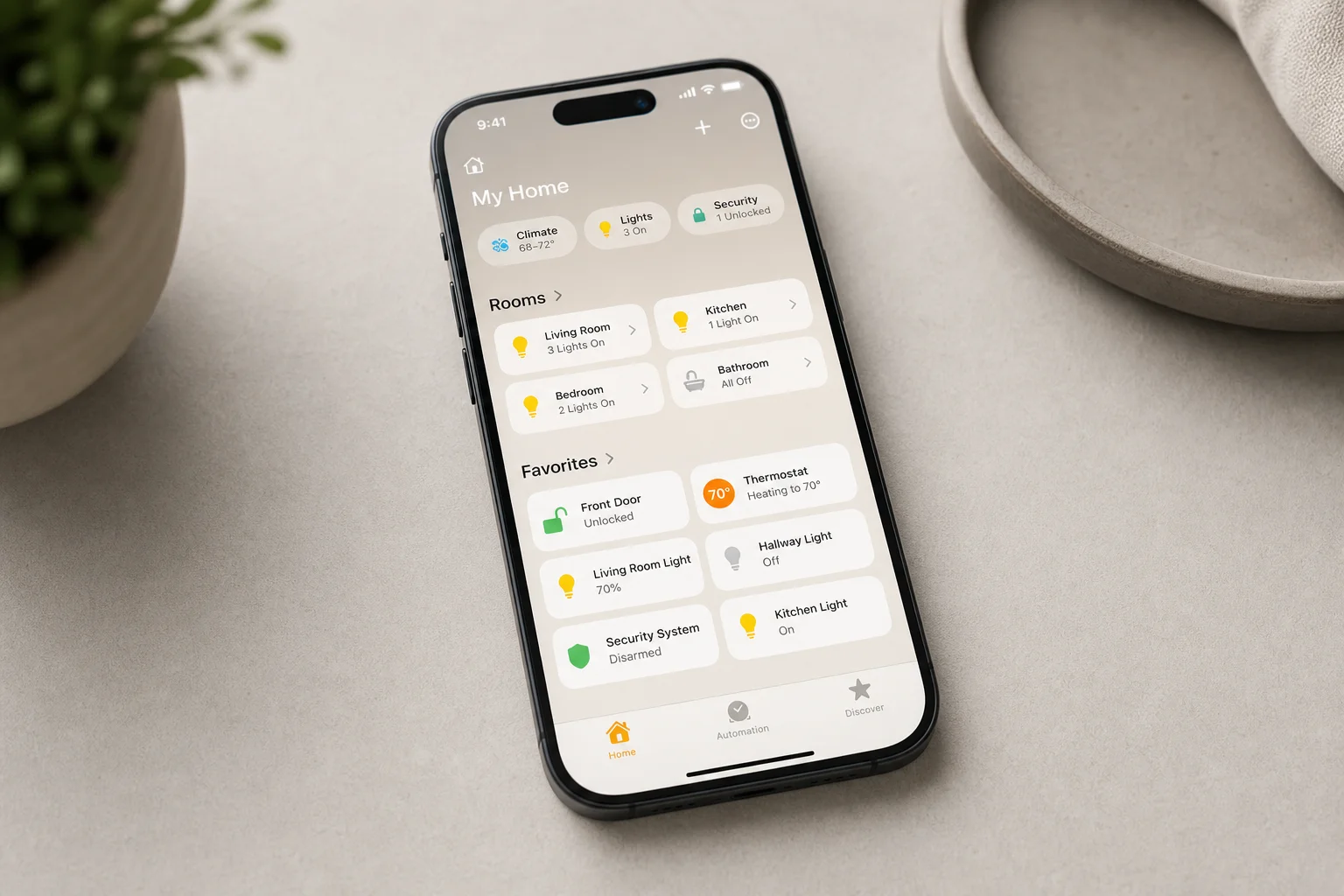
Scrolling down in the Home app reveals settings for the Apple TV, including the ability to name it, assign it to a room, and set up automations. The Home app also lets you organize your home by room, view all automations, and manage which devices belong to which spaces. Since the Apple TV is now your hub, all automations run locally on the device rather than relying on cloud processing.
Camera Viewing and Doorbell Integration
One of the Apple TV’s strongest features is live camera viewing on your television. Instead of checking cameras only on your phone, you can see them on the big screen. If you have a HomeKit Video Doorbell, the Apple TV displays an automatic picture-in-picture notification when someone rings it, letting you see who is at your door without interrupting what you are watching.
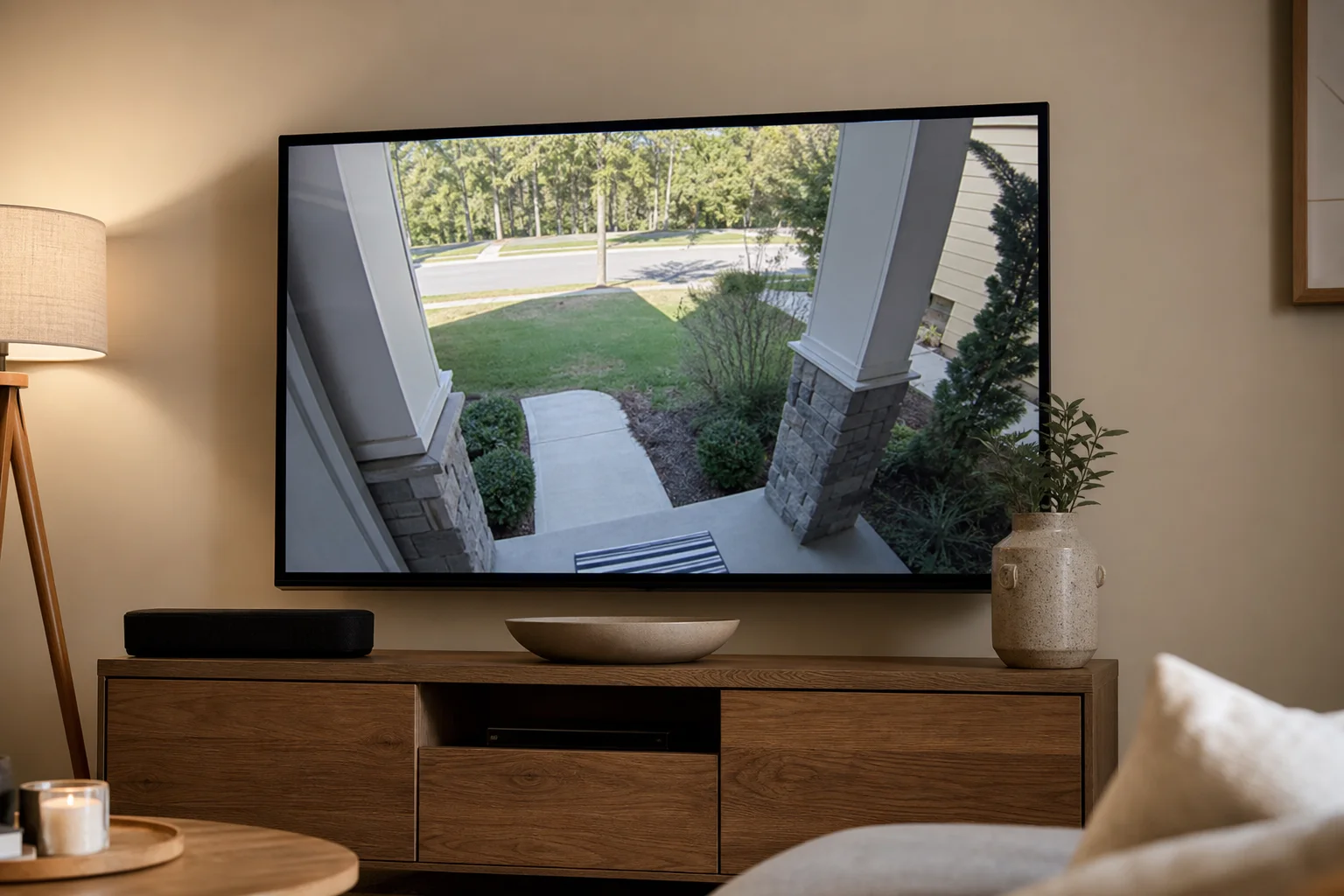
This integration makes the Apple TV particularly valuable for households that prioritize security and convenience. You get real-time doorbell alerts on your television, and you can expand to full screen instantly if you need a better view.
Setting Up Automations
With the Apple TV as your hub, automations run locally on the device, which means they work reliably even if your internet connection drops. The Home app lets you create automations based on triggers like time of day, location, or sensor activity.
Common automations include turning on porch lights when the front door unlocks at night, turning off all lights and the thermostat when everyone leaves the house, or activating an air purifier when motion is detected in a room. You can set these automations to run for a specific duration before turning off automatically, giving you fine-grained control over your home’s behavior.
Conclusion
The Apple TV is the strongest choice for a HomeKit hub because it combines dedicated hub functionality with a television display, camera viewing, doorbell integration, and local automation control. While iPad and HomePod Mini can serve as hubs, neither offers the same combination of features and reliability. If you already have a television and want to add HomeKit to your home, the Apple TV delivers the most practical and feature-rich experience.
Product link
View more details for Apple TV
This product is mentioned in the review. Check the specifications, options, and compatibility before buying.
View more details for Apple TVFurther reading
Related Reviews
Smart Home
Amazon Echo Hub Review: A Smart Home Dashboard That Finally Gets It Right
The Amazon Echo Hub puts smart home controls front and center with a fast, simple interface. Here is how it performs as a family-friendly dashboard.
Smart Home
15 Amazon Smart Home Automations: Practical Ideas for Every Room
Fifteen practical Amazon Alexa routines and automations that solve real household problems, from pet care to security and entertainment.

Smart Home
Best E-Paper Picture Frames 2026: Three Color E-Ink Displays Compared
Color e-paper picture frames offer a calmer alternative to bright LED screens. We compare three models with different approaches to connectivity, image quality, and price.