Grow Equipment
Vivosun X42 AI Controller Review: A Beginner-Friendly Brain for Your Grow Tent
A close look at the Vivosun X42 AI controller, from unboxing and setup to its three AI climate strategies and device management.
Introduction
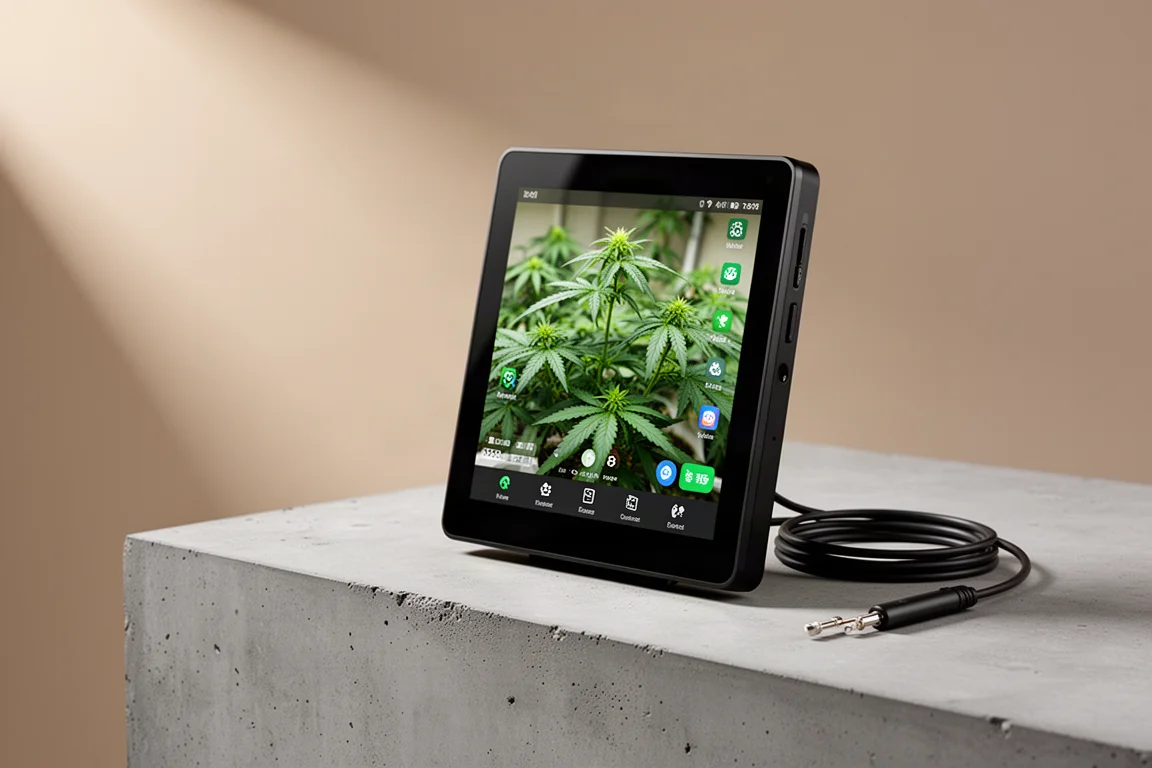
The Vivosun X42 AI controller is built around a simple idea: let software watch your grow environment and adjust your equipment for you. It monitors temperature, humidity, and VPD, then automatically manages connected gear based on the conditions it reads. Different performance modes let you decide how aggressively it should respond, which makes the approach flexible whether you want to save energy or hold rock-stable conditions.
Setup is designed to be approachable. Most interaction happens on a large touchscreen, and the controller guides you through device management, notifications, and calibration without requiring much prior experience. This review walks through the hardware, the interface screen by screen, and how it behaves when connected to real equipment like a grow light and an inline fan.
What Comes in the Box
The first thing you notice is the screen. The X42 has a 7-inch color touchscreen, which is generous for a controller in this category. The unit itself is slim, measuring about 7.3 inches wide, 4.3 inches tall, and only 0.7 inches thick, so it mounts cleanly without dominating the wall or tent pole.
Alongside the controller you get the temperature and humidity sensor probe with a cable roughly 3 meters long, or just under 10 feet. That gives you plenty of freedom to position the sensor exactly where you want readings taken inside the tent, rather than wherever the controller happens to sit. The box also includes the power supply and the remaining cables and mounting hardware.
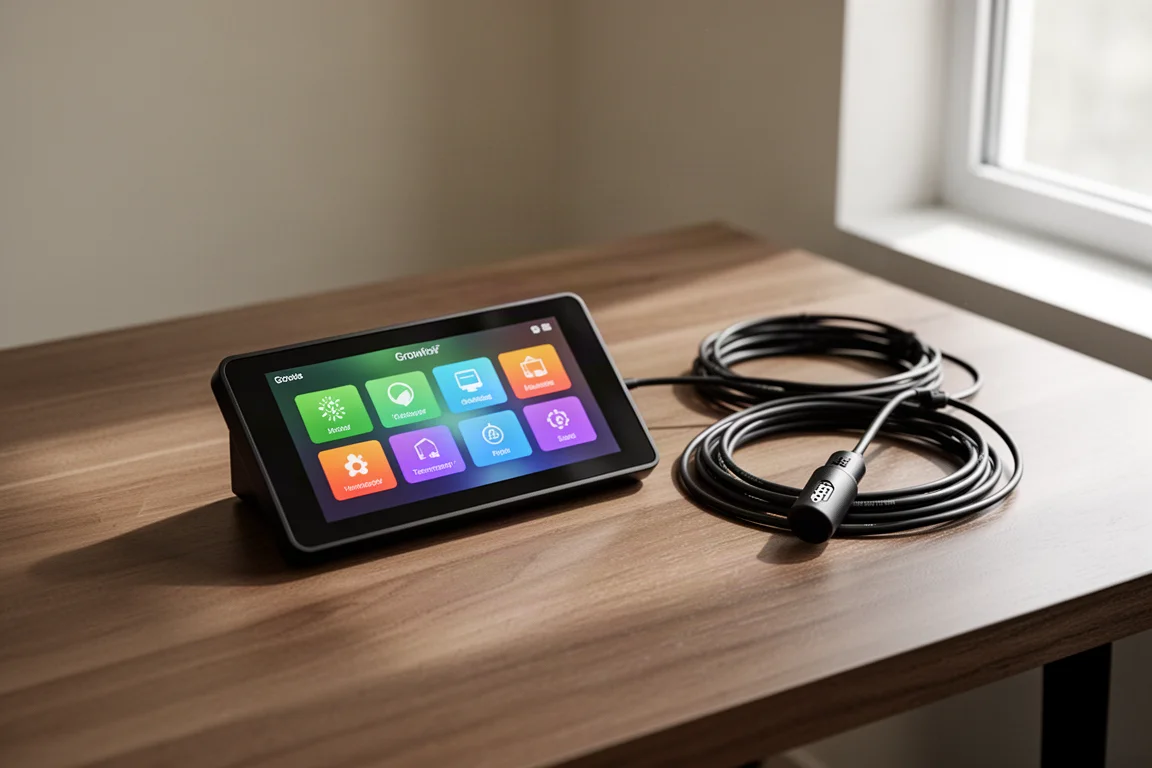
In terms of capacity, the X42 can manage up to six wired connections, expandable using splitters, plus up to 10 wireless devices. That means a single controller can potentially run a substantial amount of environmental equipment. The overall design is clean, and the touchscreen handles nearly all of the interaction.
The Three AI Climate Strategies
The headline feature is the AI-driven climate management, and it works through three distinct strategies. Eco mode balances temperature and humidity while prioritizing low energy use, which suits growers who want to keep power draw in check. Standard mode focuses on maintaining consistent climate targets, a sensible middle ground for most setups.
Performance mode responds more aggressively to environmental changes to maintain maximum stability. If your plants are sensitive to swings, or your tent environment shifts quickly when lights come on, this is the mode aimed at keeping conditions as steady as possible. You can also wirelessly connect multiple devices, including environmental equipment, and manage everything through the X42 using a single sensor probe, which keeps the whole system running from one sensor source.
Walking Through the Interface
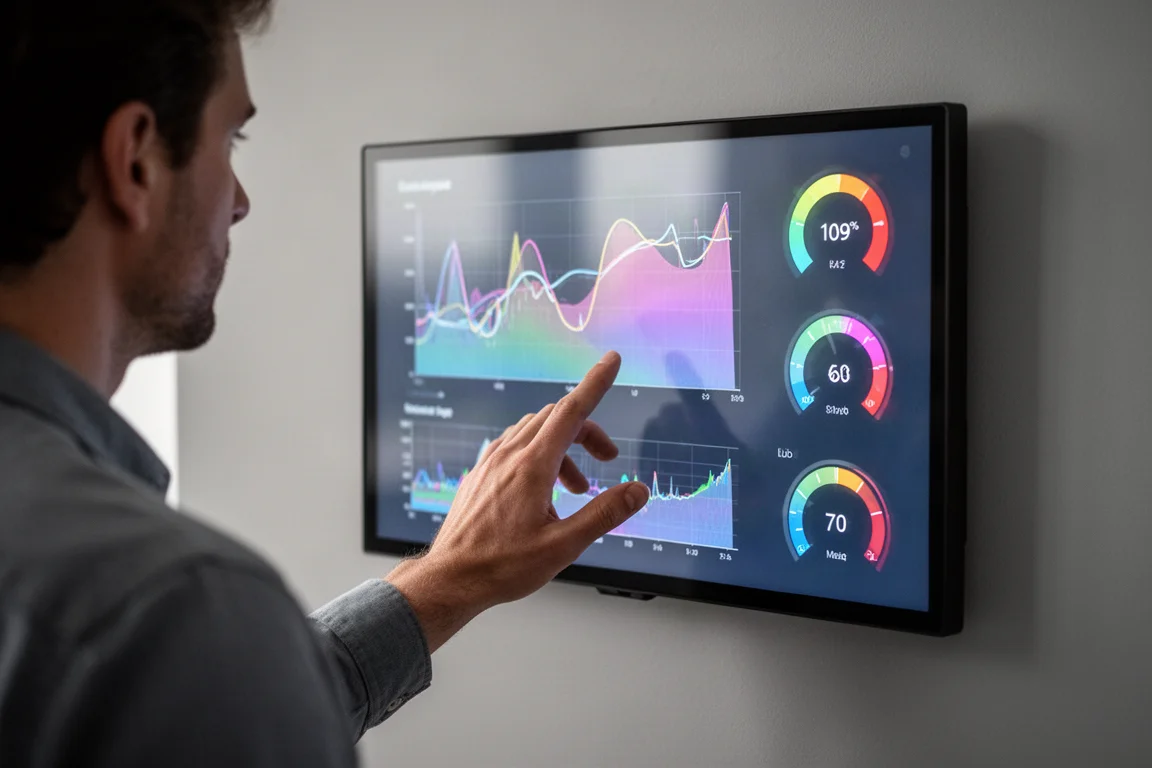
The home screen gives you an at-a-glance summary: inside temperature, inside humidity, and VPD in kPa, alongside outside readings from where the controller itself is mounted. Tappable icons show your grow light, circulation fan, and duct fan at a glance, including current levels and remaining runtime.
Settings are straightforward. You can choose 12-hour or 24-hour time format, switch between Fahrenheit and Celsius, adjust screen brightness and timeout, and change the language. A key tone option lets you silence the beeping that plays on every press, which many people will want to do immediately. There is also a system information page showing hardware and software versions, a reset option for troubleshooting, and a calibration menu where you can fine-tune inside and outside temperature and humidity readings to match your own reference.
Grow Light Control
The grow light interface offers seedling, veg, and flower spectrums, with both cycle and manual modes. Manual keeps the light on around the clock if that suits your setup, while cycle mode lets you pick a spectrum, set intensity, and use a sunrise and sunset option with a defined start time, on-duration, and off-duration.
One behavior worth knowing: if a cycle is already running, tapping the settings produces a warning that the action will stop cycle mode. You confirm, the schedule pauses, and then you can make changes freely before restarting. In practice this is a minor extra step rather than a real obstacle.
Circulation Fan Control
The circulation fan section is not limited to fans built into a grow light. Clip-on fans can connect here as well, and for those you can choose natural wind mode or an oscillation feature. A practical caveat: if you select either of those while only controlling the fans integrated into a grow light, oscillation does nothing and natural wind mode appears to simply run at full speed. Keeping the fan on manual at level three, with the extra features off, is a reliably predictable choice.
Duct Fan and Auto Mode
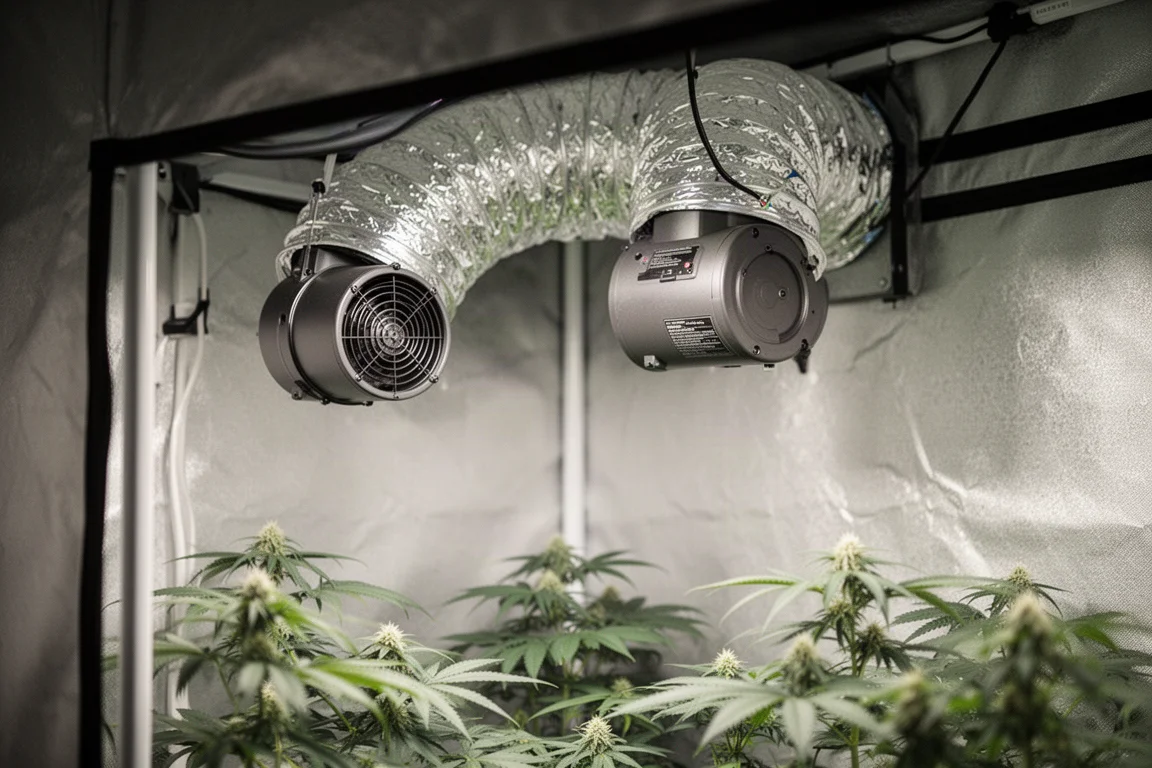
The duct fan menu offers manual, cycle, and auto modes. In auto mode you set a maximum level, temperature and humidity triggers, and optionally a standby speed. The reviewer’s setup caps the fan at level six, since anything higher gets loud and moves more air than the tent needs.
Triggers are set independently for temperature, humidity, and VPD, each with a low and a high value. In the tested configuration, a high temperature trigger at 82°F and a high humidity trigger at 75% kick the inline fan on automatically when either threshold is reached, with no low triggers set. A standby speed of level one is a popular baseline for many growers, but with triggers tuned well, the fan cycling on and off throughout the day may make a standby speed unnecessary. Every environment is different, so it is worth experimenting.
Adding Devices and Notifications
Adding equipment is handled through a dedicated menu. Wireless devices are discovered, connected, and appear on the controller automatically. Wired connections are shown by port, so you can see exactly what is plugged in where. One small limitation: a port cannot be set to empty or deleted, so the workaround is simply labeling an unused port as not set.
Notifications are split into three buckets: environment, device, and AI. Environment alerts cover things like humidity climbing too high, which pairs naturally with the automatic fan triggers. Device alerts flag issues such as a disconnected probe. The AI category is present but sparse today, and it looks like an area where further features may arrive over time.
Everyday Use and Final Thoughts
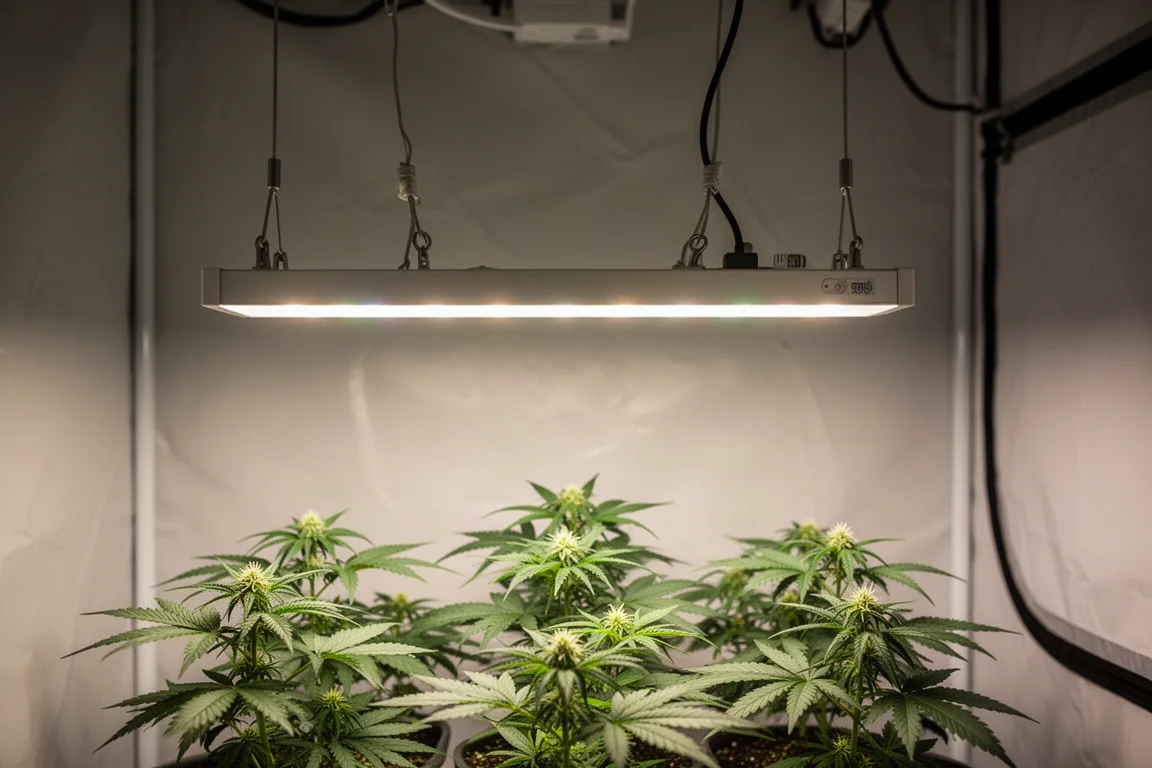
Used alongside a Vivosun Aerolight 550W LED grow light and a Vivosun Aerozesh inline fan, the X42 communicates with both devices smoothly, letting you adjust intensity, levels, and schedules directly from the touchscreen and watch the equipment respond. The walkthrough from unboxing to a running 4x4 tent setup is genuinely beginner-friendly, and the large screen keeps the learning curve shallow.
If you want a single hub that watches your climate and adjusts your gear automatically, with the flexibility to choose between energy saving and maximum stability, the X42 makes a strong case. For anyone setting up a new tent or replacing a basic timer-and-hope arrangement, it removes most of the guesswork from day-to-day climate management.
Conclusion
The Vivosun X42 AI controller combines a large, approachable touchscreen with genuinely useful automation. Three AI climate strategies, support for six wired and 10 wireless devices, a long sensor probe cable, and clear trigger-based fan control make it a capable central hub for a grow tent. The minor quirks, like fixed ports and the occasional extra confirmation tap, are easy to live with once you know about them. For growers who want their environment managed for them, it is a compelling option.
Product link
View more details for Vivosun X42 AI Controller
This product is mentioned in the review. Check the specifications, options, and compatibility before buying.
View more details for Vivosun X42 AI ControllerFurther reading
Related Reviews
Grow Equipment
AC Infinity Cultivator Kit Review: A Complete 2x4 Grow Tent Setup
A full starter setup with tent, EVO 3 LED grow light, ventilation, nutrients, medium, and even genetics. Here is what the Cultivator Kit includes and who it suits.
Grow Equipment
VivoSun V Cure vs Cannatrol Cool Cure: Which Cannabis Drying Machine Is Worth It?
A hands-on comparison of two controlled cannabis drying machines, covering technology, price, stability, capacity, app control, and real test data.
Grow Equipment
VivoSun VCure Review: A Dedicated Drying and Curing Box With Real Controls
A close look at the VivoSun VCure: capacity, climate control, recipes, airflow design, and the practical details that matter for home growers.