Gaming Accessories
ROG XRE R1 Gaming Glasses Review: A Big Virtual Screen for Portable Play
The ROG XRE R1 gaming glasses deliver a massive virtual display with solid comfort and smart features, but the 240 Hz mode and dock come with real trade-offs.
Introduction
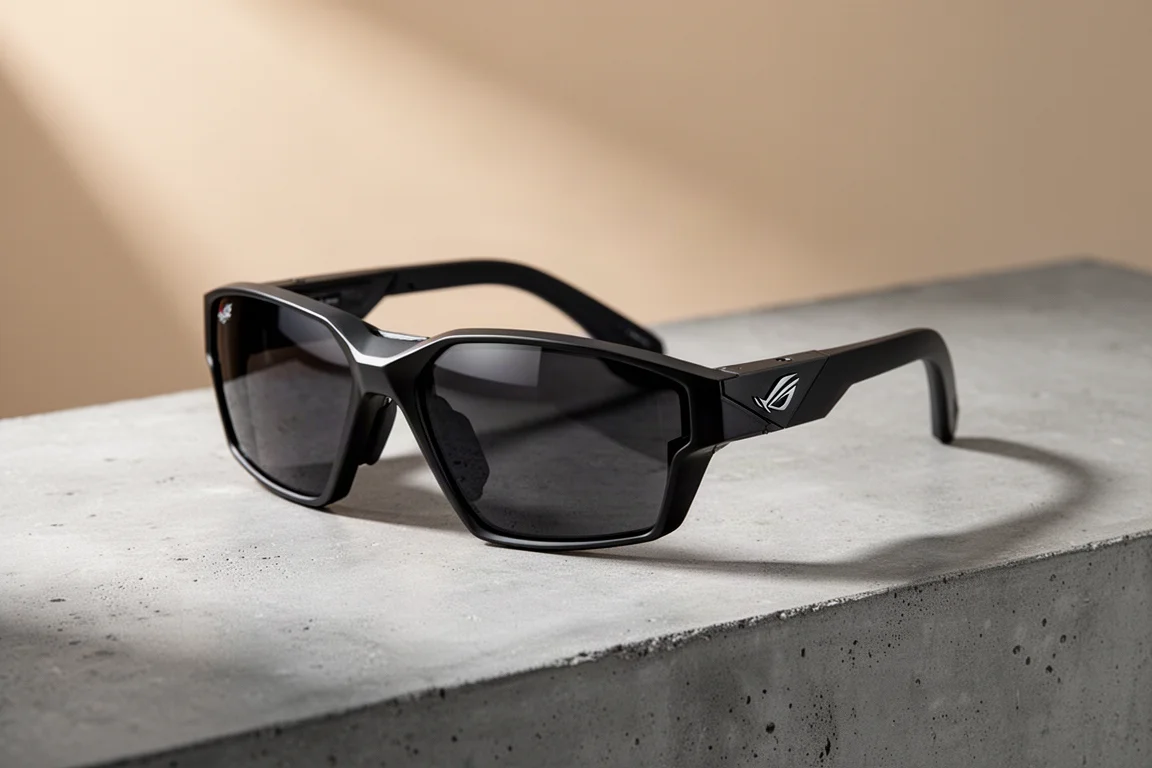
The ROG XRE R1 gaming glasses are a pair of AR glasses that put two Sony micro OLED screens at 1080p in front of your eyes. The result is the effect of a massive 171-inch display floating in front of you, an experience that feels immersive and futuristic compared to a traditional gaming setup.
These glasses are essentially an ROG-tweaked version of the existing XR 1 Pro, with nearly identical specs on the glasses themselves. The R1 retails for $849, and much of the price difference comes from a higher refresh 240 Hz mode with some real trade-offs, ROG ecosystem quality-of-life features, and the included dock. The dock makes it easier to connect to gaming consoles and PCs and adds HDR tone mapping.
What these are not is a VR headset. They offer three degrees of freedom versus a VR headset’s six, so they are not suited for looking back over your shoulder in sim racing. There are apps that adapt the tracking to create a light VR experience, and you can fake some of it with aspect control to make the display ultra-wide. Running 21:9 or 32:9 in Forza Horizon 6, you can move the virtual screen closer to your face to convincingly check side view mirrors, but those modes limit you to 90 Hz and 60 Hz respectively.
Who the ROG XRE R1 Is For
The R1 is best understood as an extension of a portable experience. It shines when you are relaxing with a handheld system, playing or watching something immersive, and it adds a lot to that experience. It is also a strong companion for working or gaming on long flights, where a massive virtual screen beats a small laptop display.
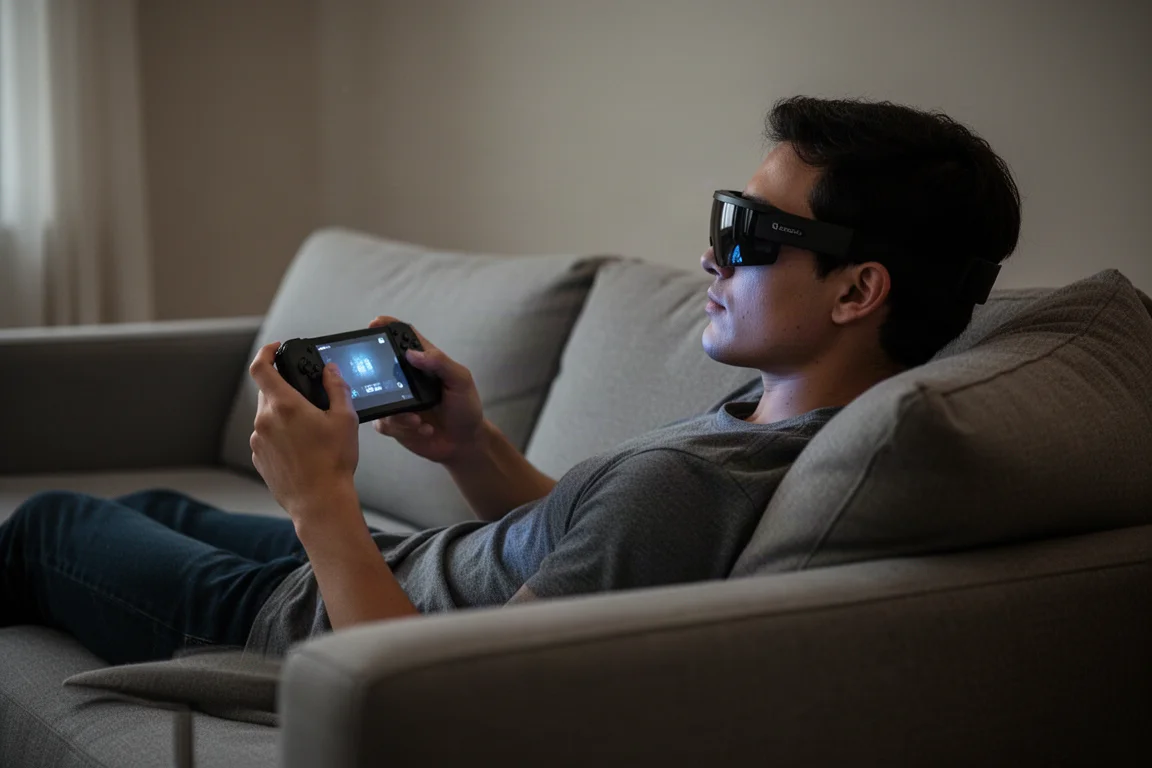
That said, this is not a primary display replacement. You would still want a proper gaming monitor at your desk and a large 4K TV in your living room. You could use it as a primary display in a smaller living space, but it is 1080p and a one-user-at-a-time experience versus something more communal like a short-throw projector or a TV. And $849 is not an inconsequential amount of money for most people.
Comfort and Fit
The glasses are surprisingly comfortable, even for long wear, with plenty of customization for the fit. The stems are forgiving in how wide they go, there are three different nose pad options, and three angles of adjustment to help vertically center the display in your natural field of view. This is also helpful if one of your ears sits higher than the other.
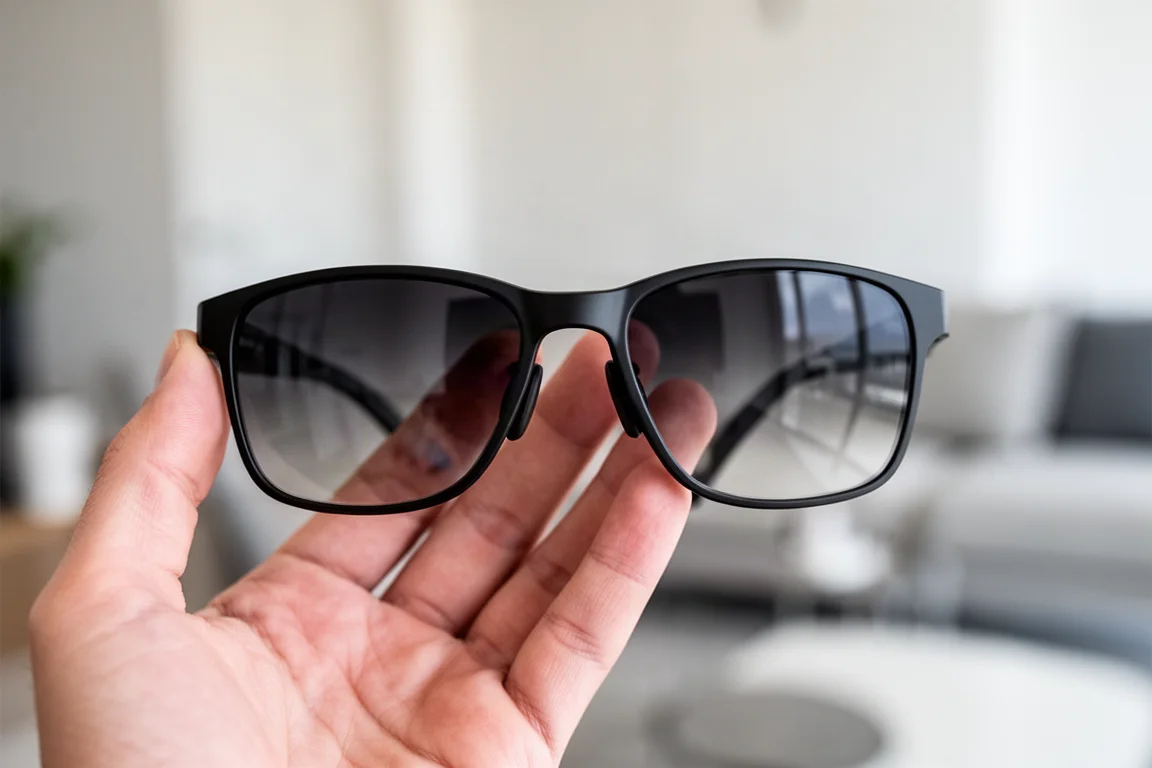
If you need corrective lenses, the glasses include a small set of non-prescription inserts that can be made into prescription lenses at an eye doctor, or you can order prescription inserts directly. Once dialed in, they never felt awkward, hot, or uncomfortable, and there was no need to adjust them on the face.
The experience itself is impressive. You can have the screen follow your head movements or anchor it in place and look around at it. In anchor mode, the lenses have electrochromic dimming, so when you turn your head to talk to someone, they reduce the tint and let you see them, then tint dark again for immersion when you look back. A tap on the top control button instantly activates transparent mode to see your surroundings.
Audio and Peripheral Vision
The audio is surprisingly good, convincingly emulating a surround field around each ear with verticality. Because nothing is in your ears, you can still hear what is happening in your space when you need to. The audio is audible to people around you, so for total privacy, a good set of wired or low-latency Bluetooth earbuds is the way to go.
Even with thicker stems than normal eyeglasses, you can still wear these with any headphones that would normally be comfortable with glasses. There are also microphones built in.
You retain most of your peripheral vision with these on, so it is not completely isolating like a VR headset. Your entire lower field of vision stays open, which makes these great as a secondary screen when working on a small laptop, like on a flight. That is a plus for functionality but a minus for immersion. The best experience for getting lost in the content is in a dim or dark room.
Connectivity and the Dock
Connectivity is a single USB-C cable that comes off the rear of the left stem. With just this cable, you can get input from any device that provides power and outputs display over USB-C, including newer iPhones, flagship Android phones, gaming laptops, MacBooks, or ideally a handheld gaming device like an Ally X or a Steam Deck.
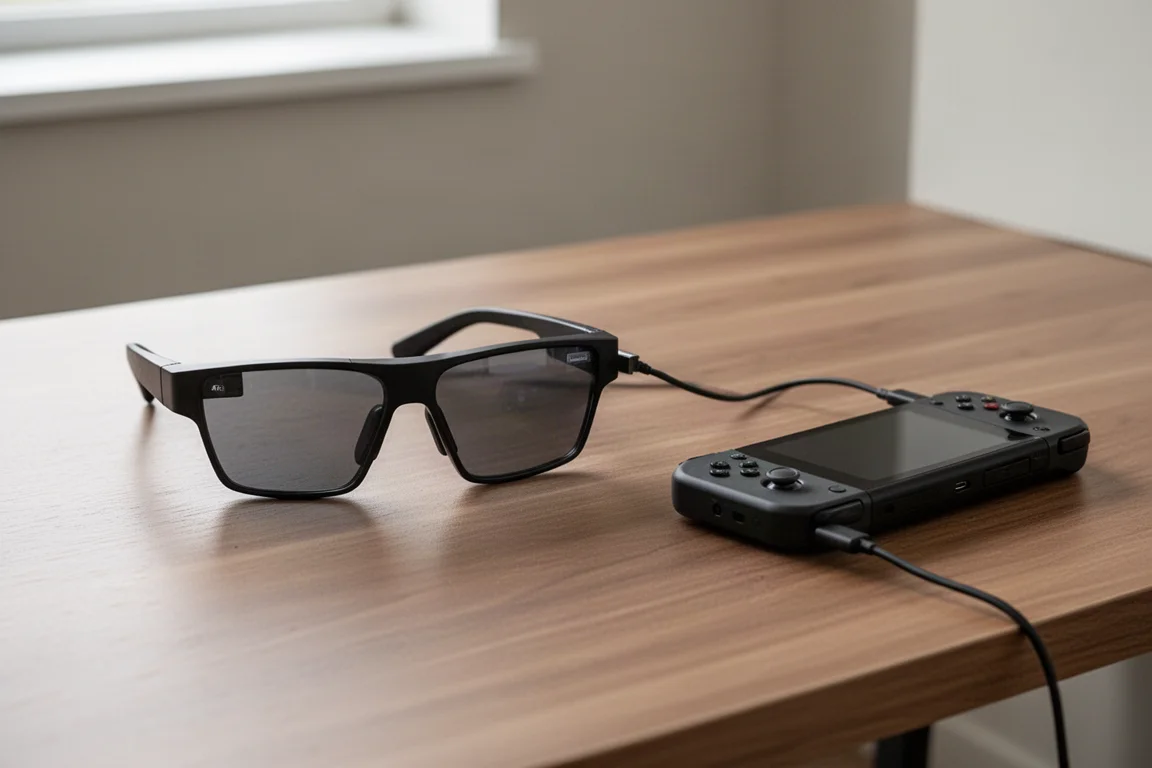
If you are running this with the Ally X, it adds an embedded menu into the control panel for quick access to common functions. You can also access all adjustments via the quick or full menu that hovers in front of your face using the on-glasses controls. Because the Ally X is a Windows 11 device, you can run it as a dual display and retain touchscreen, which is easier than navigating the secondary control layer.
The on-head controls are deep and intuitive, and there is a lot you can do with just the USB cable. When you start talking about consoles or a gaming PC, the dock comes into play. It has DisplayPort 1.4 and two HDMI 2.0 ports, which is sufficient since the glasses only output 1080p.
If you are using the glasses primarily for gaming, working, or watching content on a mobile device, you can get all that done with just the USB-C cable. The caveat is that your host device needs to provide power, as there is no battery in the glasses. A Nintendo Switch, for example, needs to be used with its dock. ASUS includes two USB-C to USB-A cables to handle both data and power.
The dock requires power and is best executed at a desk. Depending on your motherboard, you may only need a single USB connection for both power and data from your PC. However, the dock setup can get cumbersome in a living room where consoles sit next to the TV and you are on the couch.
A significant caveat is that all controls transfer from the glasses to the dock when using it, so the dock needs to stay within reach. The controls and menus on the glasses are well done, and you develop motor memory over time. There is a button on the glasses that recenters the screen in anchor mode, but there is no immediate shortcut on the dock and no clear instructions in the manual. This can be annoying when leaning back at a desk and needing to adjust the screen position.
The dock is not strictly a device switcher. It also adds GamePlus features like crosshairs and FPS counters, game visual settings to toggle between preset display modes like FPS, racing, and cinema, and support for HDR tone mapping. This is not true HDR; it remaps HDR values and a wider sRGB color gamut down into SDR space. It works okay for some brighter games, but darker games with impressive HDR like Alan Wake 2 suffer from crushed blacks that make dark areas look noisy or pixelated. Because of that, HDR is best left off almost all the time.
The 240 Hz Question
The other big marketed feature of the R1 is 240 Hz, but there is a trade-off. At 120 Hz, you get the full 1080p resolution of 1920x1080. At 240 Hz, it only has the vertical resolution, so you end up at 1920x540 upscaled. This softens fine details, especially text.
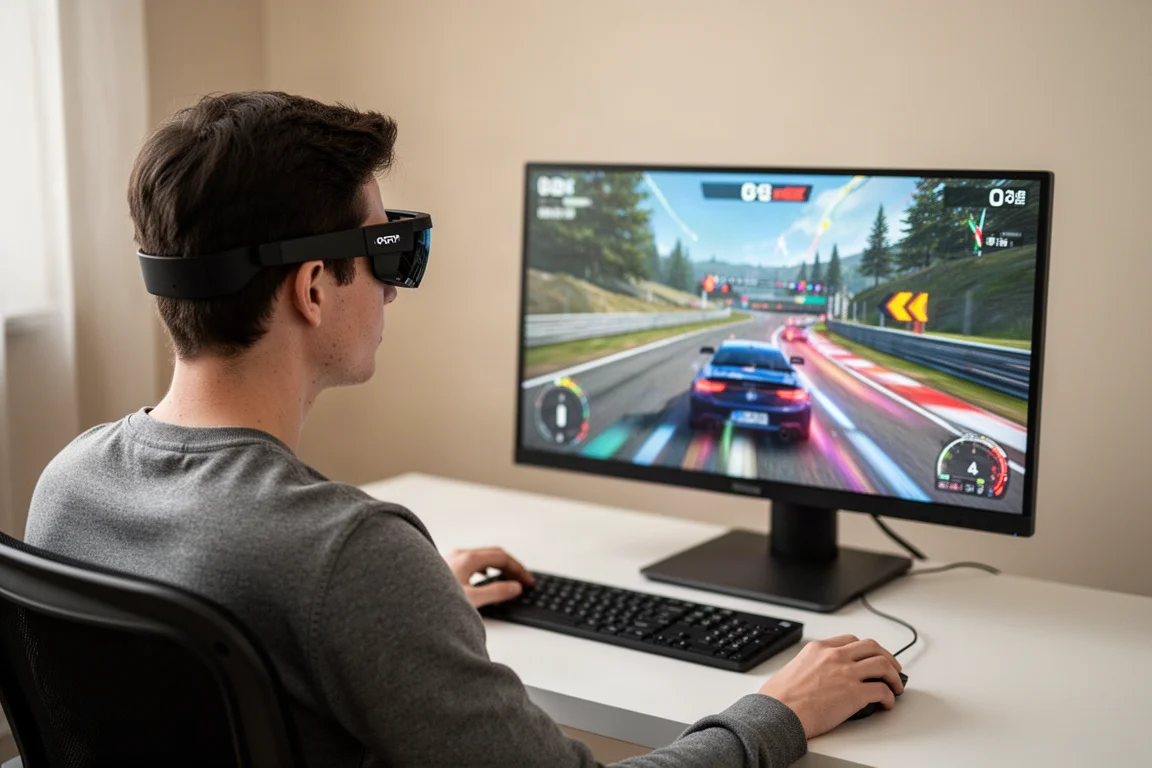
Personally, running at 120 Hz at full resolution is the better experience. There is no flicker or pixel movement on screen, and the detail is sharp enough for most gaming. At 240 Hz, there is a weird pixel movement on static images like in-game menus or documents, a shimmer or moiré effect. This shimmer is not noticeable in movement during gameplay, but there is a definite reduction in sharpness in both gameplay and text. Spotting distant targets in Call of Duty is tougher in this mode, and it is even obvious in something more forgiving like Forza Horizon 6. In almost every gaming situation, the full-resolution 120 Hz experience is preferable.
Sizing and IPD
Something important to know before buying is that these come in two sizes, and it is not based on head size but on interpupillary distance (IPD), the distance between your pupils. The version available at Best Buy is the narrow version, IPD 63, covering 57 to 66 millimeters, which statistically works for about 85% of the population. For larger-headed users, the wide version, IPD 69, covers 66 to 75 millimeters and is available directly from XRE or ASUS.
With the wrong size, the edges of the display are not in focus, and the far left side of the screen is noticeably dimmer. It is also said to cause eye fatigue, though that was not experienced. Having the proper size makes a huge difference: the display is crystal clear to the edges and brightness is perfectly uniform.
It is still 1080p, though. Yes, it is OLED, so contrast, black levels, color saturation, and motion blur all look really good, but it is still 1080p.
Buying Advice
Whether the R1 is worth it comes down to two main factors. First, this is an extra. It is not a primary display choice, and $849 is a significant amount for most people. Second, consider whether you really need the dock. The glasses-only option of the XR 1 Pro, at $250 less, may make more sense depending on your use case, since the core tech of the glasses is very similar minus the 240 Hz mode.
The HDR tone mapping aspect of the dock is not fully convincing, but if you need to connect your PC and consoles, especially at a desk, the dock is very useful. For serious competitive FPS, a super high-refresh, high-resolution gaming monitor is still the better choice. Most gaming experiences look great in these at 1080p, but FPS is a little too soft for quickly picking out targets.
Conclusion
The ROG XRE R1 gaming glasses are an impressive first experience with AR glasses. The massive virtual screen, comfortable fit, and thoughtful features like electrochromic dimming make them a compelling addition to a portable gaming setup. The 240 Hz mode and dock come with trade-offs, so the glasses-only XR 1 Pro might be the better value for many. For relaxing with a handheld system or working on long flights, the R1 adds a lot to the experience.
Product link
View more details for ROG XRE R1
This product is mentioned in the review. Check the specifications, options, and compatibility before buying.
View more details for ROG XRE R1Further reading
Related Reviews
Gaming Accessories
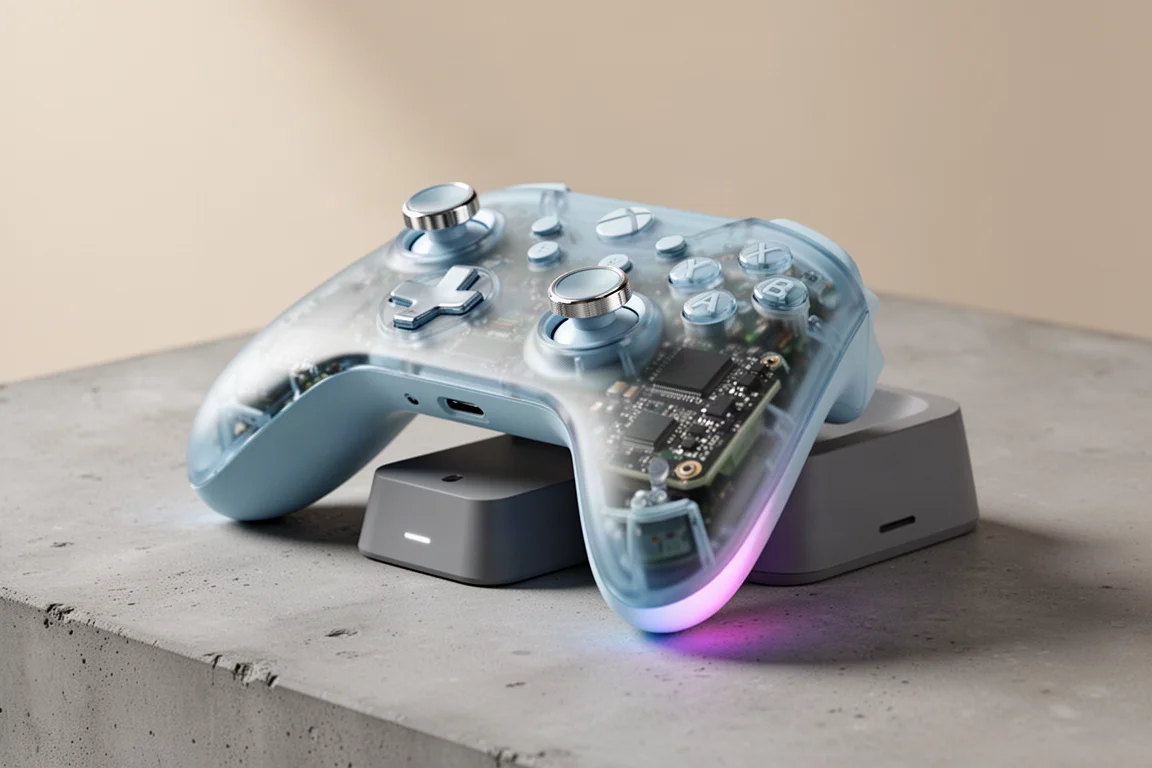
8BitDo Ultimate 2 Wireless Controller Clear Blue Review
A nostalgic clear blue take on the 8BitDo Ultimate 2 Wireless Controller, with TMR sticks, a charging dock, and hidden Steam Input support.
Gaming Accessories
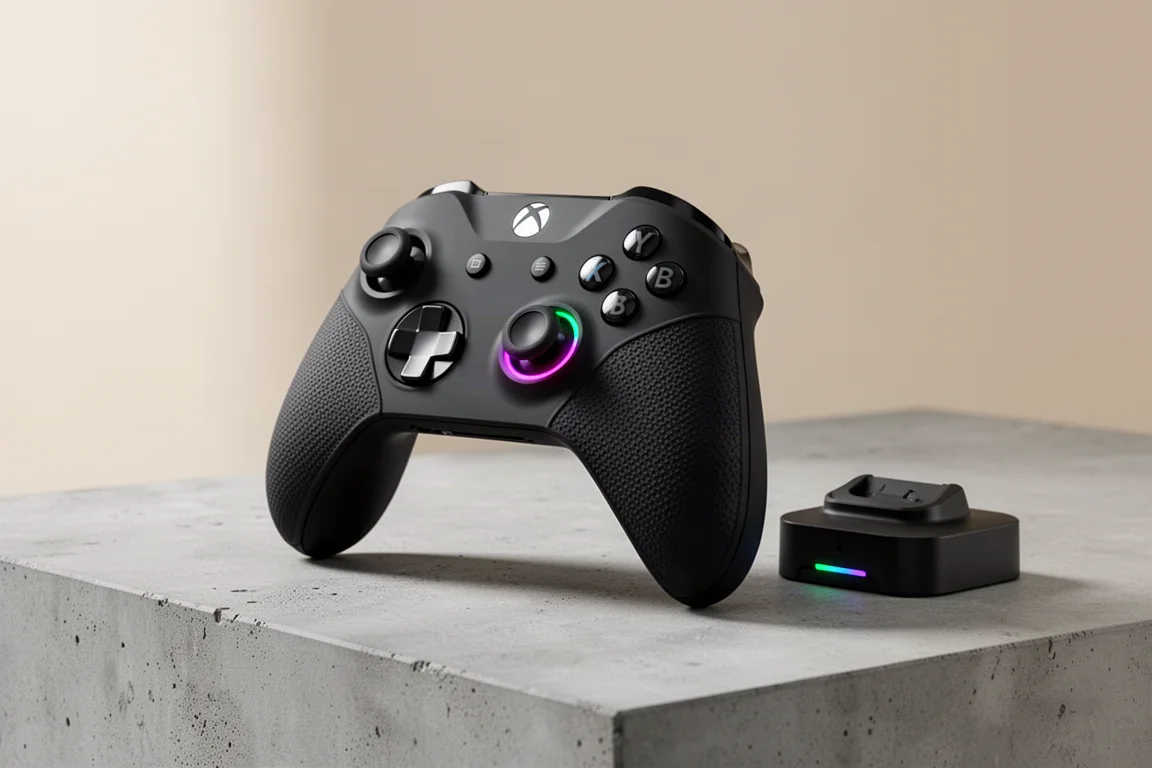
8BitDo Ultimate 3E Review: A Premium Xbox Controller With Elite Ambitions
The 8BitDo Ultimate 3E brings a refined shape, swappable controls, and a wireless dock to the Xbox ecosystem. Here is our full review.
Gaming Accessories
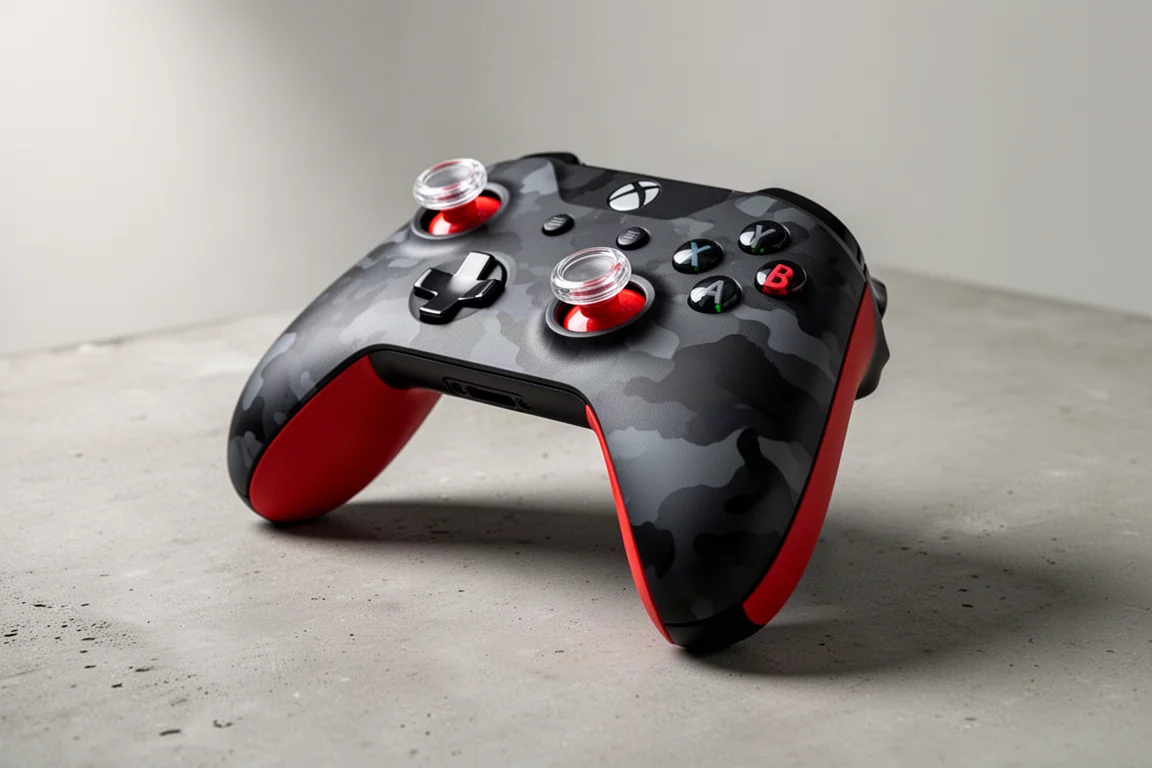
AIM Controller Review: A Custom Xbox Controller That Keeps the Classic Feel
A detailed look at a custom Xbox controller that keeps the familiar shape and weight while adding useful customization options.