Portable Monitors
Portable 120Hz Monitor Review: A Compact Secondary Display for Handhelds
A 7-inch 120Hz IPS portable monitor with touch, HDR, and FreeSync support that pairs neatly with x86 handhelds for dual-screen projects.
Introduction
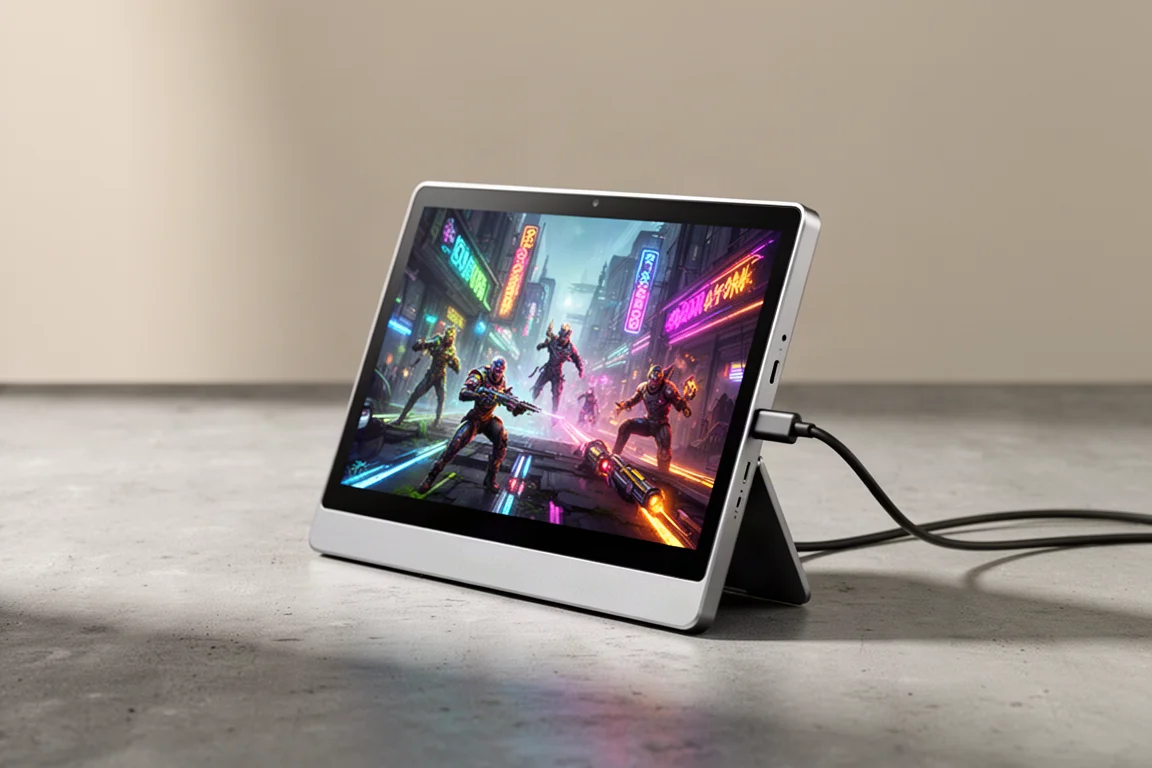
Portable monitors have become a practical add-on for people who want more screen space without carrying a full desktop display. This particular model caught attention because of its small 7-inch form factor and a feature list that sounds surprisingly capable for the price: 1080p resolution, a 120Hz refresh rate, an IPS panel, touch support, HDR, and AMD FreeSync. It is light, built from metal, and comes with a kickstand that can be attached to the rear. The unit has no built-in battery, so it relies on USB-C power, but it does include dual stereo speakers.
The main appeal here is using it as a secondary display for a handheld gaming device. With the right adapters and a magnetic stand, it can be mounted behind a handheld like the ROG Ally X to create a dual-screen setup. That opens up interesting possibilities for emulation, sim games, and other software that benefits from a second screen.
First Impressions and Build Quality
Out of the box, the monitor is minimal. The package includes a USB-C cable and a USB-C to full-size USB adapter for power. The kickstand is a separate piece with an adhesive backing, and it is optional. The unit itself is constructed from metal and feels very light, which makes sense for a display meant to travel with a handheld.
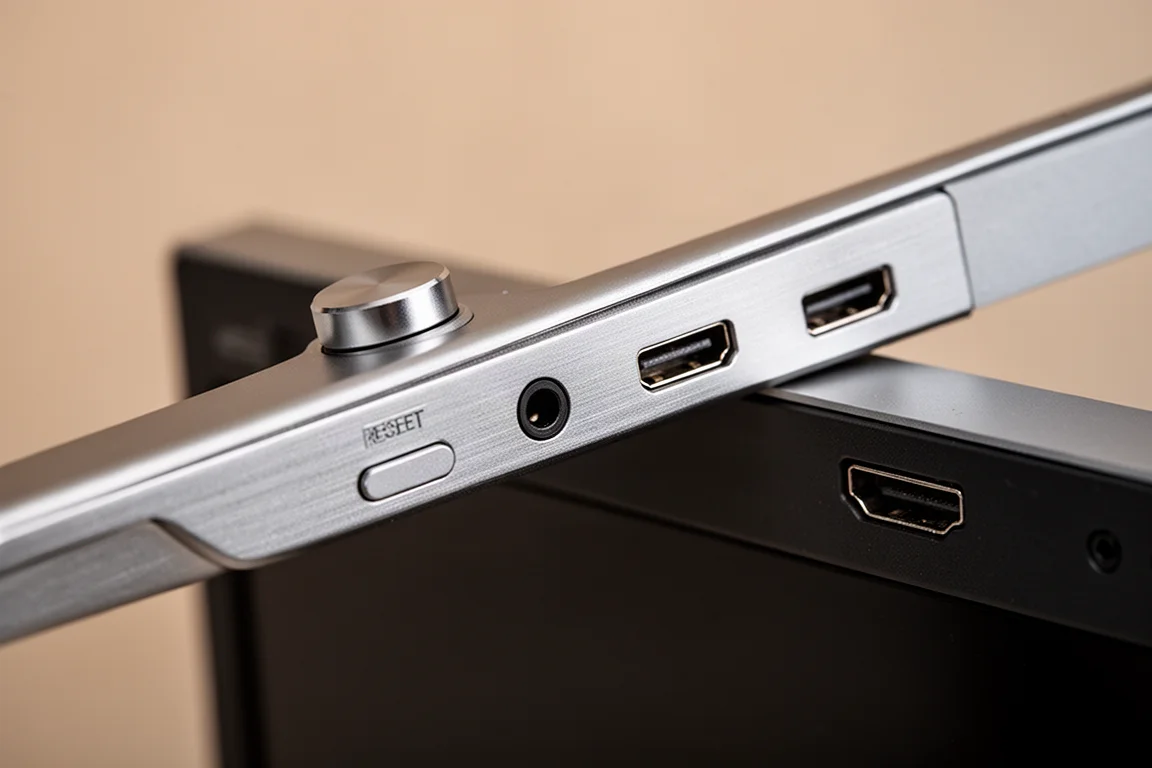
The rear of the unit has a small kickstand that can be installed or left off. It comes in handy for propping the screen up on a desk. The front is dominated by the 7-inch IPS panel, and the top edge houses a control knob, a 3.5mm audio jack, a reset button, two USB-C ports, and a mini HDMI port.
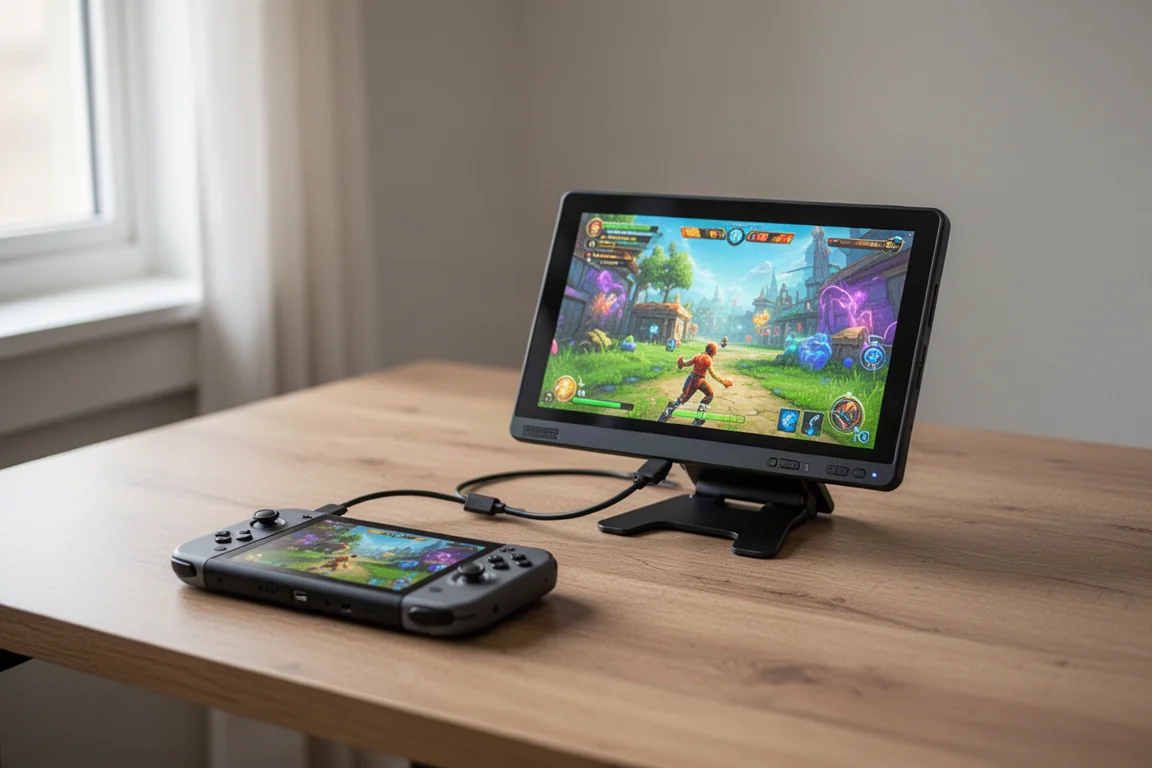
The viewing angles are decent right out of the box, and the screen supports touch input, which is a feature not all portable monitors offer. One small frustration is that the on-screen display menu cannot be controlled via touch. Instead, the control knob and an exit button on top handle all menu navigation. It works, but touch control would have made the experience smoother.
Ports, Controls, and Everyday Usability
The port selection covers most use cases. Two USB-C ports handle both video and power, and the mini HDMI port provides an alternative connection for devices that do not support USB-C video output. The 3.5mm audio jack is useful for connecting headphones or external speakers, and the reset button is there for quick troubleshooting.
The control knob on top is the primary way to navigate the OSD. It gives access to brightness, contrast, color presets, volume, overdrive mode, and a frame rate display. The overdrive mode appears to work only over HDMI, and the OSD timeout and transparency settings are also adjustable from the menu.
One thing worth noting is that the cable sticks straight out of the top when plugged in, which looks a bit awkward. Right-angle USB-C adapters solve this by letting the cable route behind the screen. These adapters are inexpensive and make the setup much cleaner, especially when the monitor is mounted behind a handheld.
Display Performance: 120Hz, HDR, and FreeSync
The headline feature is the 120Hz refresh rate. Out of the box, Windows 11 defaults to 60Hz, so it needs to be changed manually in the display settings. Once switched, the panel does run at 120Hz. Some listings for this monitor claim it does not support 120Hz, but in practice it does, as long as the refresh rate is changed in the operating system.
The panel also supports HDR, which is surprising at this size and price point. Windows detects it as an HDR display, and enabling it works, though the black levels look slightly worse with HDR on. It is a basic implementation, but the fact that it is there at all is a nice bonus.
AMD FreeSync is also supported, though it is the basic version rather than FreeSync Premium. This pairs well with Ryzen-based handhelds, which use AMD graphics. Combined with the 120Hz refresh rate, this makes the monitor a solid match for gaming on the go.
Real-World Uses: Emulation and PC Games
The most obvious use for a secondary display is emulation. Nintendo DS games, which natively use two screens, work particularly well. By setting the monitor as an extended display and opening two windows in an emulator like Melon DS, one screen can show the top display and the other the bottom display. Higher-end emulation, such as upscaled 3DS or Wii U, also benefits from the extra screen.
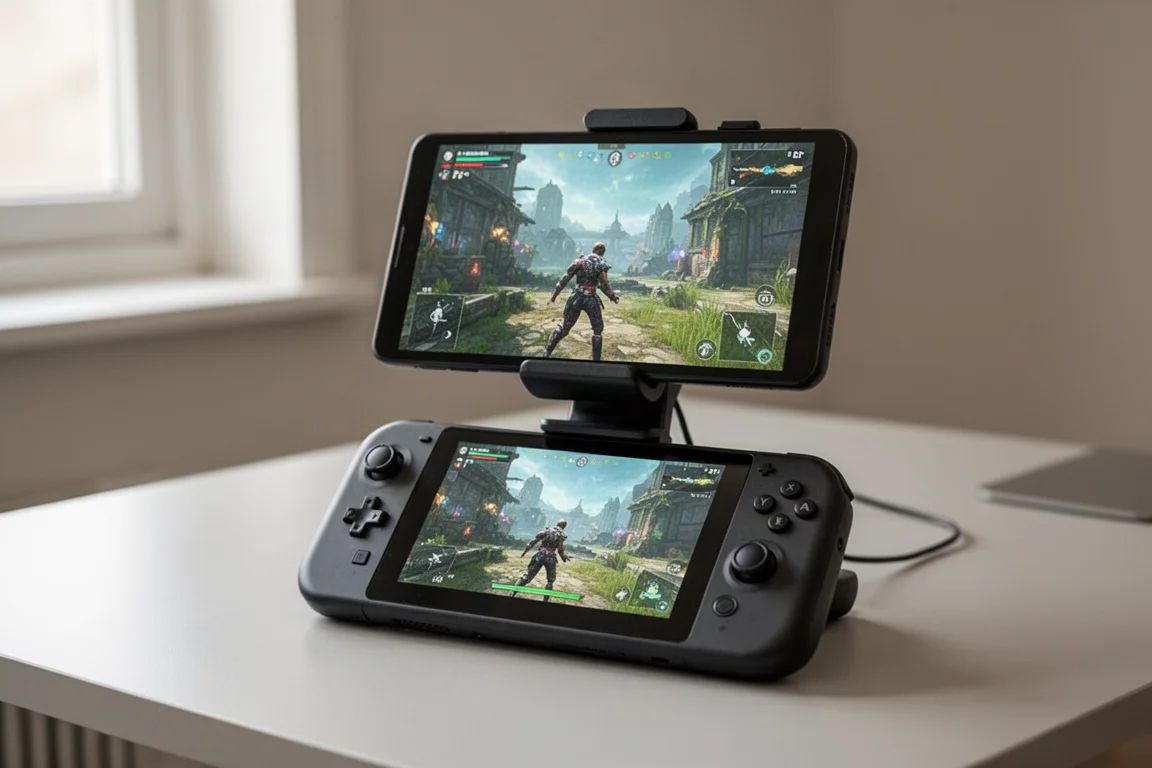
PC games with dual-screen support are another strong use case. Microsoft Flight Simulator 2024 lets users drag a gauge cluster onto the secondary display, which is handy for keeping an eye on flight instruments. Other games, such as Euro Truck Simulator 2, American Truck Simulator, and various sim racers, also support secondary displays. Fallout 4 has a modded or app-based approach that puts the Pip-Boy on the second screen, and it works well with the older Game of the Year edition from GOG.
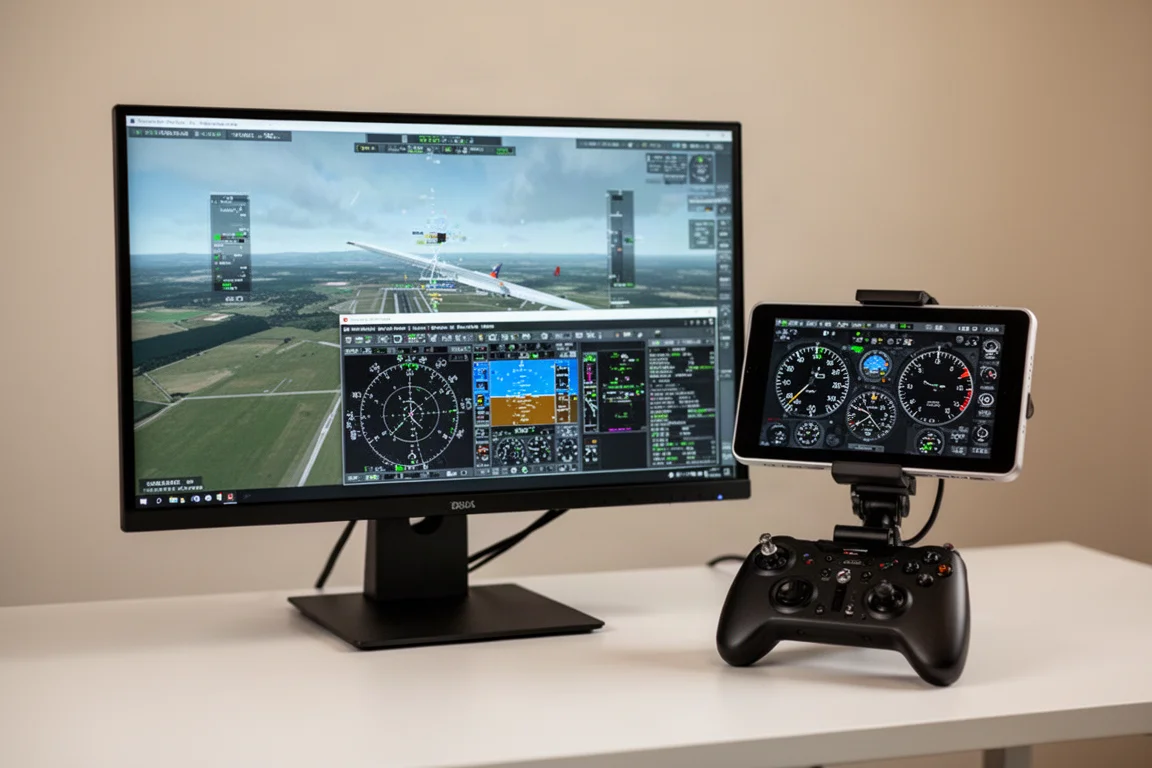
This kind of setup is not for everyone. Most people will be perfectly happy with a single screen on their handheld. But for those who want to experiment, the monitor can be attached and removed easily, turning an existing handheld into a dual-screen device without buying a dedicated dual-screen console.
Buying Advice
This portable monitor makes the most sense for people who already own an x86 handheld and want to experiment with a secondary display. The 120Hz refresh rate, touch support, HDR, and FreeSync make it a capable little screen for the price. The lack of a built-in battery means it needs to be powered via USB-C, which is not a problem when connected to a handheld or a PC.
The built-in speakers are louder than expected for a portable monitor, though they are not going to replace a decent pair of headphones. The metal construction and light weight make it easy to carry, and the optional kickstand adds flexibility for desk use.
For anyone considering a dual-screen handheld setup, this monitor is a practical and affordable way to try it out. The required accessories, such as right-angle USB-C adapters and a magnetic stand, are inexpensive and easy to source.
Conclusion
This 7-inch portable monitor delivers on its key promises: a true 120Hz refresh rate, touch input, HDR support, and FreeSync compatibility. It is light, well-built, and versatile enough to serve as a secondary display for a handheld or a standalone project monitor. The main compromises are the lack of a built-in battery, the need to manually switch the refresh rate in Windows, and the OSD that cannot be controlled via touch.
For handheld owners who want to explore dual-screen gaming or emulation, this is a fun and affordable add-on. It turns an existing device into something more capable without requiring a dedicated dual-screen console. If the idea of a compact secondary display appeals to you, this monitor is worth a closer look.
Product link
View more details for ROG Ally X
This product is mentioned in the review. Check the specifications, options, and compatibility before buying.
View more details for ROG Ally XFurther reading
Related Reviews
Portable Monitors
Best Portable Monitors 2026: Five Options from Budget to Gaming Performance
A ranked guide to five portable monitors, from the budget-friendly Asus MB166C to the gaming-focused Asus ROG Strix XG17AHP, with clear strengths and trade-offs for each.
Portable Monitors
SOTSU FlipAction Go 14 vs Touch 14: Which Portable Monitor to Choose
A detailed comparison of two premium portable monitors: the non-touch FlipAction Go 14 and the touchscreen FlipAction Touch 14, examining design, performance, and real-world usability across different devices.
Handheld Gaming
Acer Nitro Blaze Link and Predator Atlas 8: Two New Handhelds Compared
Acer's new handheld lineup includes a budget streaming device and a powerful Windows gaming machine. Here is what to expect from both.