Gaming Monitors
ASUS XG Series Gaming Monitors: Five Options From $200 to $750
A practical look at five ASUS XG series gaming monitors across different price points, covering performance, motion clarity, and which one fits your gaming style.
Introduction
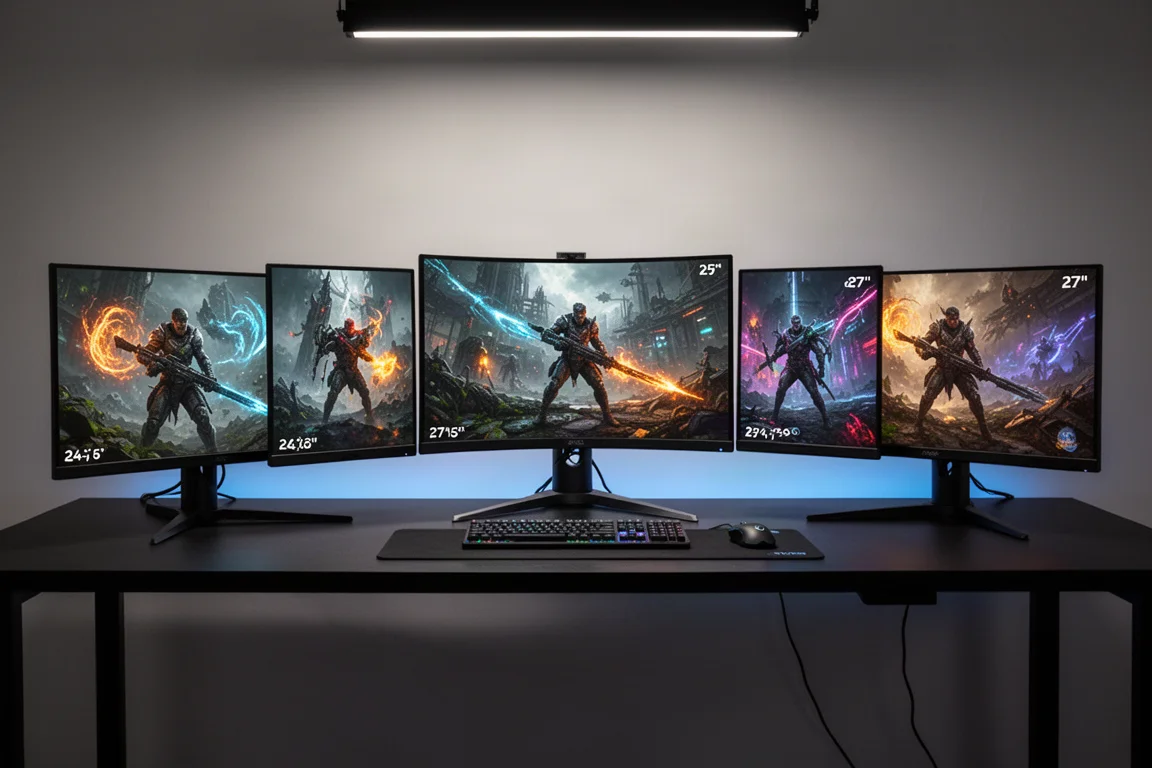
Gaming monitors have been getting more expensive, with many of the latest OLED models landing well above the $1,000 mark. That is not helpful if you are working with a tighter budget or you want to avoid the burn-in concerns that come with OLED panels. This lineup from ASUS covers five different monitors across the $200 to $750 range, using IPS, VA, and OLED panel technology. Each one targets a different type of gamer, from competitive FPS players to those who want a versatile all-rounder.
All of the XG series monitors in this lineup share a few common traits. The stand design is more understated than the aggressive gamer styling found on the more expensive PG series. There is no lighting built into the stand, but it does include a slot for your phone and a threaded mount on top for cameras or lighting accessories. The stands are fully articulated and support full vertical rotation, except for the curved model which allows just enough pivot to level the panel. This design takes up less desk space, but the stand is only 15.5 inches tall, which is 1.5 inches shorter than the PG series. Taller users without a desk shelf may want to consider a monitor arm.
All of these monitors except the OLED model include USB-C with 15W power delivery that supports DisplayPort alt mode for laptops and handheld devices. They all have headphone out, and they all include ASUS AI Game Plus features like the Crosshair that automatically switches color for high contrast on different backgrounds, plus Dynamic Shadow Boost. You can control settings through the traditional joystick and menu system, or through the Display Widget Center app on your desktop, which lets you set up custom profiles for different games and applications. All cables and power adapters come in a separate zippered pouch, which is a nice touch for keeping things organized.
One of the most surprising things about this lineup is that all of these monitors have strong factory calibration. They all have deep menus for color adjustments, and they all support ELMB, a strobing technology similar to other backlight strobing implementations that drastically improves motion clarity at the expense of brightness. ASUS is not gatekeeping features for their more expensive models. Whether you are spending $200 or $700, you get the same feature set, limited only by the capabilities of the hardware itself.
All of these monitors also ship in a wide gamut color mode, which offers an increased color range compared to standard sRGB. There is an sRGB mode if you find wide gamut too saturated for certain content, but that is generally not an issue for gaming. They all have a saturation slider if you want to punch up the colors further. Color accuracy is not a huge concern for gaming, and all of these monitors perform fine in that regard until you get to the OLED model.
Motion Clarity and Overdrive Explained
Before diving into each monitor, it helps to understand how motion clarity works on LED monitors. Unlike OLED, LED monitors rely on something called overdrive. The higher the overdrive setting, the faster the gray-to-gray transition times. But push it too far and you run into overshoot, where the monitor overshoots past the expected color value and then has to correct itself back down. Too much overshoot results in inverse ghosting, which appears as a trailing white outline behind the image. It is always a balancing act between speed and clarity.

Testing for the sweet spot involves measuring the monitor moving from one shade of gray to another, averaging the results, and then using a high-speed camera to capture moving test patterns across the screen. The valid photos are compared to the sweep data for every overdrive setting that makes sense. For the two budget monitors, the default level of 10 is fine. For the XG27ACS, level 9 slightly reduces overshoot. For the XG259CS, you can push to 11 or 12, but anything more starts to show obvious inverse ghosting. These tests are done at maximum refresh rate, so if you plan to use variable refresh rate, sticking with the default level of 10 is the safer choice.
The average gray-to-gray response time on the XG259CS is 3 milliseconds with 6.5% overshoot. The XG27ACS comes in at 3 milliseconds with 6.3% overshoot. When you see advertising claims like 1 millisecond gray-to-gray speed, they are maxing out the overdrive and picking a minimum value rather than an average. It is great for marketing, but not realistic for everyday use.
ELMB makes a dramatic difference to motion clarity, but it comes with two costs. The first is some image doubling, which is not a big deal. The bigger hit is to brightness. Standard brightness on the 24.5 inch model is 430 nits, but enabling ELMB knocks it down to 146 nits. The 27 inch model starts at 383 nits and drops to 157 nits. Anything under around 225 nits is where most people start to have issues with the monitor not being bright enough. You need to be in a dim or dark room to run ELMB, but for competitive FPS gaming, the trade-off is worth it. Running ELMB also locks out HDR and variable refresh rate. ELMB works best when you can lock your FPS to a frame rate you know your system can reliably hit. These monitors also have ELMB Sync, which attempts to do the same thing with variable refresh rate, but it introduces strobe crosstalk, a ghost image ahead of and behind the primary image. Some people are sensitive to this, so it is nice to have the option, but it may not be for everyone.
HDR on budget LED monitors is generally a throwaway feature, and that is the case here. Peak brightness is around 410 nits, while real HDR targets 1,000 nits. The entire point of HDR is to have a wide scale of dark to light values, and most LED backlit desktop monitors do not execute that well. ASUS clearly spent time dialing in the performance, but it is a limitation of the hardware. The subjective experience of playing in HDR is just okay. The image looks flat and lacks depth, and small light sources do not convincingly punch through the darkness. If you have never seen proper high-end HDR, this might look fine, but monitors at this price point generally look better in SDR.
ASUS XG259CS: The Budget Competitive Pick
The XG259CS is a 24.5 inch 1080p 180Hz fast IPS monitor priced at $200. It has one DisplayPort 1.4 and one HDMI 2.0, which is fine for 1080p and 1440p on consoles. HDMI 2.0 still supports high refresh rate, variable refresh rate, and HDR simultaneously. The factory calibration is decent, just a touch cool in color with a white point of nearly 6900 versus a target of 6500. Gamma comes in at 2.16 where the target is 2.2.
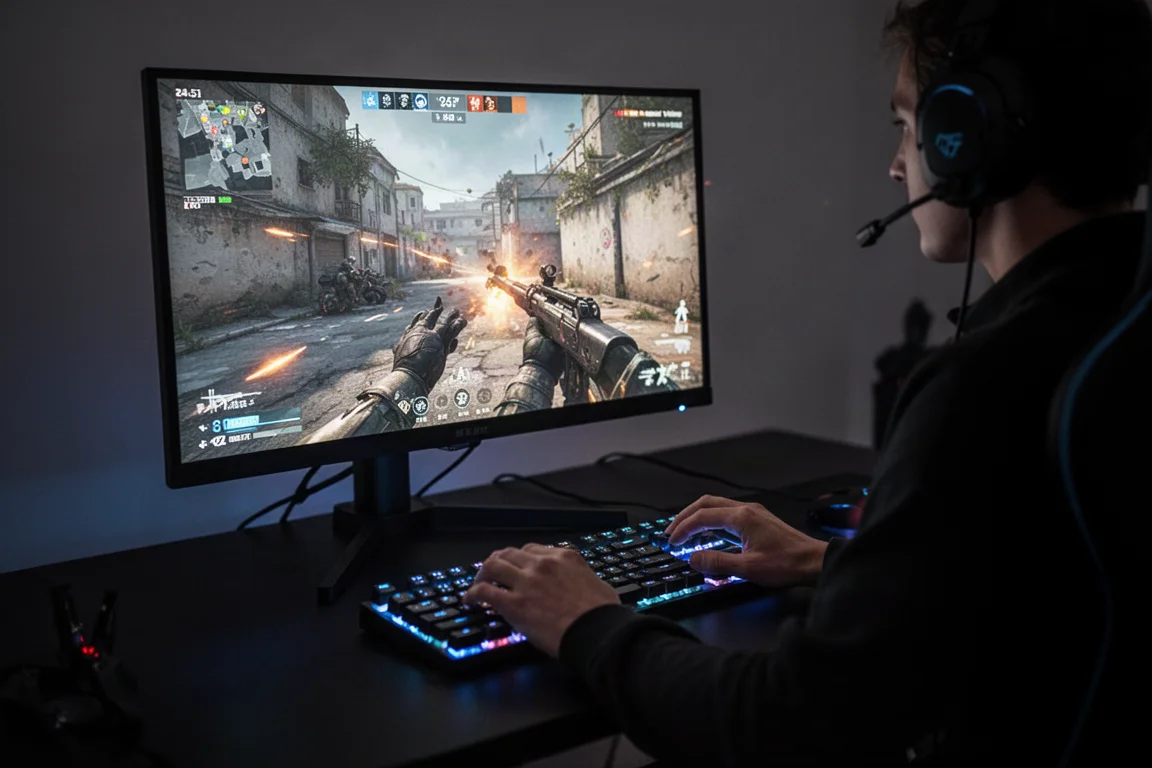
This is a really solid option if you or someone you are buying for is getting started in competitive FPS gaming. A lot of competitive players like the 24.5 inch format because 1080p is easier on your computer, so you get higher frame rates. The performance of 180Hz with ELMB is excellent at this price point.
ASUS XG27ACS: The 1440p All-Rounder
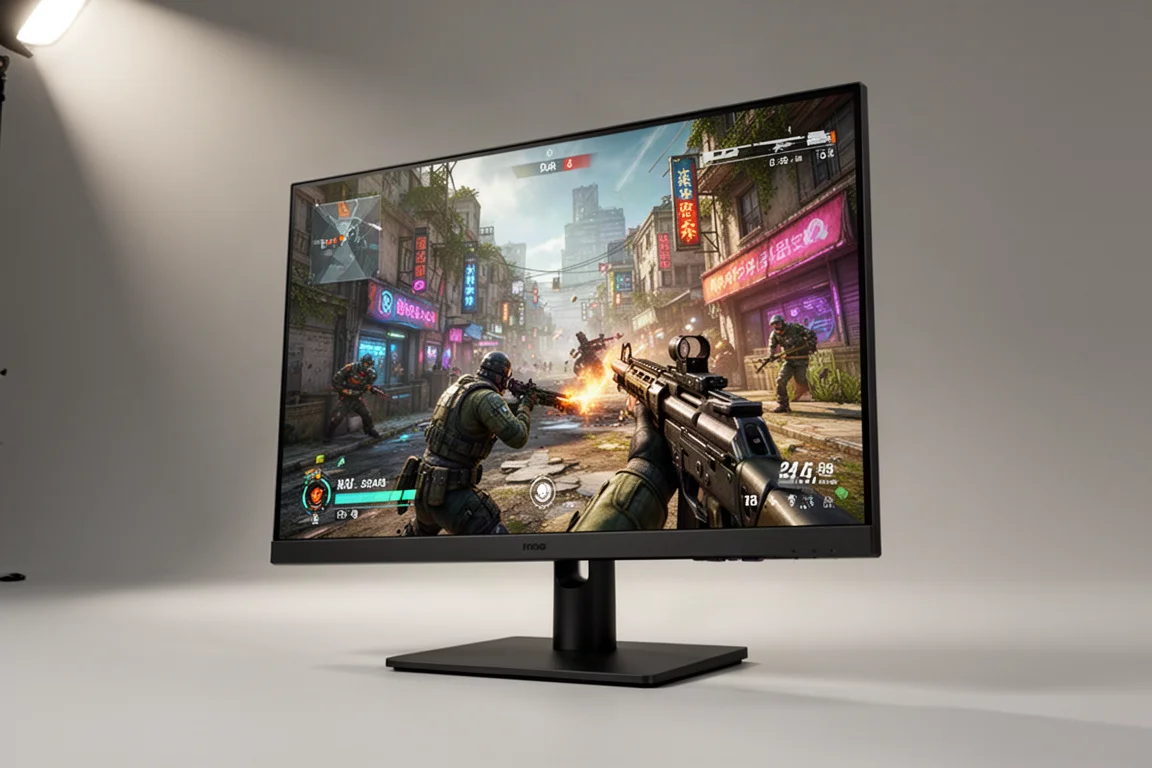
The XG27ACS is the same 180Hz IPS panel but in a 27 inch 1440p format, priced at $300. The factory calibration on this one is positively nailed, which is impressive at this price. It offers the same connectivity as the XG259CS, with one DisplayPort 1.4 and one HDMI 2.0.
For most gamers, the 27 inch 1440p format is still the sweet spot. It offers a bigger size, better resolution, and better color performance than the 1080p model. The detail that 1440p offers over 1080p is greatly preferable, and realistically, 27 inch 1440p is the sweet spot for most gaming unless you have a monster rig that can handle 4K at higher frame rates. If you can stretch the extra $100, this is the better all-rounder for sure.
ASUS XG27V: The Curved VA Option
Moving up to the $400 mark, the XG27V is a 27 inch 1440p monitor with a maximum refresh rate of 280Hz. The curve here is only 1500R, so it is not extreme. This is less about immersion and more about assisting with viewing angles, as this is a VA panel instead of IPS. VA panels result in deeper blacks and better contrast, where IPS blacks look gray most of the time. That comes with one major trade-off in motion blur.
This monitor operates at 240Hz standard, and you can overclock the panel to hit either 260 or 280Hz. It warns that there may be some flashing at the higher rates, so you may have to back it off. The calibration is solid, with a contrast ratio of 5500:1, which is over five times better than the IPS options. That is what gives the deep blacks and adds depth to the presentation. Image-wise, this is as close to an OLED as you can get in an LED monitor.
The big sacrifice with VA is in motion blur, which shows up as a trailing black smear behind the image. This is standard ghosting, and raising the refresh rate to 280Hz does not really help. The overdrive sweet spot at 280Hz is 15, which offers a 2.1 millisecond gray-to-gray response time with minimal overshoot at 3.5%. Even ELMB on this monitor provides good clarity of the main image, but there is still crosstalk doubling and ghosting present. It affects brightness the same way as the other monitors, and it does not really offer any clear benefit.
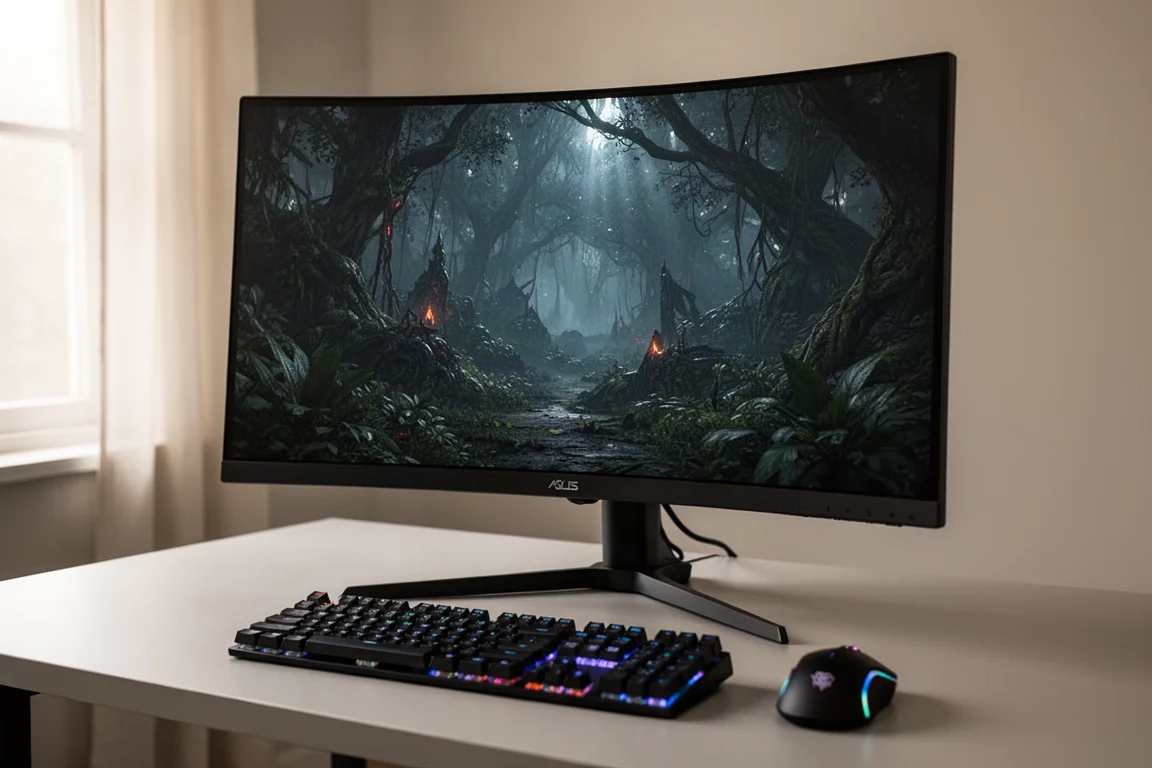
In actual gameplay, how good or bad this motion blur looks is very game dependent. In fast-paced shooters, it is hardly noticeable when the system is hitting near the maximum frame rate. But in slower, more detailed games with dense foliage and dark scenes, the smearing becomes very distracting. The darker and more complex the image, the worse it gets. Foliage turns to mush with even slow, subtle movements, then snaps back into focus when you stop moving.
The backlight bleed on this particular unit was also noticeable. This is a known issue with VA panels, and the black smearing is a legitimate concern. If it were a choice between this and a flat IPS option, the flat IPS monitor would be the better buy for most people, unless you specifically want the deeper contrast that VA offers and you mostly play games where the motion blur is not noticeable.
ASUS XG2760: The Dual Mode All-Rounder
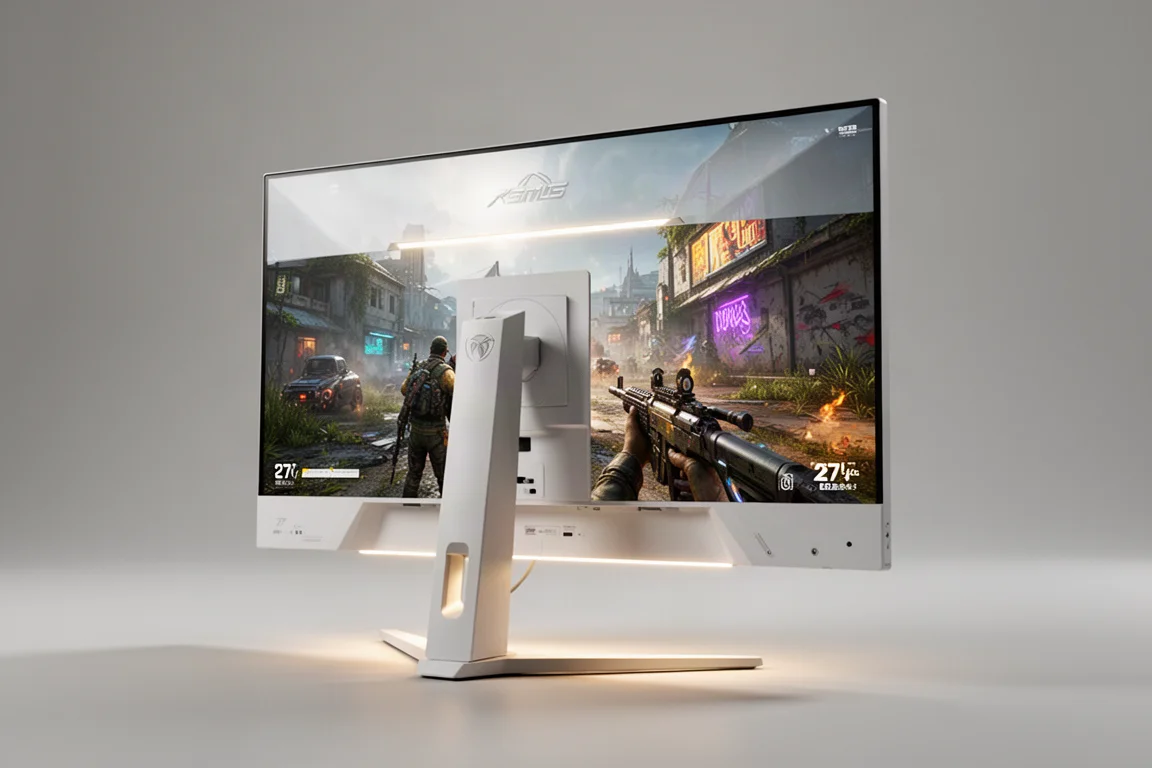
Right at the $500 mark, the XG2760 is a dual mode monitor that can run 4K at 160Hz or 1080p at 320Hz. If you play a lot of single-player games, consume a lot of content, and also play competitive FPS or rhythm games, this is potentially the one monitor to rule them all. 4K at 27 inches is great because the pixel density is excellent, and the 1080p 320Hz mode looks and feels really good for gaming, even at 27 inches. It has HDMI 2.1, which makes it a great pick if you also have a console in addition to your PC. This monitor is available in black, but it also comes in white, and it is the first monitor in this lineup with lighting on the rear of the body.
The 1080p mode is interesting if you play a lot of competitive FPS but you are not married to a 24.5 inch display. The default for switching into this mode is a fullscreen display. 1080p goes into 4K a clean four times, but it looks like ASUS opted not to use integer scaling, so there is some unusual scaling going on. That said, using the 1080p mode at 27 inches is totally acceptable specifically for fast-paced FPS games or rhythm games. For literally anything else, just use the 4K mode. The 1080p 27 inch experience is much better than 1080p at 32 inches, which looks soft and blurry when stretched. There is an option to run a 24.5 inch aspect mode, but it limits the refresh to 160Hz instead of 320Hz, so it is best to skip that feature.
One thing to note about this monitor is the way the firmware works. Essentially, there are two completely different monitor experiences here for two completely different use cases, but they share the same settings. If you have your favorite picture mode, color, contrast, and HDR settings dialed in for your detailed 4K single-player mode, you need to save that as the first settings profile. Then you do the same thing with your lower detail fast FPS setup and save that to the second slot. When you load these profiles back and forth, it puts you in the correct mode with all your saved settings ready to go. If you skip this and just use the button on the monitor to switch between 4K and 1080p, you will have to redo all your settings every time you switch. There is new firmware on the way that should make this a lot easier.
This is important because you will want different overdrive settings for each mode. At 4K 160Hz, the default setting of 10 is fine. At 1080p 320Hz, you really want the overdrive set higher, around 15. Anything lower and the refresh is not fast enough to serve the speed of 320Hz. It is worth noting that going into 1080p mode does not add any input latency. Because of the higher refresh rate, it actually lowers the input latency.
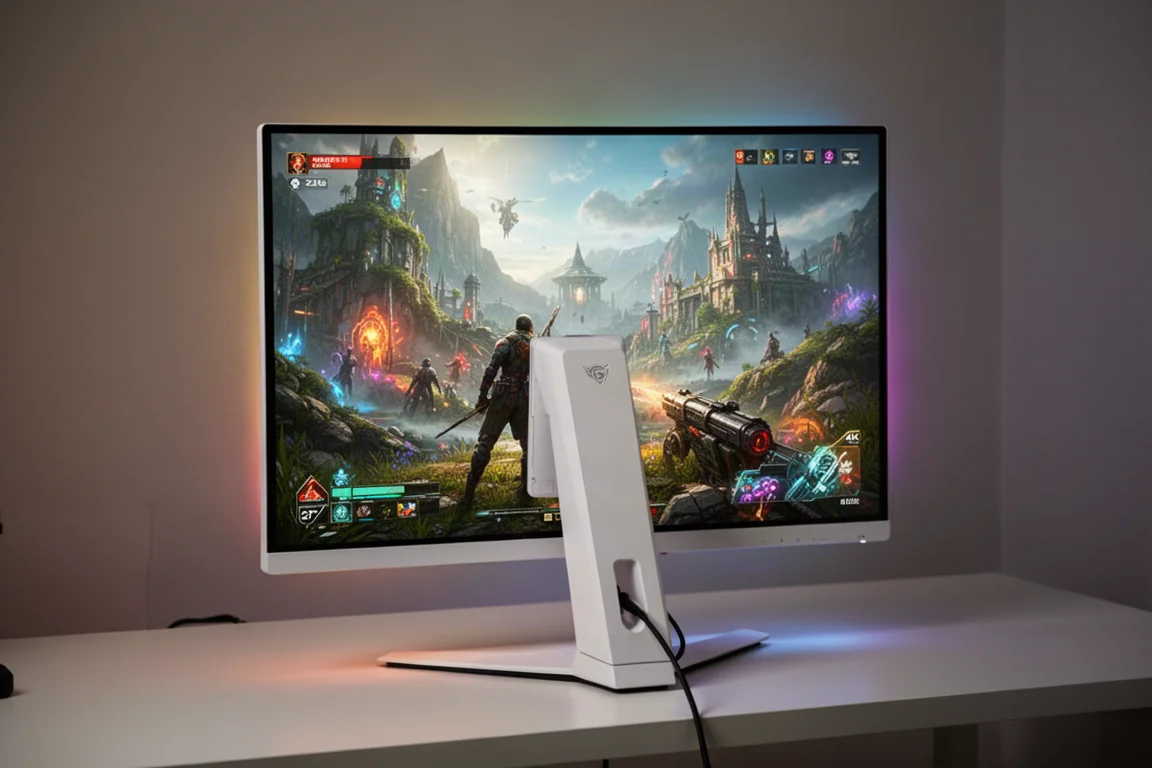
HDR is better on this monitor, and in the right circumstances you would actually want to use it. That mainly comes down to the increased brightness of the panel. The added detail of 4K is certainly helping the overall experience. Both modes are very good for their intended purpose. If you are a versatile player, this is a top pick for a gaming monitor if you do not want to or do not have the budget to go OLED.
ASUS XG27AQDMG: The Affordable OLED Entry
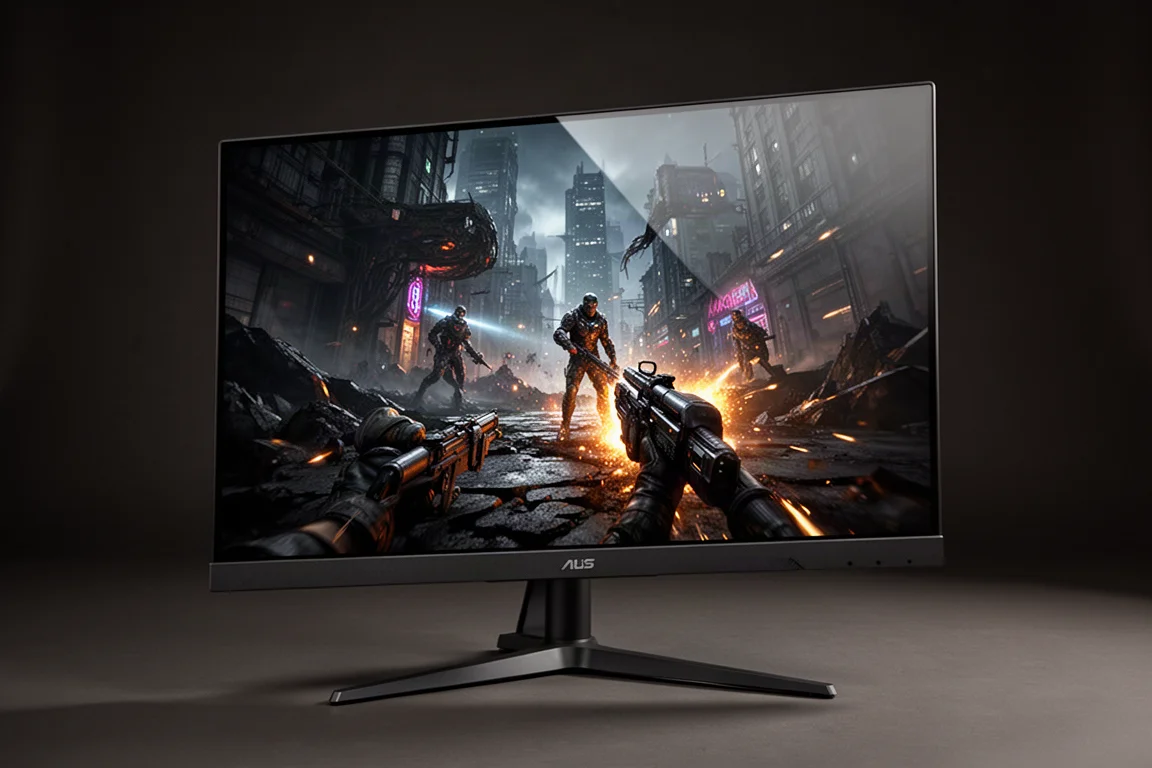
At $750, the XG27AQDMG is one of the more affordable ways to get into OLED. It is a 27 inch 240Hz monitor and one of the only monitors on the market that uses a WOLED panel with a glossy coating. OLED has some distinct advantages and a couple of drawbacks. Firstly, there are no overdrive settings to juggle. These monitors all do sub-0.1 millisecond gray-to-gray response with very low overshoot numbers. That means the motion clarity is roughly 1.5 times the performance of LED monitors. The other big advantage is color accuracy and gamut coverage, which stacks up impressively against everything else in this lineup.
The major thing with OLED is that there is no backlight. Each pixel lights up or turns off as needed, so OLED monitors usually offer a much better HDR experience because you can have bright white pixels right next to completely black pixels with no glow or haloing. Because these pixels turn all the way off when they are not being used, there is an infinite contrast ratio versus the 1000:1 standard on IPS. All this adds up to a picture that is stunning. It looks almost 3D at times, and the clarity feels like you are looking at a slideshow of high-resolution images.
This monitor having a glossy coating in conjunction with the WOLED panel means you are getting one of the best OLED experiences available. It is better than QD-OLED in some respects, but it also means having mirror-like reflections. This is not for bright rooms, and it is definitely not for any rooms where you have a light source like a window shining directly on it.
The first downside to OLED is overall brightness, but this panel comes in at 261 nits, which is plenty bright. The other issue is text clarity. Even though this is using the newest MLA+ panel from LG, it is not using their newest subpixel layout, so if you are sensitive to text clarity, that can be an issue. 27 inch 1440p is a lot less forgiving than 32 inch 4K in this regard. Variable refresh rate flicker can also be a concern on OLED, where the monitor’s gray-to-gray refresh happens too fast and captures the luminance value change caused by the variable refresh rate. It is not present on this particular unit, but it is on other OLEDs. ASUS has developed a way to help mitigate this by restricting the range where VRR is active. This is limited purely to VRR, so if you are running games where you do not need it, just cap your GPU and turn VRR off.
The major thing outside of cost that gives people pause about OLED is the conversation around burn-in or image retention. There is now a lot of protection built in to prevent it, and there are three-year warranties with specific coverage for burn-in. Especially if your primary use for your monitor is watching movies or gaming, there is not a lot to be concerned about. The HDR experience here is great, the image quality is top tier, and the frame rates are impressive. If you are curious about OLED, this monitor is a great place to start.
Buying Advice
When choosing between these five monitors, it comes down to what you play and what you are willing to spend. At $200, the XG259CS is a solid entry point for competitive FPS gaming with its 24.5 inch 1080p format and 180Hz refresh rate. The $300 XG27ACS is the better all-rounder if you can stretch the budget, offering 1440p resolution at 27 inches with excellent factory calibration.
The $400 XG27V offers deeper contrast with its VA panel, but the motion blur can be a deal breaker depending on what you play. If you mostly play fast-paced shooters where the frame rate stays high, it is less noticeable. If you play slower, more detailed games, the smearing will be distracting.
The $500 XG2760 is the most versatile option, with its dual mode 4K 160Hz and 1080p 320Hz capabilities. It handles both single-player and competitive gaming well, and the HDMI 2.1 port makes it a great choice for console players. This is the top pick for a gaming monitor if you do not want to go OLED.
The $750 XG27AQDMG is the most expensive option here, but it is one of the more affordable ways to get into OLED. The motion clarity, color accuracy, and HDR experience are in a different league from the LED monitors. The glossy coating delivers one of the best OLED experiences available, but it is not for bright rooms. If you are curious about OLED and want to start with a more accessible price point, this is a great place to begin.
Conclusion
This lineup from ASUS shows that you do not need to spend over $1,000 to get a great gaming monitor. Each of these five options has a clear purpose, from the budget competitive pick to the versatile dual mode all-rounder to the affordable OLED entry. The shared feature set across the lineup, including strong factory calibration, ELMB, and the Display Widget Center app, means you are not missing out on features by choosing a lower-priced model. The right choice depends on your gaming habits, your budget, and whether you are willing to deal with the trade-offs that come with each panel technology.
Further reading
Related Reviews
Gaming Monitors
AOC Q27G41ZDF vs Asus ROG Swift OLED PG27AQDP: Budget vs Premium OLED Gaming
Two 27-inch 1440p OLED gaming monitors at vastly different price points. We compare brightness, color accuracy, text sharpness, refresh rates, and real-world performance to see what justifies the premium.
Gaming Monitors
ASUS ROG OLED Gaming Monitors 2026: New Panels, Sizes, and Brightness
ASUS announced several new ROG OLED gaming monitors at Computex 2026, including a 24.5-inch esports panel and a 32-inch 4K RGB stripe model.
Gaming Monitors
ASUS ROG Swift PG32UCWM Review: A New Direction for W OLED
The first 32-inch 4K OLED gaming monitor with an RGB stripe subpixel layout brings sharper text and better color brightness, but brightness regressions and a high price hold it back.