Productivity Software
15 Microsoft Copilot Tips and Tricks to Boost Your Productivity
Master Microsoft Copilot across M365, Outlook, Word, Excel, PowerPoint, and Teams with these practical tips for faster work and smarter automation.
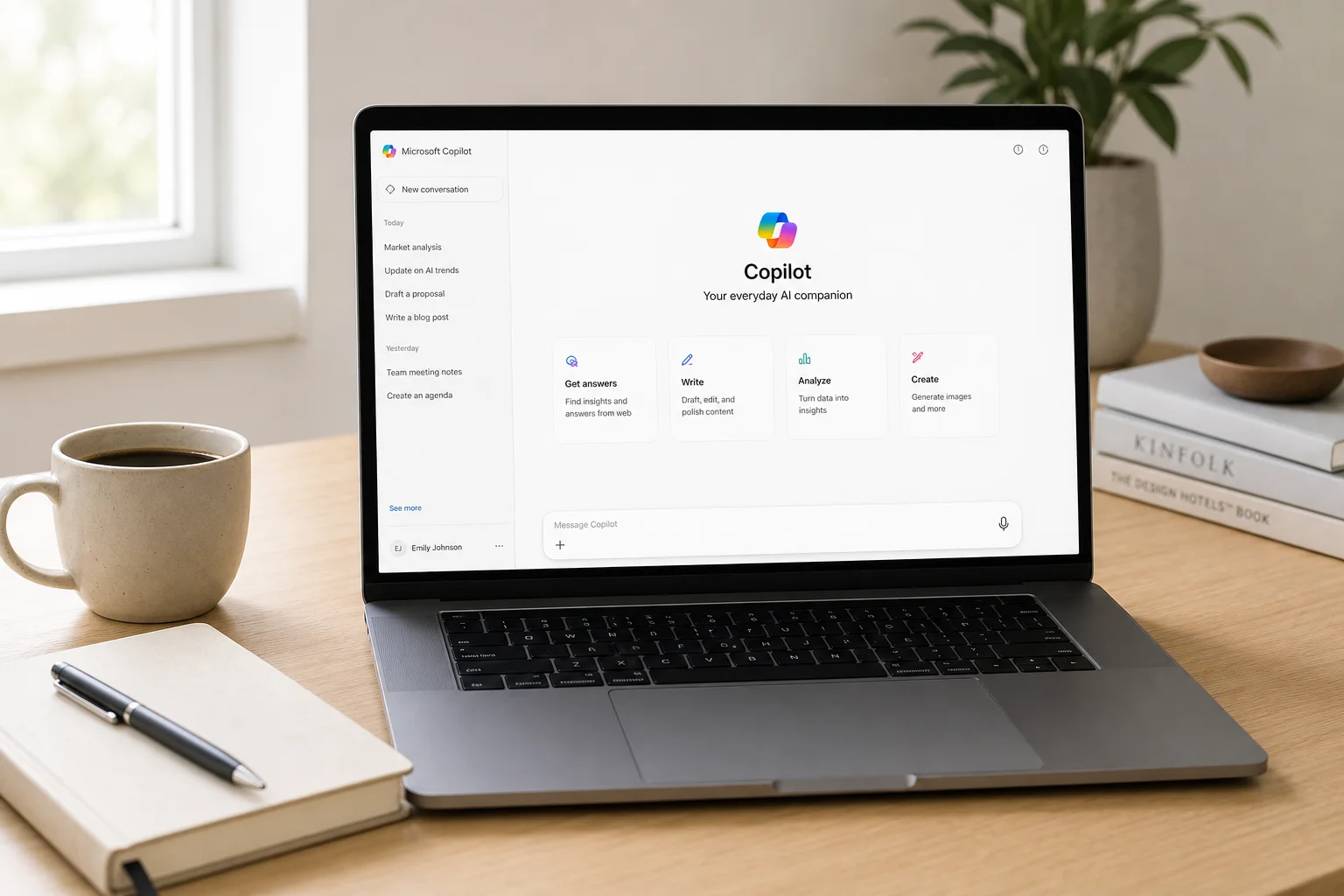
Getting Started with Copilot Chat
Microsoft Copilot has received significant updates that expand its capabilities across the entire Microsoft 365 suite. To access the core Copilot Chat experience, sign into Microsoft 365.com (the former office.com) to land directly in the M365 Copilot app. Some features work for all Microsoft 365 customers, while others require a Copilot premium license.
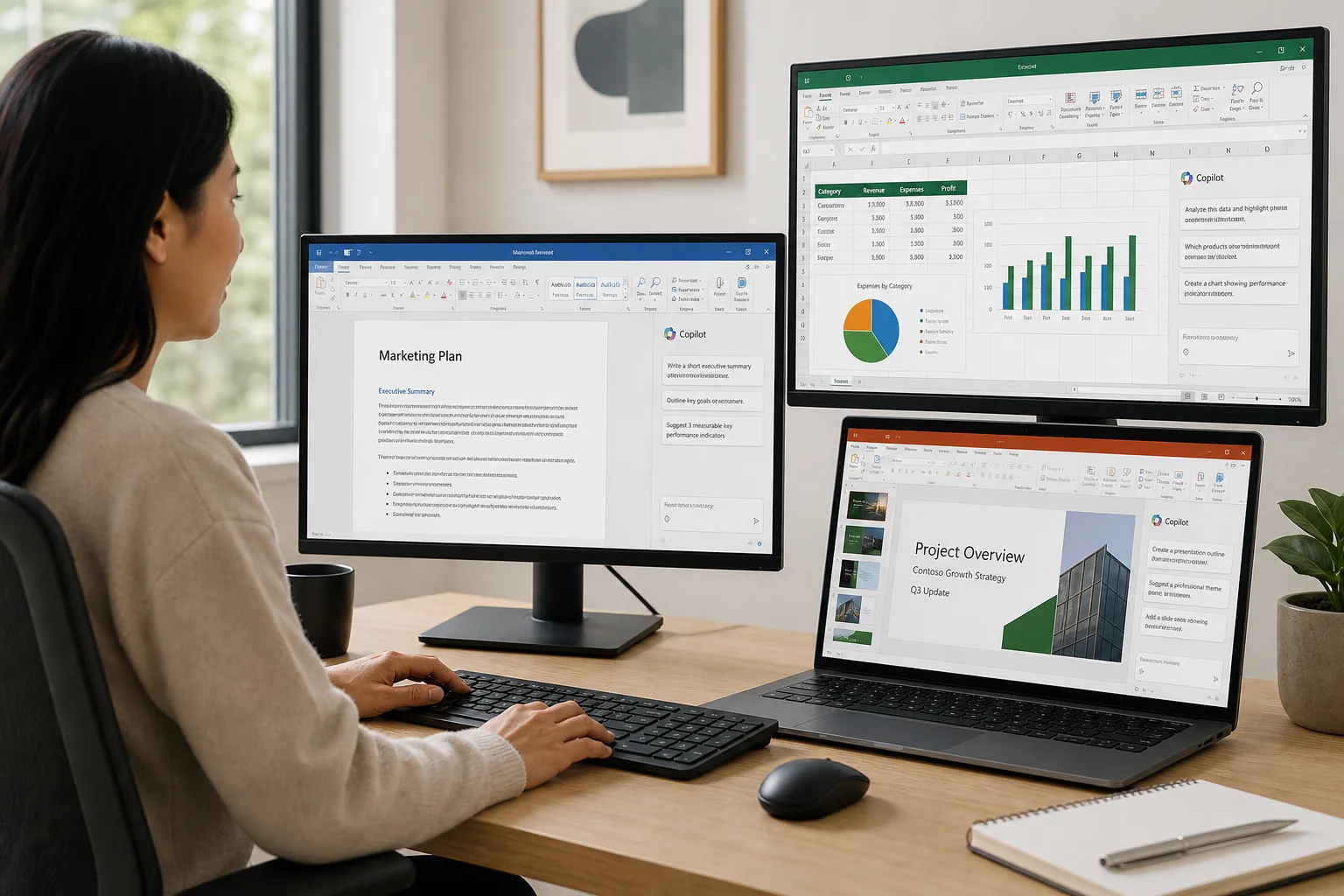
The foundation of productive Copilot use starts with understanding how to customize its behavior to match your working style and needs.
Tip 1: Mode Selector for Response Speed
The mode selector in the upper right corner of Copilot Chat lets you control how Copilot responds to your prompts. You can choose from three options:
- Auto mode: Copilot decides how long to think about your request
- Quick response: Immediate answers without deep reasoning
- Think deeper: Extended reasoning for complex tasks that require planning and analysis
You can also select the latest OpenAI models (such as GPT 5.2) in either quick response or think deeper mode. For example, a simple prompt about latest Copilot features returns a quick response with citations and sources. A more complex request like plotting a detailed marketing strategy triggers deeper reasoning, showing you exactly what Copilot is considering as it works through the problem.
Tip 2: Custom Instructions for Personalized Responses
Custom instructions let you tell Copilot how to respond to you consistently. Access this through the three-dot menu in the upper right, then select Settings and Personalization. You can specify formatting preferences (such as bullet points or clear language) and add personal context that shapes how Copilot addresses you.
For example, you might add instructions like “I’m interested in specific topics” or “Please respond in a particular style.” Copilot will then apply these instructions to all your prompts, making responses feel more tailored to your needs.
Tip 3: Scheduling Prompts for Recurring Tasks
Scheduled prompts automate routine requests. You can create a prompt like “Act as my chief of staff, review my inbox for top priorities this week, check my calendar, and give me a synopsis of what’s coming up.” After running the prompt, click the three-dot menu and select Schedule This Prompt.
Set the frequency (for example, every Monday at 8 a.m.), choose how many times it should run, and optionally have Copilot send you an email when the response is ready. This is particularly useful for weekly catch-ups or recurring status checks.
Tip 4: File Grounding with Copilot Chat
You can attach files directly to Copilot prompts for analysis. Click the attachment button and search for files, people, meetings, or emails from your OneDrive or other cloud storage. You can also upload files or images directly, or use the forward-slash shortcut to search by typing (for example, typing “/GPU” to find a GPU forecast spreadsheet).
Once attached, Copilot analyzes the file and provides insights. You can also explore the View Prompts gallery, which contains pre-built prompts organized by task, job type, or agent, giving you starting points for common analysis scenarios.
Tip 5: Creating Video with AI
AI video creation is now available in Copilot. Select Create on the left sidebar and describe what you want to generate. You can create videos from scratch, use templates, or animate and narrate existing PowerPoint presentations.
Specify the tone and style you want (for example, “professional and welcoming” or “sarcastic and pessimistic”). Copilot generates a video with transcript, voice, and music. You can edit the transcript, change the voice, adjust the music tone, and regenerate as needed. For more detailed editing, you can open the video in ClipChamp, which is built into M365, or export as MP4 to share.
Outlook Productivity with Copilot
Outlook integration brings Copilot to your email workflow, available in the new Outlook, classic Outlook, and Outlook for the web.
Tip 6: Summarizing Your Inbox and Calendar
Click the Copilot button in the upper right of Outlook and ask for a quick summary. For example: “I’ve been out for a few days. Can you summarize key points for my inbox and calendar and let me know anything I need to quickly follow up on?”
Copilot reviews your emails and calendar, highlighting action items, key messages, and upcoming events. You can also select individual emails and click Summarize to get a condensed version of long messages, extracting key points and status updates.
Tip 7: Draft Instructions for Email Replies
Set default instructions for how Copilot should draft your email replies. Click the Copilot button dropdown and select Settings, then Draft Instructions. Add preferences like “very sarcastic and inviting, use many emojis, keep responses short and bulleted.”
When you reply to an email, select Draft with Copilot and choose from suggested response types (such as “thanks for the update,” “clarify next steps,” or “address concerns”). Copilot will draft a reply following your custom instructions, which you can then edit or send.
Excel Agent Mode for Data Analysis
Excel’s agent mode lets you use natural language to build dashboards, update data, and perform analysis without writing formulas.
Tip 8: Building Dashboards and Forecasts with Agent Mode
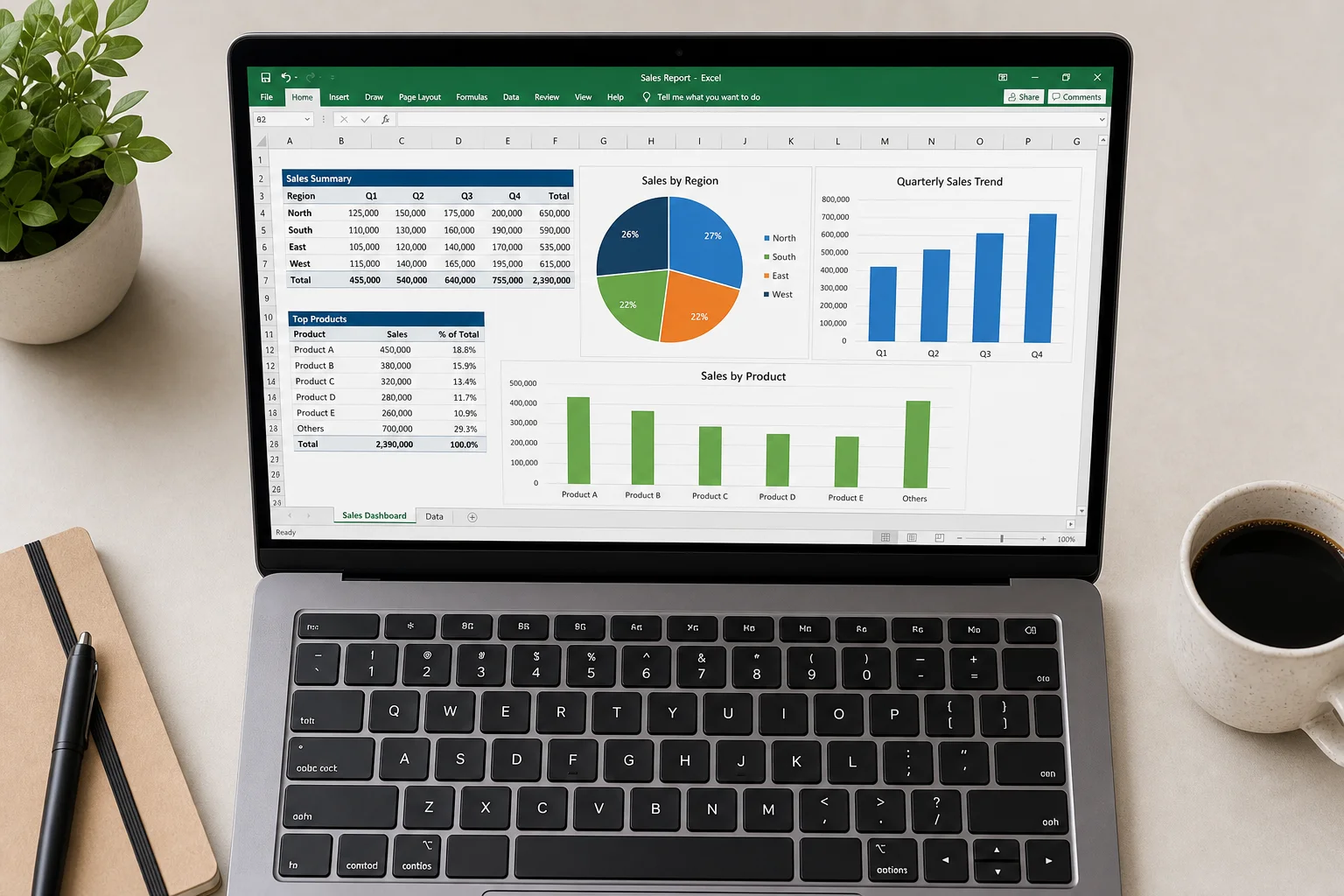
Open the Copilot pane in Excel (Home tab, upper right), drop down Tools, and select Agent Mode. Describe what you want to create: for example, “Research the latest data on GPU trends and build a forecast of the top GPU makers. Add charts, a pie chart, research notes, and structure my sheets.”
Agent mode will research, organize data across multiple sheets, add charts and analysis, and include citations and sources. You can also use agent mode on existing data to perform quick operations like fixing capitalization, creating new calculated columns, or combining data fields.
Tip 9: The Copilot Function for Text Analysis
The Copilot function in Excel formulas lets you analyze text data directly in cells. Type =COPILOT("your prompt", cell_reference) to analyze the content of a cell.
For example, use it for sentiment analysis on employee survey feedback: =COPILOT("categorize as positive, neutral, or negative and add an emoji", D2). You can also pull data from the web: =COPILOT("list the 32 NFL teams in alphabetical order, format as city, team name") returns all teams instantly.
Creating Presentations with Copilot
PowerPoint integration enables you to generate entire presentations or enhance existing slides with AI.
Tip 10: Creating a Presentation from Scratch
Go to File and select Create with Copilot. Describe your presentation topic and desired length (short, medium, or long). Copilot builds a complete outline that you can edit, add to, or delete from.
Choose a design style from the available options, then preview the slides. Copilot generates a full deck with narrative, images, and layout. You can make changes before finalizing, then add it to your presentation. The result is a polished, ready-to-edit deck in minutes.
Tip 11: AI Image Editing in PowerPoint
Select an image in PowerPoint, go to Picture Format, and click Edit Picture. This opens AI image editing tools (the same technology as Microsoft Designer) directly in PowerPoint.
Options include removing the background with a single click, auto-enhancing image quality, adding text overlays, and applying effects like glass or other visual filters. Preview before and after, then update the image.

Word Document Creation and Editing
Word’s agent mode and Copilot drafting features help you create and refine documents quickly.
Tip 12: Agent Mode for Document Structure
Open Copilot Chat in Word (Home tab), drop down Tools, and select Agent Mode. You can create a status report from an existing file by typing a prompt and attaching a file using the forward-slash shortcut.
Specify how you want the document structured: “Start with a clear title and cover sheet, add an executive summary, organize content, keep paragraphs short and focused.” Agent mode will build a complete document following your instructions, including tables, sections, and formatting. You can then ask agent mode to make updates, such as converting text into tables or changing fonts and sizes.
Tip 13: Drafting and Refining with Copilot
Use Copilot to draft content from scratch. For example, ask it to “draft a cover letter to apply for a specific job.” Copilot creates a starting point that you can then refine.
After drafting, select any paragraph and click the Copilot button to access options like auto-rewrite, structure and refine, make it shorter, or get writing suggestions. You can apply suggestions individually or review them before accepting changes.
Teams Integration and Group Collaboration
Copilot in Teams helps you stay caught up on meetings and collaborate with colleagues in real time.
Tip 14: Catching Up on Meetings with Copilot
Join a Teams meeting late or after it has ended, and open Copilot (visible only to you). Ask Copilot to catch you up: “Can you catch me up on what’s happened and any tasks assigned to me?”
Copilot generates a meeting summary, lists tasks and follow-up items, and answers specific questions about what was discussed. You can ask for a full recap, main ideas, or meeting notes without interrupting the live meeting.

Tip 15: Copilot-Powered Group Chats in Teams
Start a Copilot conversation in Copilot Chat, then click the upper right dropdown and select Start a Group Chat in Teams. Choose which colleagues to add, and Copilot will create a Teams group chat that includes your entire conversation history and prompts.
In the group chat, anyone can mention Copilot and ask it to update agendas, refine plans, or answer questions. For example, “@Copilot, add Bill Lumbberg as the keynote speaker to the agenda.” Copilot updates the agenda in real time, and everyone in the chat can see the changes and reference the sources.
Conclusion
Microsoft Copilot’s integration across Microsoft 365 offers practical ways to automate routine tasks, analyze data, create content, and collaborate more effectively. Whether you’re summarizing emails, building Excel dashboards, drafting presentations, or coordinating with teams, these 15 tips provide a foundation for faster, smarter work. Start with the features most relevant to your daily workflow, and explore the others as you become more comfortable with Copilot’s capabilities.
Product link
View more details for Microsoft Copilot
This product is mentioned in the review. Check the specifications, options, and compatibility before buying.
View more details for Microsoft CopilotFurther reading
Related Reviews

Workspace Setup
Best Desk Setup Upgrades: A Practical Guide to Ergonomic Workspace Design
Essential desk upgrades for comfort and productivity, from standing desks and ergonomic chairs to monitors, lighting, and accessories that make long work sessions sustainable.

Mac Accessories
Best Mice for Mac Users: Five Practical Alternatives to the Magic Mouse
The Magic Mouse remains divisive. Here are five alternatives, from budget gaming mice to premium productivity options, each with clear strengths and trade-offs.

Workspace Setup
Desk Setup Upgrades: A Practical Guide to Creating a Comfortable Workspace
Essential desk setup improvements for long working hours, from ergonomic chairs and monitor positioning to speakers and webcams that make a real difference.